Overview of SecretFolder's Key Features
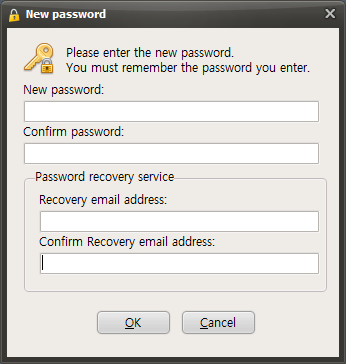
When you launch SecretFolder for the first time, a password setup window like the one below will appear, and you must enter a password before you can use the program.
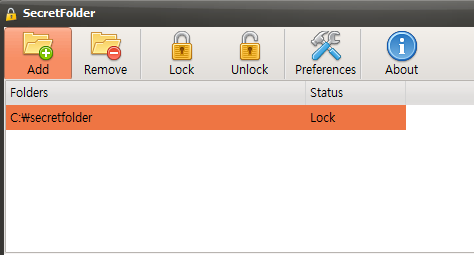
After setting a password and launching SecretFolder, you will see buttons like the ones below.

Add - Adds the folder you want to hide.
Remove - Removes a previously added folder. ( The folder itself is not deleted; it is only removed from the list. )
Lock - Hides the folder added through the Add button.
Unlock - Makes a folder hidden through the Add or Lock button visible again.
Preferences - Opens the window where you can configure the main settings.
About - Opens the program information window.
Now let's look at how to hide a folder and restore it again.
First, to hide a folder, click the "Add" button.
When the Browse for Folder window appears, "select the folder you want to hide" and click the "OK" button.
You will then see that it has been added to the list as shown below, and the folder will be changed to a hidden state.
To remove a folder from the list, click the "Remove" button.
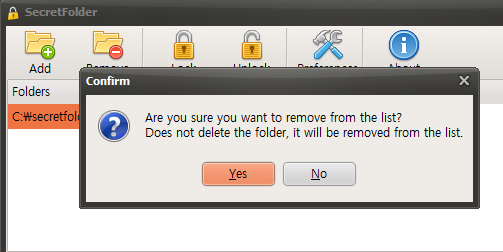
Clicking the "Yes" button will remove it from the list, but the actual folder will not be deleted.
Today's News/Tips
oCam Advanced Settings - Sound
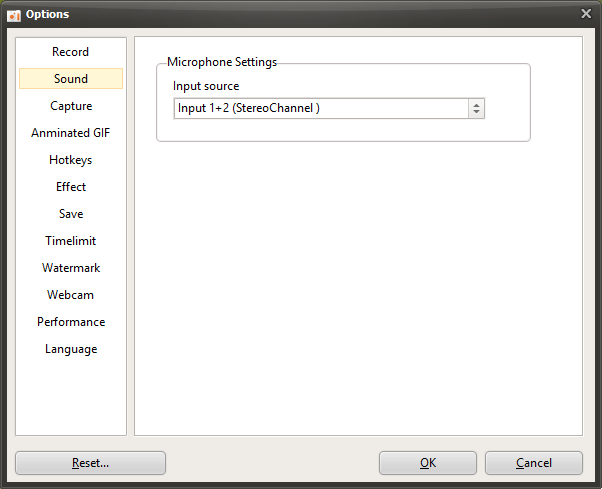
oCam is user-friendly software that not only supports screen recording but also allows you to fine-tune sound recording settings, helping you achieve optimized recording for a wide range of audio input environments. In the settings window that appears when you click the "Tools - Options" menu, selecting the "Sound" category on the left lets you check and adjust microphone-related settings. This tab is especially useful for users who need to solve microphone input issues or apply specific audio settings. Below is a detailed explanation of the settings available under the "Sound" category.
Current Microphone Settings
The "Sound" category provides options related to the current microphone settings, and by default, these settings are configured appropriately for most users, so they can usually be used reliably without any changes. In a typical recording environment, both system sound and microphone audio are recorded properly, and the default settings are generally enough to capture high-quality audio. For example, when using microphone input for lecture videos or game streaming, the default settings are sufficient for most needs.
Resolving Microphone Audio Issues
However, in certain situations, especially when using a USB audio interface or advanced audio equipment, you may encounter an issue where microphone sound is played through only one speaker, either the left or the right. This usually happens when the audio input channel settings are not configured correctly. In the "Sound" category of oCam, simple setting adjustments are provided to resolve this issue.
If sound is coming from the left speaker only: Change the microphone input source to "Input 1 (Left Channel)" to fix the problem. This setting correctly adjusts the microphone audio signal when it is focused only on the left channel, allowing balanced output through both speakers.
If sound is coming from the right speaker only: Change the microphone input source to "Input 2 (Right Channel)." This setting adjusts the audio signal coming into the right channel so that it is evenly distributed through both speakers.
These setting changes are especially useful in environments that use USB audio interfaces or stereo input, and they are an essential feature for users who want to optimize audio quality.
Usage Tips
The settings in the "Sound" category are simple, but they are very effective for resolving issues in certain audio environments. For example, streamers or content creators using a USB microphone or audio interface can quickly fix audio channel issues through these settings. After changing the settings, it is a good idea to run a short test recording to make sure the microphone audio is being recorded evenly on both channels. It is also important to adjust the microphone input level properly so that the sound is not too loud or too quiet.
If you are in a normal environment without a USB audio interface, you can usually get stable recording results just by keeping the default settings. However, if you are using advanced audio equipment, adjusting these settings to balance the audio output can be very helpful in improving the overall quality of the video.