Where Are Recorded Video Files Saved, and How Can I Change the Save Path?
oCam provides features that make it easy to manage recorded video files. Below is a detailed explanation of the related settings and how they work.
Click the 'Open' button on the oCam main screen, and the folder where the recorded video files are saved will automatically open in Windows Explorer. With this feature, you can quickly check your recently recorded files and start browsing them right away.
You can also set the save path for recorded video files as you like. To do this, follow the steps below:
- Click the 'Settings' button on the oCam main screen.
- When the Settings window opens, select the 'Save' tab from the menu on the left.
- In the 'Save' tab, find the 'Save Path' option and change it to the folder path you want, such as C:\Videos or D:\Recordings.
- Click the 'OK' button to save the settings.
Once this is set, recorded video files will be saved to the specified location, and you can easily open and check that location using the 'Open' button. Setting the save path to a frequently used folder, such as the Desktop, can make file management even more convenient.
Today's News/Tips
How do I record in ultra-high quality (lossless)?
Generally, recorded video is usually compressed, which can cause some color loss compared to the original screen.
If you want to record in lossless mode, you can use the Lagarith Lossless Video external codec.
You can download it from the following address.
http://lags.leetcode.net/codec.html
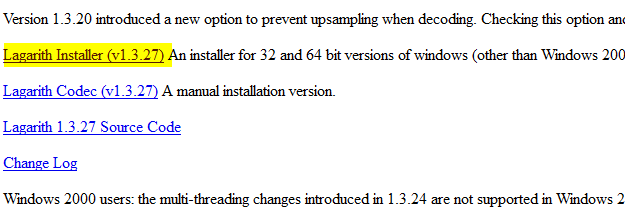
After downloading, install it as shown below.
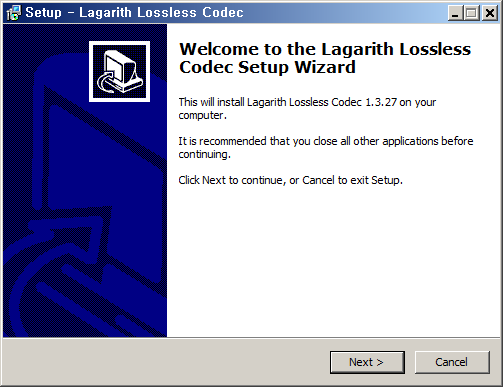
If oCam is already running, restart it. Then in the oCam main window, click Codec - External Codec, check the Use External Codec box,
and select Lagarith Lossless Video from the list.
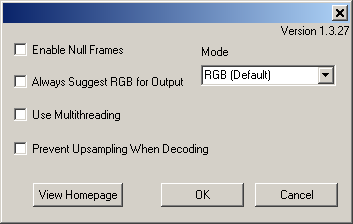
After selecting it, click Settings. The settings window opens as shown below. Usually you can leave it as is, but you can adjust it according to your environment.
Note that this codec produces visually lossless video, but the resulting files are very large and decoding takes a long time, which may cause playback stuttering.
Therefore, this codec is generally better suited for editing purposes.