Differences in the Paid Version of oCam and How to Register the Serial Number
This software is free for non-commercial personal use, so businesses and users using it for commercial purposes must purchase a license.
If you use it in a company, organization, public institution, educational institution, or PC cafe, please purchase a license before use.
There is no difference in functionality between the free and paid versions. All ads shown in the free version are removed in the paid version.
Of course, non-commercial individual users may also purchase it if they want to remove the ads.
After purchase, the serial number will be sent to you by email, and you can use the software after registering it as shown below.
[How to Apply the Serial Number]
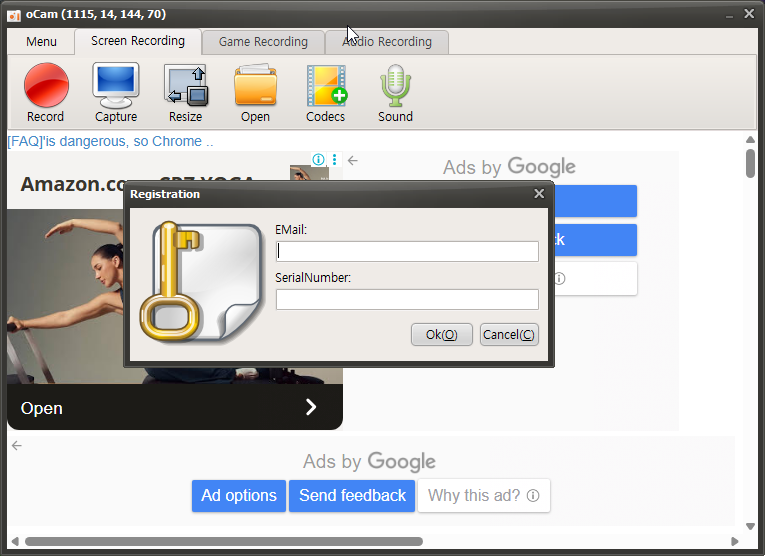
As shown above, click the menu and select Register, then enter your email address and serial number and click OK. Authentication will proceed as shown below.
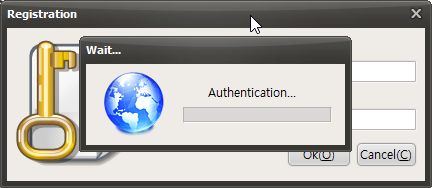
After a short wait, the registration will be completed successfully.
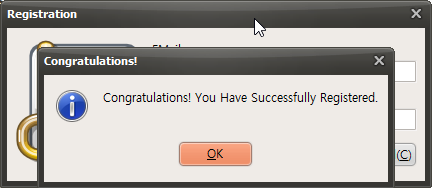
[Registered oCam Licensed Version]
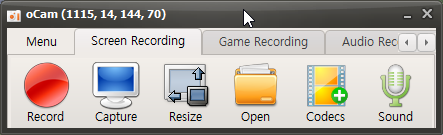
This is the registered screen with the ads removed.
For reference, the ads that opened when exiting the free version are also removed in the paid version.
Today's News/Tips
What to Do If the "WASRecord: pAudioClient->Initialize failed. (hr=0x80070005)" Error Occurs
The "WASRecord: pAudioClient->Initialize failed. (hr=0x80070005)" error can occur when microphone permission has been disabled on Windows 10 or later. This happens because oCam does not have the required permission to access the microphone. Below is a detailed explanation of how to resolve this issue.
For oCam to use the microphone properly, microphone access must be enabled in the Windows Privacy settings. Follow the steps below to check and adjust the setting:
1. Open the Windows Start menu and click 'Settings' (the gear icon).
2. In the Settings window, select 'Privacy'.
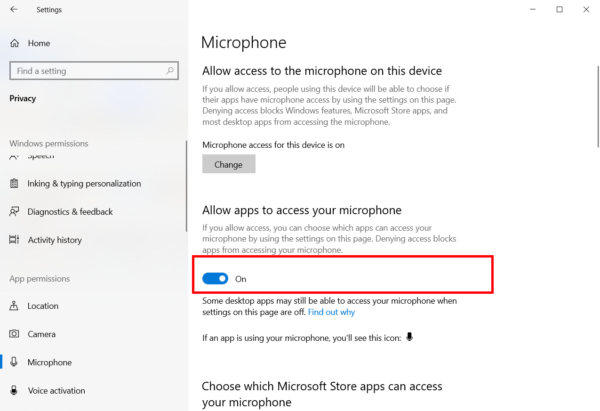
3. Click 'Microphone' in the left menu.
4. Check whether the 'Microphone access for this device' option is turned on. If it is turned off, click the switch to turn it on.
5. Check whether 'Allow apps to access your microphone' is turned on. If this setting is disabled, apps such as oCam cannot use the microphone. Make sure it is turned on, then save the setting.
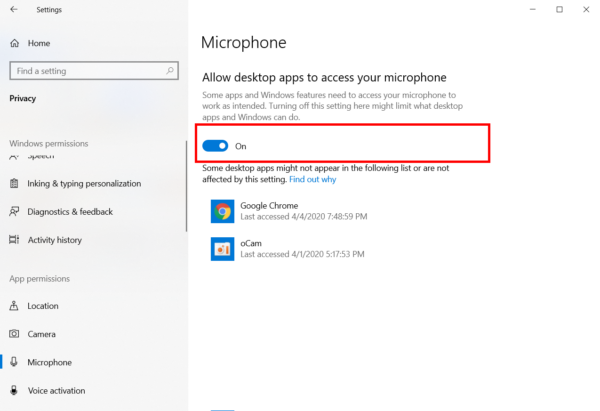
After changing the setting, restart oCam and try recording with the microphone again. If the permission has been granted properly, the "WASRecord: pAudioClient->Initialize failed. (hr=0x80070005)" error is likely to be resolved.
If the problem continues, check the microphone device settings themselves in Control Panel > Sound > Recording tab, or try selecting the microphone input source again in oCam's 'Sound' settings. In addition, updating Windows and oCam to the latest version may also help.