What to Do If the "WASRecord: pAudioClient->Initialize failed. (hr=0x80070005)" Error Occurs
The "WASRecord: pAudioClient->Initialize failed. (hr=0x80070005)" error can occur when microphone permission has been disabled on Windows 10 or later. This happens because oCam does not have the required permission to access the microphone. Below is a detailed explanation of how to resolve this issue.
For oCam to use the microphone properly, microphone access must be enabled in the Windows Privacy settings. Follow the steps below to check and adjust the setting:
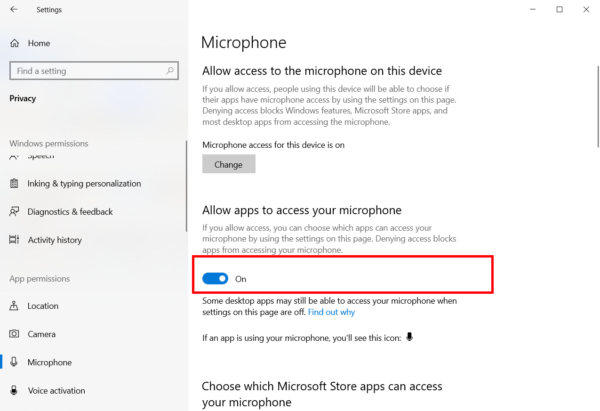
1. Open the Windows Start menu and click 'Settings' (the gear icon).
2. In the Settings window, select 'Privacy'.
3. Click 'Microphone' in the left menu.
4. Check whether the 'Microphone access for this device' option is turned on. If it is turned off, click the switch to turn it on.
5. Check whether 'Allow apps to access your microphone' is turned on. If this setting is disabled, apps such as oCam cannot use the microphone. Make sure it is turned on, then save the setting.
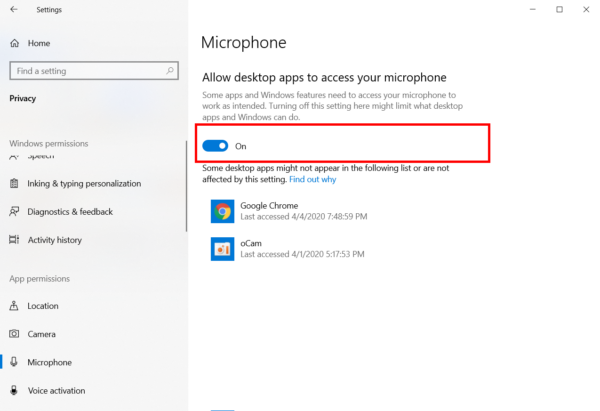
After changing the setting, restart oCam and try recording with the microphone again. If the permission has been granted properly, the "WASRecord: pAudioClient->Initialize failed. (hr=0x80070005)" error is likely to be resolved.
If the problem continues, check the microphone device settings themselves in Control Panel > Sound > Recording tab, or try selecting the microphone input source again in oCam's 'Sound' settings. In addition, updating Windows and oCam to the latest version may also help.
Today's News/Tips
How to Set Recording Quality (From High Quality to Low Quality)
How to Set Recording Quality ( From High Quality to Low Quality )
Note: This setting does not apply to external codecs and only applies to oCam's built-in codecs. Lowering the recording quality will reduce the size of the recorded video file, but the video quality will also decrease.
There is a menu at the top of oCam. Click Tools - Options, then click Encoding on the left, and you can select the quality as shown below. By default, it is set to Very High (high quality).
You can choose from the following quality levels when recording.
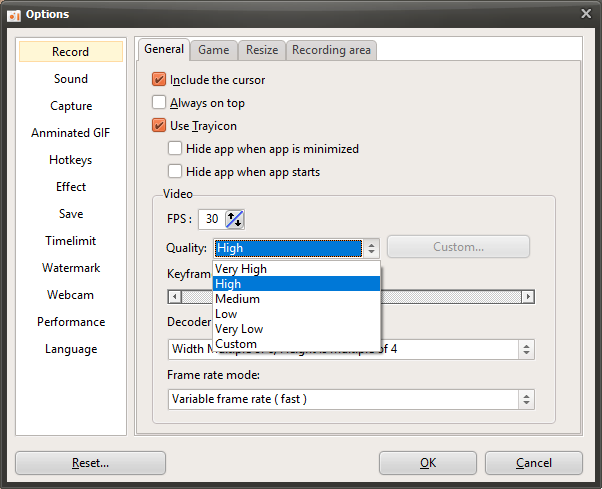
Below are captured preview images showing the recorded quality from Very High to Very Low.
Recorded at Very High

Recorded at High

Recorded at Medium

Recorded at Low

Recorded at Very Low