FAQ (36)

How to Use an External Codec - Xvid

Go to the official Xvid website.

https://www.xvid.com/


Click Xvid Video - Downloas in the menu at the top right. ( Do not select Xvid Codec. )
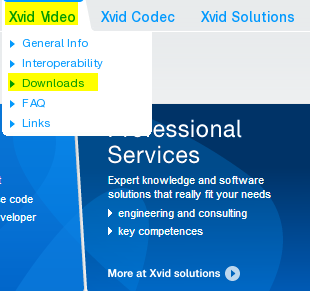


Click the link below.


Click the Download button to download it.


This is the installation screen. Click OK right away.


The detailed explanation is omitted. Just keep clicking the Next button to continue.


If oCam is already running, restart it, then click the Codec button in the oCam main window and click the External Codec menu.

Then check the Use External Codec checkbox, and you will see that the newly added Xvid MPEG-4 Codec is available.


Select that codec.


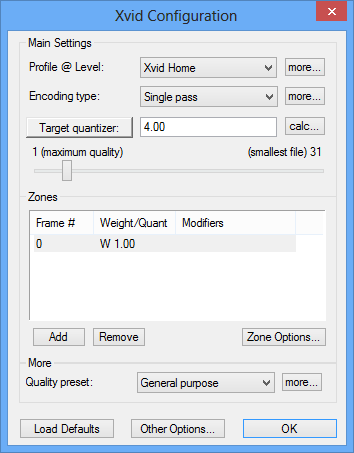
Click the Settings button to configure the detailed options of the Xvid codec.


Today's News/Tips

How to Record Audio Only with oCam


On the main screen of oCam, click the Audio Recording tab to open a simple, user-friendly menu. This menu provides various recording options in oCam, allowing users to adjust the settings as needed. One of oCam's strengths is its intuitive interface, which makes it easy to use for everyone from beginners to IT professionals.


You can use this feature whenever you want to record only audio, such as for creating audio content, recording podcasts, or capturing background music.


Click the Sound button to choose the audio source, such as system sound or microphone input settings, and then click the Record button on the screen to start recording. This feature is very useful for tasks where you need to focus only on audio. For example, it is efficient when you want to extract lecture audio separately, record an interview, or make a simple voice recording. Thanks to oCam's simple controls, these settings can be changed in just a few clicks, making the user experience even more convenient.


By default, audio files are saved in MP3 format. MP3 is one of the most widely used formats for audio recording because it offers small file sizes and excellent compatibility with most devices and software. It provides a good balance between sound quality and file size, making it suitable for general use. However, for users with more specific needs, oCam also provides an option to select audio codecs other than MP3 through the Codec button. If you choose AAC format, you can maintain high sound quality with efficient compression, giving you more flexibility depending on your project.


These settings clearly show how simple yet powerful oCam is. oCam is more than just a screen recording tool. It is versatile software that also supports professional audio recording tasks. Users can further adjust details such as the file save location, audio quality, and input source in the oCam settings menu. For example, you can adjust the volume levels of the microphone and system sound separately, or specify a save folder to optimize your workflow. Thanks to this flexibility and convenience, oCam is widely used in many different environments, from individual users to IT professionals. If you want high-quality audio recordings, it is recommended to adjust the codec and detailed settings to match your working environment for the best results.

OhSoft - secretfolder The File Appears to Be Encrypted
oCam - howto How to Record Gameplay