FAQ About Variable Frame Rate (VFR) and Constant Frame Rate (CFR)
The following is a brief and clear FAQ about the frame rate modes in oCam.
Q. What exactly is Variable Frame Rate?
Variable Frame Rate (VFR) and Constant Frame Rate (CFR) are distinguished by the number of frames in the recorded video file. If the number of frames per second remains the same throughout a certain period of recorded video, it is considered Constant Frame Rate. On the other hand, if the frame count changes even for just one second during recording, it is classified as Variable Frame Rate. For example, if a screen is recorded for 5 seconds and every second is recorded at exactly 30 frames, it is Constant Frame Rate. However, if the video is recorded at 25 frames per second during the 3 to 4 second section of those 5 seconds, while the rest is recorded at 30 frames per second, it is Variable Frame Rate. However, the frame count in the final part of the video (for example, the last 0.5 seconds of a 4.5-second recording) is excluded when determining whether it is Constant or Variable Frame Rate. In other words, if a video was recorded for 4.5 seconds, stayed consistently at 30 frames per second for the first 4 seconds, and only the final 0.5 seconds had fewer than 30 frames, it is still regarded as Constant Frame Rate.
Q. If I record a game at 60 FPS in oCam with Variable Frame Rate mode enabled, and my system is powerful enough that there is no lag at all, will it be recorded as Constant Frame Rate?
If your system performance is good enough that no lag occurs during recording, then even if Variable Frame Rate mode is enabled, the result may still be recorded as Constant Frame Rate. This is because oCam is operating in an environment where it can accurately record all 60 frames per second. In other words, even in Variable Frame Rate mode, if the frame count remains consistent, the result will be the same as Constant Frame Rate. Therefore, if your system can stably maintain 60 FPS, the recorded video will be saved at a fixed 60 frames per second.
Q. I recorded a game in oCam at 60 FPS for 5 seconds, but exactly 30 frames per second were recorded (150 frames total). Is this Variable Frame Rate?
In this case, the recorded video is regarded as 30 FPS Constant Frame Rate. Even if oCam was set to 60 FPS, if only 30 frames per second were actually recorded consistently, the frame count is still constant, so it is classified as Constant Frame Rate. Variable Frame Rate applies only when the frame count changes during recording. Simply failing to reach the configured 60 FPS does not make it Variable Frame Rate. Therefore, in this case, a video file recorded consistently at 30 FPS is created.
Q. I recorded at 60 FPS in Variable Frame Rate mode, and the game was output at 60 FPS, so why does the recorded file show 59.xx FPS?
Even if the game is output at 60 FPS, the actual screen output may not occur at exact intervals of 16.66666666666667 ms (1000 ms ÷ 60). In most cases, the frame intervals are not perfectly uniform because of tiny differences measured in milliseconds. As a result, the recorded video may be displayed as 59.xx FPS. In addition, oCam calculates and displays FPS in 200-millisecond intervals, so even if it appears as 60 FPS on screen, it may actually be recorded as 59.xx FPS. To resolve this issue, change the setting in oCam to Constant Frame Rate mode before recording. Since Constant Frame Rate attempts to maintain the specified FPS, it can minimize these small differences.
Q. If my computer performance is low when recording in Constant Frame Rate mode, will it be recorded as Variable Frame Rate instead?
No. If you set it to Constant Frame Rate mode, it will still be recorded as Constant Frame Rate even if your computer performance is low. However, if system performance is insufficient, for example, when attempting to record at 120 FPS in Constant Frame Rate mode, the video file will still be created at 120 FPS, but the video quality may drop or severe lag may occur. This happens when the system is forced to maintain the specified frame rate and stuttering appears as a result. Therefore, on lower-performance computers, it is recommended to choose an appropriate frame rate or consider settings that reduce system load.
Today's News/Tips
How to Buy Apple Products Cheaply (Latest Tips)
Apple products (iPhone, MacBook, iPad, Apple Watch, etc.) are known for being expensive, but if you use discount programs, promotions, and used-device options, you can buy them at about 5~20% off in many cases.
Here are practical ways to do it.
If you’re a student, prioritize education discounts first.
The best option is to use Apple’s official education store, which students, new university students, and school staff can use right away.
(Apple official site)
https://www.apple.com/us-edu/store
The next option is to buy through Costco and get reward points at the same time.
There are other methods too. See the details below.
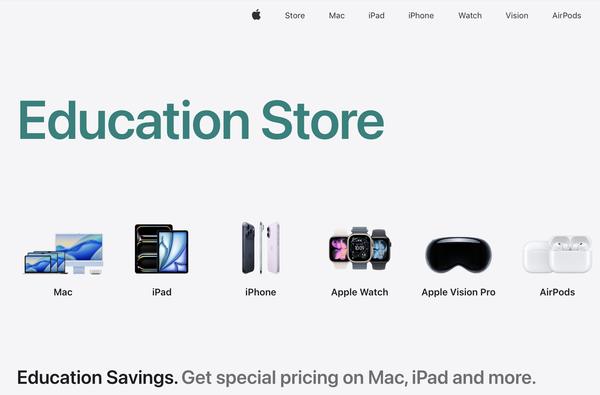
- Use the education discount store (student/teacher discount, up to 15% off)
If you’re a university student, graduate student, teacher, or school staff member, you can buy Mac and iPad with a discount at the official Apple education store. For example, a MacBook Air with a regular price of about $929 can be around $776, about a 10~15% discount.
How to do it: Go to the Apple education store → upload student ID or enrollment certificate → purchase. Parent-purchase on behalf of the student is also possible.
Tip: Bundle discounts for Apple Pencil or keyboards may also apply.
- Apple Trade In (trade-in used devices for about $67~$334 in credit)
If you return an existing Apple device (iPhone, iPad, etc.), you can receive credit toward a new purchase.
Example: iPhone 14 can get about $201 in credit.
How to do it: Enter your device details on the Trade In page → check the quote → submit online or in-store. Credit can be applied immediately or received as a gift card.
Tip: Credit is usually higher when the battery condition is good. Trading in an older model right after a new iPhone launch is often more favorable.
- Buy from the Refurbished Store (15~20% off, Apple-certified pre-owned)
These are refurbished by Apple from returned/repaired units, are close to new in condition, and include a 1-year warranty. The latest models may not always be available, but previous generations are usually cheaper.
How to do it: Check the Apple Refurbished Store. Example: MacBook Pro M2 at about a 20% discount from the regular price.
- Use online shopping promotions (Costco, etc., 5~10% card discounts)
Buy iPhone, AirPods, and other products during sales on Coupang and similar platforms. Waiting 1~2 months after launch often allows opportunistic coupon stacking for extra savings.
Costco: Apple event promotions can offer about 5% off, and with Hyundai Card you can earn 3% points on purchases of $334 or more.
How to do it: Search “Apple sale” in Coupang → join Rocket WOW membership ($3.34/month) for free shipping and discounts.
Black Friday (November) are strong timing opportunities. You can also check real-time sale alerts on X.
- International shopping (Amazon, Japan Apple Store, usually 10~20% cheaper)
If exchange rates are favorable, buying in the U.S. or Japan can help. Apple stores in Japan may be cheaper due to tax refund options.
How to do it: Check unlock status and buy unlocked devices on Amazon/eBay. Be sure to account for shipping and customs tax (13%)—imports under $67 may be exempt.
Tip: A day-trip “airfare + shopping” strategy can also work, especially when the yen is weak.