oCam Advanced Settings - Mouse Cursor Effects - Cursor Size
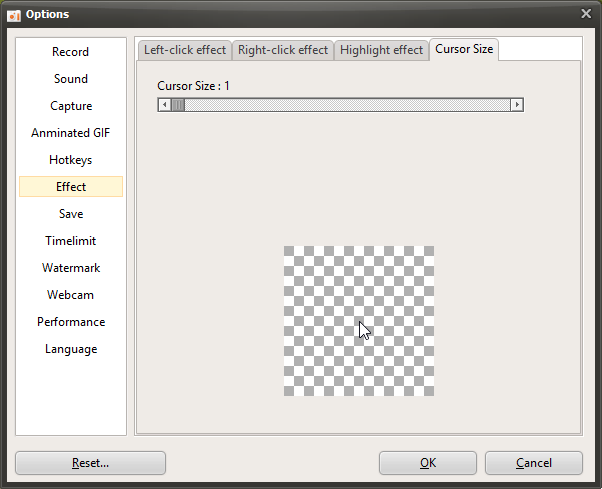
oCam is powerful software that offers a variety of settings for screen recording and capture, allowing users to customize the output as needed. In the settings window that appears when you click Tools - Options, the Effects category includes options for adjusting visual effects applied during recording, and among them, the Cursor Size setting is used to adjust the size of the mouse cursor shown in the recorded video. This setting is especially useful when you want to highlight the mouse cursor in tutorials or presentation videos. Below is a detailed explanation of the Cursor Size setting in the Effects category.
Overview of the Cursor Size Setting
The Cursor Size setting adjusts the size of the mouse cursor in the recorded video, and the cursor is displayed enlarged according to the value set by the user. This setting does not affect the size of the mouse cursor shown on the actual computer screen. It applies only to the recorded video or captured image. This allows users to keep their working environment unchanged while improving cursor visibility in the video.
Adjusting Cursor Size
Cursor Size is set to 1 by default, which means the original mouse cursor size. If the user changes this value, the cursor size is adjusted as follows:
2: The cursor is enlarged to 2 times the original size.
3: The cursor is enlarged to 3 times the original size.
...: In this way, the cursor size increases proportionally according to the setting value, and it can be set up to 10, which displays it at 10 times the original size.
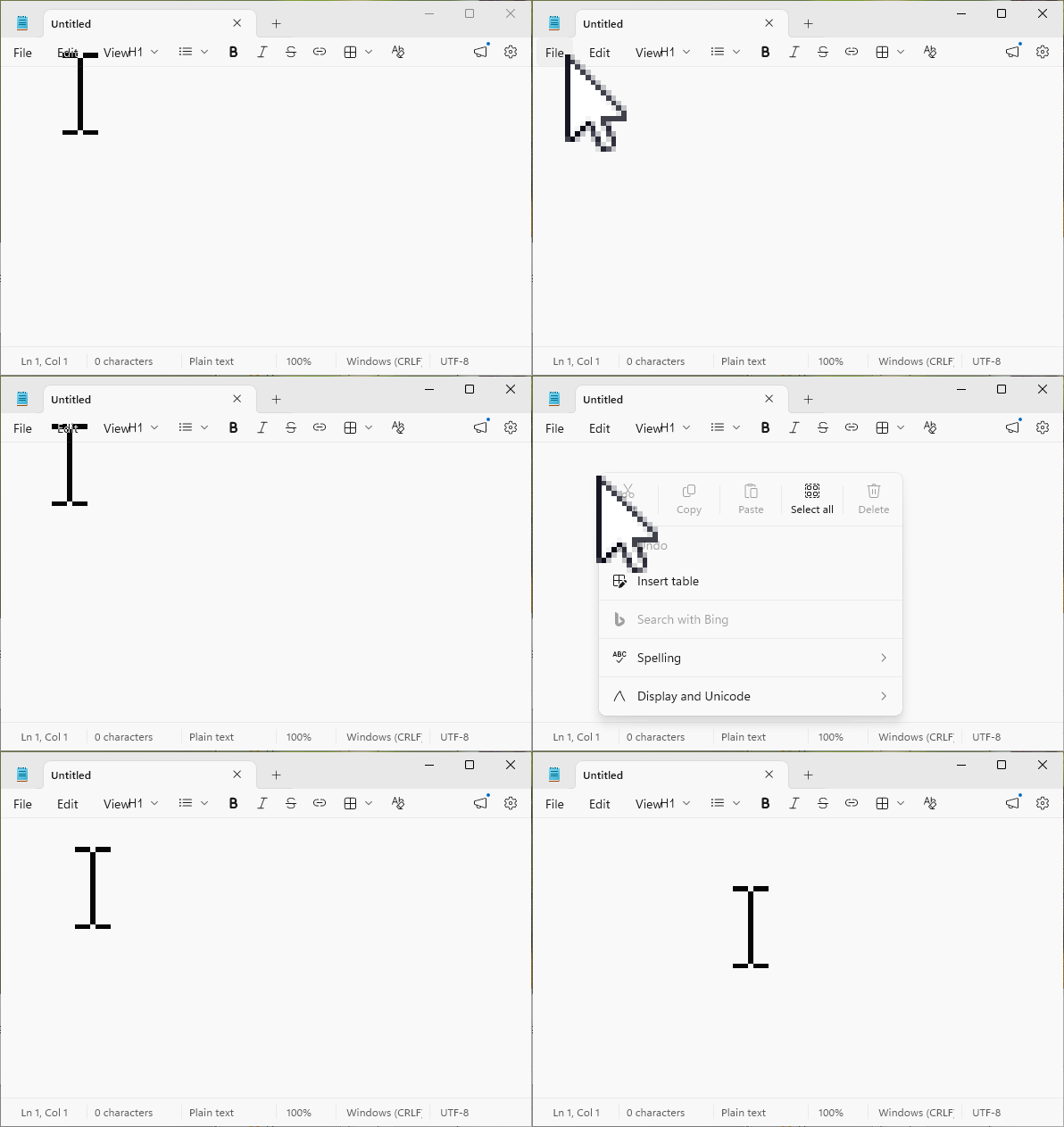
For example, if the cursor size is set to 5, the mouse cursor will appear 5 times larger than the original size in the recorded video, making it easier to highlight mouse movements and helping viewers identify the cursor position more easily. This feature is especially effective in instructional videos, software tutorials, or any situation where detailed clicking actions need to be shown.
Features and Notes
Applies only to recorded videos: The Cursor Size setting does not affect the cursor size on the actual computer screen. The mouse cursor you see while working always remains at its original size, and the enlarged cursor is applied only to the final output, such as the recorded video or captured image.
Visual emphasis: If the cursor size is set larger, the mouse cursor becomes more noticeable in the video, making it easier for viewers to follow important actions or click locations. For example, it is useful when showing how to click a specific button in a complex software interface.
Avoid excessive enlargement: If the cursor size is set too large, such as 8 to 10 times, it may cover other elements on the screen or reduce the overall neatness of the video. It is therefore important to choose an appropriate size based on the purpose of the content and the viewing environment.
Usage Tips
The Cursor Size setting can be used strategically depending on the purpose of the video. For example, when creating online lectures or YouTube tutorials, it is a good idea to set the cursor size to 3 to 5 times larger so viewers can clearly recognize mouse actions. On the other hand, in gameplay videos where the cursor is not a major element, using the default value of 1 or only slightly enlarging it to 2 or 3 may be more appropriate. After changing the setting, it is recommended to make a short test recording to check whether the cursor size fits well with the overall balance of the video.
Also, when used together with other oCam settings, such as the Include Cursor in Recording option in the Recording - General tab, you can adjust both whether the cursor is included and its size at the same time for more flexible customization. For example, if you include the cursor and set its size to 4 times larger, you can emphasize important actions for viewers while still keeping the video clean.
The Cursor Size setting in the Effects category of oCam is a simple but powerful visual tool that plays a major role in improving the readability and effectiveness of videos.
Today's News/Tips
oCam Advanced Settings - Mouse Cursor Effects - Highlight Effects
Click Tools - Options on the oCam main menu, then open the Effects category to check the Highlight Effect settings.
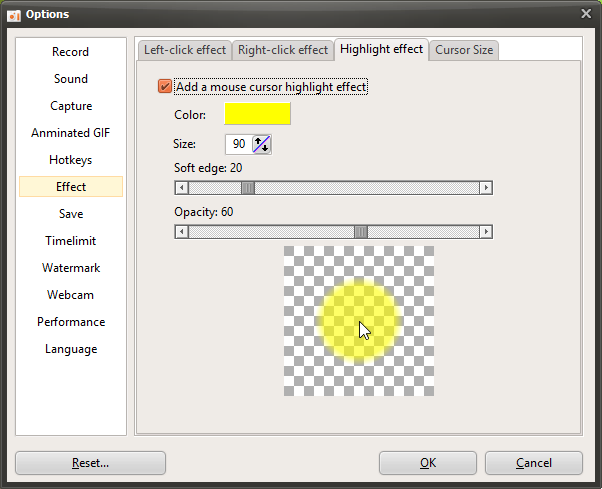
The Highlight Effect is used to help viewers immediately recognize the current position of the mouse cursor while watching a video.
The options are described below.
Color
- This is the color applied to the highlight effect. It is set to yellow by default.
Size
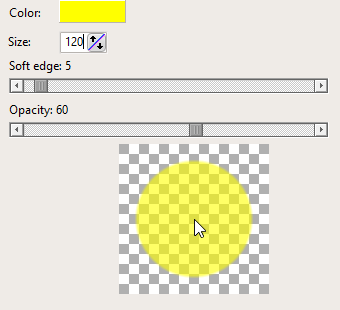
- When the highlight effect is enabled, a semi-transparent circle is drawn around the mouse cursor. This option sets the size of that circle. It is set to 90 by default.
Soft Edge
- The higher this value becomes, the softer the edge of the circle appears.
Opacity
- The lower this value is, the more transparent the circle becomes.
Preview
- Lets you preview the mouse effect you have configured.
If the opacity value is set too high, the highlight effect may cover the part of the screen where the mouse is located. For that reason, it is best to use an appropriate opacity setting.