How to Set Recording Quality (From High Quality to Low Quality)
How to Set Recording Quality ( From High Quality to Low Quality )
Note: This setting does not apply to external codecs and only applies to oCam's built-in codecs. Lowering the recording quality will reduce the size of the recorded video file, but the video quality will also decrease.
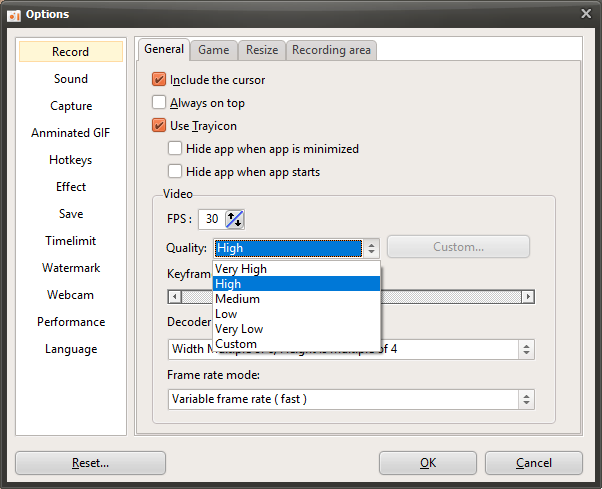
There is a menu at the top of oCam. Click Tools - Options, then click Encoding on the left, and you can select the quality as shown below. By default, it is set to Very High (high quality).
You can choose from the following quality levels when recording.
Below are captured preview images showing the recorded quality from Very High to Very Low.
Recorded at Very High

Recorded at High

Recorded at Medium

Recorded at Low

Recorded at Very Low

Today's News/Tips
What to Do If Minecraft Crashes as Soon as You Start Recording with oCam (NVIDIA Graphics Card)
In Java-based applications that use CUDA, including oCam, problems may occur when certain NVIDIA drivers are installed. In particular, if NVIDIA driver version 378.49 (or some other versions) is installed, a bug may occur where the app crashes with the error "Stack cookie instrumentation code detected a stack-based buffer overrun" when calling the CUDA initialization function `cuInit`.
This issue is not a bug in oCam itself, but a problem with the NVIDIA driver that affects all applications that use CUDA. Therefore, the same error may occur not only in oCam but also in other CUDA-based Java applications.
To resolve this issue, you need to update the NVIDIA driver to the latest version, 378.66 or later. Follow the steps below to update the driver:
1. Go to the official NVIDIA website (geforce.com/drivers).
2. Select your graphics card model and operating system, then search for the latest driver (version 378.66 or later).
3. Run the downloaded driver installer and proceed with the installation.
4. After the installation is complete, restart your computer and run oCam or another CUDA-based application to check whether the issue has been resolved.
Updating the driver to version 378.66 or later will resolve the CUDA initialization crash issue and allow you to use oCam and other related applications normally. If the problem continues even after installing the latest driver, contact NVIDIA Support or check for the latest version of oCam.