How to Set Up Automatic Login Using Autologon.exe
Here is how to set up automatic login using the autologin tool.
This method uses Autologon.exe from Microsoft's official Sysinternals Suite. It also provides a certain level of security by storing the password in encrypted form in the registry.
How to Set Up Automatic Login Using Autologon.exe
1. Download Autologon
Official Microsoft site: https://learn.microsoft.com/en-us/sysinternals/downloads/autologon
File download link: https://download.sysinternals.com/files/AutoLogon.zip
Click the Download Autologon button at the link above to download the ZIP file.
After extracting it, you will see the `Autologon.exe` file.
2. Run Autologon and Configure It
Run `Autologon.exe` as administrator. (Right-click → "Run as administrator")
When the window opens:
Username: The account to log in automatically
Domain: In most cases, the computer name is filled in automatically
Password: Enter the password for that account
Click the [Enable] button
If the message “Autologon successfully configured” appears, setup is complete!
3. How to Disable Automatic Login
Run `Autologon.exe` the same way and click [Disable] to turn off automatic login.
Today's News/Tips
What to Do If Chrome Blocks the Download with "Blocked by Chrome because it's dangerous."
When trying to download OhSoft software (for example, oCam) in the Google Chrome browser, you may see the warning message "Blocked by Chrome because it's dangerous." This issue occurs because Chrome has incorrectly detected the OhSoft program as unsafe, which is a false positive.
This does not usually happen, but it may occasionally occur shortly after an update has been released.

OhSoft programs are safe software that do not distribute malware, sponsored programs, or any other malicious software. This warning is most likely the result of Chrome's security filter making an incorrect judgment based on the file's source or reputation information. To resolve this issue, follow the steps below:
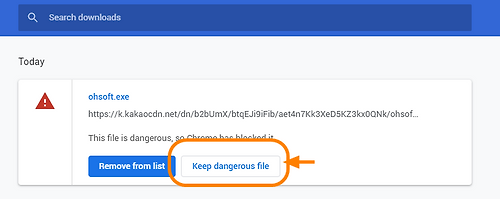
1. In Chrome's download bar (the download notification shown at the bottom), click the warning message.
2. In the window that appears, click the "[Show all]" button.
3. When the additional options window opens, select "[Keep dangerous file]" and proceed with the download as instructed.
By following this process, you can bypass Chrome's block and safely download the OhSoft software.
If the problem continues, you may also temporarily disable the Safe Browsing feature in Chrome settings or contact OhSoft for assistance.