oCam Advanced Settings - Recording - Resize
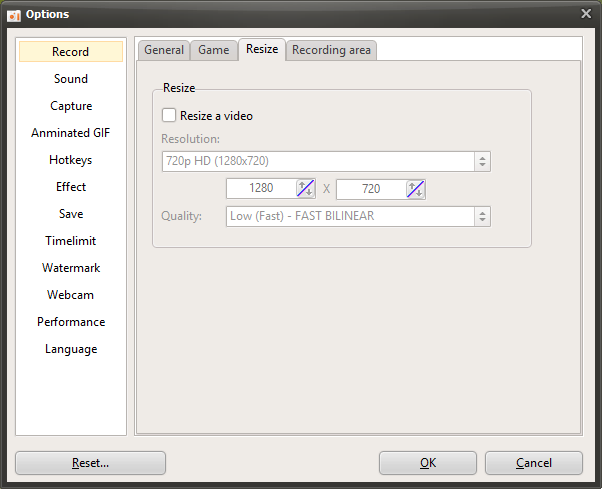
oCam is a powerful screen recording program that lets users freely adjust video quality and resolution through a variety of recording settings. In the settings window that appears when you click "Tools - Options," the "Resize" tab under the "Recording" category provides features for fine-tuning the output resolution and quality of recorded videos. This tab is especially useful for users who want to optimize the output size and quality of their videos, and it can be used effectively by everyone from beginners to IT professionals according to their needs. Below is a detailed explanation of the main settings in the "Resize" tab.
Resize Video
If you check the "Resize Video" option, the size of the recorded video will be adjusted according to the resolution and quality settings you choose. This feature is useful when you want to resize the recorded video to a specific resolution in order to reduce file size or output it in a format optimized for a certain platform such as YouTube or Twitch. If this option is not enabled, the video will be saved at the original size of the recording area, and the resizing process will be skipped.
Supported Resolutions (Presets)
oCam provides a variety of resolution presets so users can easily choose the output size they want. The supported resolution presets are as follows:
4320p UHD 8K (7680x4320): Ultra-high-resolution video available on high-spec systems. However, only the MPEG-4 codec supports this resolution, and other built-in codecs do not support 8K.
2160p UHD 4K (3840x2160): Suitable for producing high-quality video.
1440p QHD (2560x1440): Provides sharp image quality and is suitable for users with high-resolution monitors.
1080p FHD (1920x1080): The most widely used standard resolution for YouTube and streaming platforms.
720p HD (1280x720): Suitable for general web content.
480p (854x480), 360p (640x360), 240p (426x240), 144p (256x144), 120p (160x120), 96p (128x96): Low-resolution options that can reduce file size or be used in lower-spec environments.
Half Size: Outputs the recording area with both width and height reduced by half.
Specify Width Only and Keep Height Fixed: If the user enters a width, the height is adjusted based on the original recording area height.
Specify Height Only and Keep Width Fixed: If the user enters a height, the width is adjusted based on the original recording area width.
Custom: Lets the user directly enter the desired width and height to output at a fully customized size.
If you use an external codec, some resolutions may not be supported depending on the codec's characteristics, so it is a good idea to check codec compatibility before recording.
Resolution Adjustment Methods
Half Size: This option reduces the width and height of the recording area to 50% each. For example, if the original recording area is 1920x1080, setting it to Half Size will output it at 960x540. This is useful when you want to reduce file size.
Specify Width Only and Keep Height Fixed: When the user enters a width, the height is calculated automatically while maintaining the original aspect ratio of the recording area. For example, if the width is set to 1280 and the original height is 720, the output resolution becomes 1280x720.
Specify Height Only and Keep Width Fixed: Conversely, when a height is entered, the width is adjusted to match the original aspect ratio. This method is suitable for platforms that require a specific vertical resolution, such as mobile content.
Custom: Both the width and height can be entered directly, allowing the output size to be adjusted exactly as desired. This option is suitable for advanced users with specific resolution requirements.
Quality Setting
The "Quality" setting determines the image quality of the output video when resizing is applied. The higher the quality, the sharper the video will be, but resizing may take longer and consume more system resources. On the other hand, lowering the quality speeds up the resizing process, but the sharpness of the video may decrease somewhat. Users should choose an appropriate quality level by considering file size, system performance, and the purpose of the video, such as high-quality streaming or simple sharing.
Usage Tips
The settings in the "Resize" tab can be adjusted flexibly depending on the purpose of the video and the system environment. For example, if you want to record in 1080p FHD for YouTube upload, it is best to choose that preset and set the quality to high. On the other hand, if you want a smaller video file for quick upload to social media, choosing a lower resolution such as 720p or 480p and setting the quality moderately lower can be more efficient. If you want to try 8K recording, you must use the MPEG-4 codec, and it is important to check in advance whether your system supports it. Also, by using custom resolutions, you can create videos that match the exact requirements of a particular platform or project.
The "Resize" tab in oCam supports a wide range of recording scenarios through intuitive presets and flexible custom options. Beginners can get started easily with simple presets, while IT professionals can achieve optimal results through detailed resolution and quality adjustments. Try using these settings according to your recording purpose and system environment.
Today's News/Tips
Download Useful External Codecs
If you want to use various video codecs with oCam, you can install external codecs to adjust recording quality and file formats the way you want. Below is information about the external codecs supported by oCam and how to install them. Installing external codecs allows you to use oCam more flexibly.
After installing an external codec, you must restart oCam. Once restarted, the installed codec will automatically appear under the 'External Codec' option in the oCam settings menu, where you can select it for recording. External codecs can be downloaded from the following link:
https://ohsoft.net/update/codec.php
The following are descriptions of the main external codecs supported by oCam:
Xvid Video Codec
The Xvid codec is a video codec that implements the MPEG-4 Simple Profile and Advanced Simple Profile standards. This codec offers efficient compression and high compatibility, making it suitable for creating videos that can be played on a wide range of devices and software. With Xvid, you can keep file sizes reasonable while minimizing quality loss during recording.
x264vfw Codec
x264vfw is a VfW (Video for Windows) codec that includes the widely known x264 encoder and ffh264 decoder. Based on the H.264 format, this codec can save high-quality video in a smaller file size. x264vfw is especially suitable for users who want sharp image quality and efficient compression, and it also offers excellent compatibility with various video editing software.
VP8 Codec
The VP8 codec can encode video at quality comparable to or better than H.264 video encoders. VP8 is a core component of the WebM format and is well suited for web-based video streaming or high-quality video storage. With this codec, you can reduce file size while maintaining clear image quality for efficient recording.
Lagarith Codec
Lagarith is a lossless video codec designed for video editing and archiving. As a lossless codec, it preserves the original video quality exactly, but the file size can be relatively large. Therefore, it is suitable for users who want to edit high-quality video or store it for the long term.
By installing and using external codecs in oCam, users can choose the best codec for their recording purpose and environment. For example, if you want to reduce file size, you can choose x264vfw or VP8, and if you want to create editing footage without quality loss, you can choose Lagarith. Download the codec you need from the link above, restart oCam, and apply the codec you want.