How to Fix Severe Lag When Recording Games in Nox App Player
If you experience severe lag when starting game recording with oCam, you can resolve the issue by changing the settings as described below. In particular, if you are using Nox App Player, follow these steps to reduce lag and achieve smoother recording.
First, launch Nox App Player. After the program starts, click the gear-shaped icon in the upper-right corner of the screen to open the Settings menu. This icon is generally used to access system settings.
When the Settings window opens, select the 'Advanced Settings' tab from the menu on the left. In the Advanced Settings screen, find the 'Graphics Mode' option and change it to 'Speed Mode (DirectX)'. This setting optimizes performance by using system resources more efficiently and is especially effective for reducing lag during game recording. After making the change, click the 'Save Settings' button to apply it.
After saving the settings, you must completely close and restart Nox App Player. Once it restarts, the changed graphics mode will be applied, which can reduce lag and provide smoother performance when recording games with oCam.
This method is useful for resolving performance issues that occur when using Nox App Player together with oCam. If the problem continues after changing the settings, it is recommended to check your system specifications or review other oCam settings, such as frame rate and resolution, for additional optimization.
Today's News/Tips
Where are the recorded video files saved, and how can I change the save location?
In oCam, recorded video files are automatically saved to the folder you specified as the save path.
By default, oCam saves files to the default folder configured on your computer.
To check this folder, first run the oCam program and go to the main screen.
Click the Open button on the main screen, and the folder where recorded video files are saved will appear.
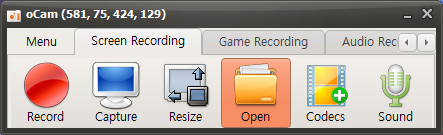
Clicking this button automatically opens Windows Explorer so you can check the folder directly.
If you want to change the save path, click the Settings button on the oCam main screen.
When the Settings window opens, go to the Save tab at the top and find the save path setting option.
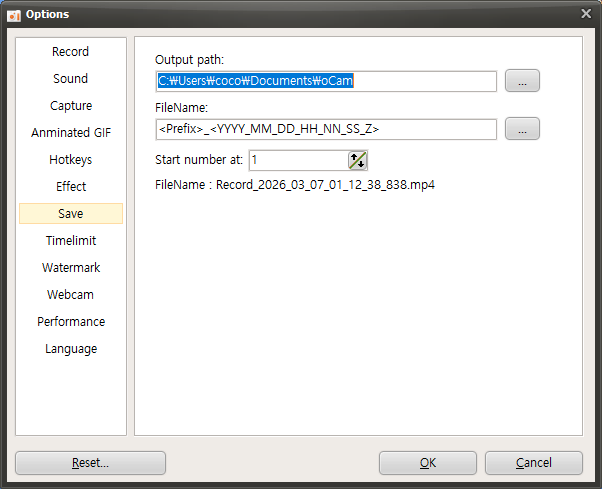
You can change the path by clicking here and selecting a desired folder.
After saving the changed path, all future recorded video files will be saved to the new location.
In addition, setting the save path to a folder you use often makes file management much more convenient.