oCam Advanced Settings - Save
Click Tools - Options on the oCam main menu to view the settings in the Save category.
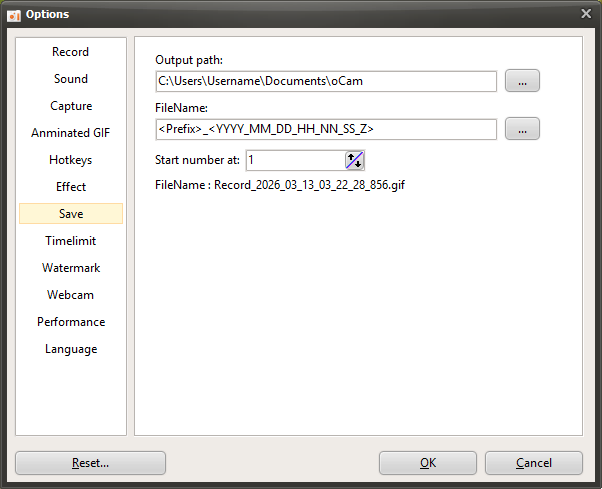
By default, the save path is set to the "This PC-Documents-oCam" folder in Windows 10, and all recordings, audio recordings, and captures are saved to this location.
The save path can be changed by clicking the button.

The file name to be saved follows a predefined format or a user-defined format, and by default it is set to "<Prefix>_<YYYY_MM_DD_HH_NN_SS_Z>".
The file name format can also be changed by clicking the button, and when you click it, you can see the predefined formats.
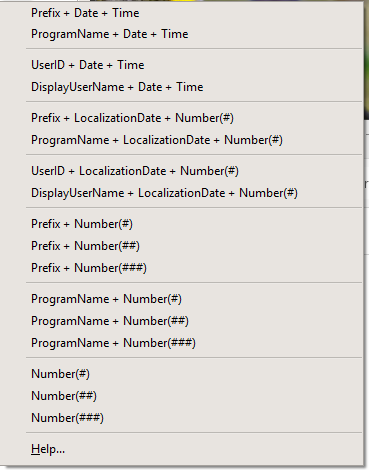
If you click the Help menu item, you can see more detailed information about the format, as shown below.
( When the Help menu item was clicked at 11:29:49.902 AM on June 16, 2016 )
<Y> = 16
<YY> = 16
<YYYY> = 2016
<M> = 6
<MM> = 06
<MMM> = 6
<MMMM> = June
<D> = 16
<DD> = 16
<DDD> = Thu
<DDDD> = Thursday
<DDDDD> = 2016-06-16
<DDDDDD> = Thursday, June 16, 2016
<C> = 2016-06-16 11:29:49 AM
<H> = 11
<HH> = 11
<N = 29
<NN> = 29
<S> = 49
<SS> = 49
<Z> = 902
<ZZZ> = 902
<T> = 11:29 AM
<TT> = 11:29:49 AM
<AM/PM> = AM
<a/p> = a
<ampm> = AM
<Prefix> = Recording
<ProgramName> = oCam
<UserID> = User Name
<DisplayUserName> =
<#> = 1
<##> = 01
<###> = 001
The file name format may feel difficult for some users, so here are a few examples.
- If the file name is <Prefix>_<#>, then <Prefix> is the prefix and # is the serial number.
The prefix is replaced with Recording when recording video, Audio when recording sound, and Capture when capturing the screen, while # is replaced with a serial number.
For example, when you finish recording the screen, a file named Recording_1 is created. ( Only if there is no similar file name in the oCam save folder. )
And when you record again, a file named Recording_2 is created. The reason the serial number becomes 2 is because a file named Recording_1 already exists.
- If the file name is <ProgramName>_<#>, then <ProgramName> represents the name of the program being recorded. In normal screen recording, it is replaced with oCam, and <#> is added as a serial number just as before.
However, when recording a game, recording starts inside the game program, so the file is created using the name of the game's executable file.
- If the file name is <dddddd>_<#>, then dddddd means the localized date, so on a Korean operating system it is replaced with the current date at the time this was written, Thursday, June 16, 2016, and # is filled in with a serial number.
The localized date varies depending on the language settings of the operating system. In other words, it appears differently on an English OS because it uses the format built into the operating system.
- If the file name is My_<#>_th_<Prefix>_File, then when recording, a file named My_1st_Recording_File is created, and when recording again, the file name becomes My_2nd_Recording_File.
- If the file name is <UserID> recorded <Prefix> of the game called <ProgramName> on <DDDDDD>. then it may be created as "AdvancedDeveloper recorded Recording of the game called LocalDeformablePRT on Thursday, June 16, 2016." The content inside <> varies depending on what is being recorded.
Serial number start means the starting number of the serial number that can be set with # inside <>.
Today's News/Tips
How to Fix the "Error while writing video frame (error=-28)" Error
When recording with oCam, the following error message may appear after a certain amount of time:
"Error while writing video frame (error=-28)"
This error (error code 28) occurs when the file system of the path where the recorded video file is being saved is formatted as FAT (FAT32). The FAT file system has a maximum single-file size limit of 4 GB, so this error occurs when the recorded file size exceeds 4 GB. Below is a detailed explanation of how to resolve this issue.
To fix this error, you can choose one of the following two methods:
1. Change the save path to an NTFS file system
The NTFS file system has a much larger file size limit (up to 16 EB), so it can store video files larger than 4 GB without any problems. To change oCam's save path to a drive or folder that uses the NTFS format, follow these steps:
1. In the oCam main window, click 'Tools' in the top menu, then select 'Options'.
2. In the Settings window, click the 'Save' category in the left menu.
3. Under the 'Save Path' item, check the current path and change it to another drive or folder that uses the NTFS file system (for example, `C:\Videos` or `D:\Recordings`).
4. Click the 'OK' button to save the settings, restart oCam, and then try recording again.
2. Format the existing drive as NTFS
If the drive you are currently using is formatted as FAT or FAT32, you can convert or format it to NTFS. However, formatting will erase all data on the drive, so be sure to back up any important files first. To format the drive, follow these steps:
1. Open File Explorer and right-click the drive you want to format (for example, a USB drive or external hard drive).
2. Select 'Format' and set the file system to 'NTFS'.
3. Choose the formatting options, then click 'Start' to begin formatting.
4. After formatting is complete, set that drive as the save path in oCam and use it.
Additional Checks
- To check whether the drive's file system is FAT32, right-click the drive in File Explorer and select 'Properties' to view the file system information.
- If the problem continues even after changing to NTFS, check whether the drive has enough free space and whether you have write permission.
By changing the save path to an NTFS file system or formatting the drive, you can save large video files over 4 GB without errors. After changing the settings, make a test recording to confirm that the problem has been resolved.