How to Buy Apple Products Cheaply (Latest Tips)
Apple products (iPhone, MacBook, iPad, Apple Watch, etc.) are known for being expensive, but if you use discount programs, promotions, and used-device options, you can buy them at about 5~20% off in many cases.
Here are practical ways to do it.
If you’re a student, prioritize education discounts first.
The best option is to use Apple’s official education store, which students, new university students, and school staff can use right away.
(Apple official site)
https://www.apple.com/us-edu/store
The next option is to buy through Costco and get reward points at the same time.
There are other methods too. See the details below.
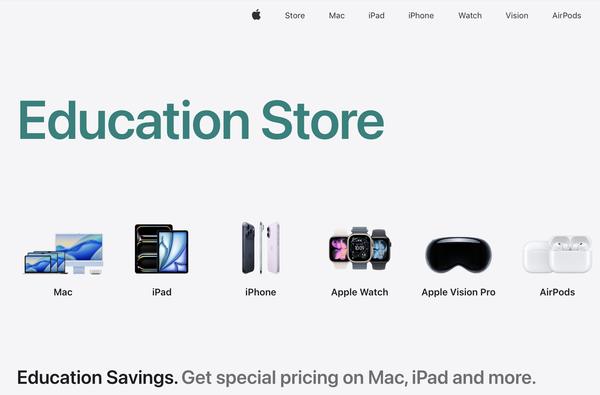
- Use the education discount store (student/teacher discount, up to 15% off)
If you’re a university student, graduate student, teacher, or school staff member, you can buy Mac and iPad with a discount at the official Apple education store. For example, a MacBook Air with a regular price of about $929 can be around $776, about a 10~15% discount.
How to do it: Go to the Apple education store → upload student ID or enrollment certificate → purchase. Parent-purchase on behalf of the student is also possible.
Tip: Bundle discounts for Apple Pencil or keyboards may also apply.
- Apple Trade In (trade-in used devices for about $67~$334 in credit)
If you return an existing Apple device (iPhone, iPad, etc.), you can receive credit toward a new purchase.
Example: iPhone 14 can get about $201 in credit.
How to do it: Enter your device details on the Trade In page → check the quote → submit online or in-store. Credit can be applied immediately or received as a gift card.
Tip: Credit is usually higher when the battery condition is good. Trading in an older model right after a new iPhone launch is often more favorable.
- Buy from the Refurbished Store (15~20% off, Apple-certified pre-owned)
These are refurbished by Apple from returned/repaired units, are close to new in condition, and include a 1-year warranty. The latest models may not always be available, but previous generations are usually cheaper.
How to do it: Check the Apple Refurbished Store. Example: MacBook Pro M2 at about a 20% discount from the regular price.
- Use online shopping promotions (Costco, etc., 5~10% card discounts)
Buy iPhone, AirPods, and other products during sales on Coupang and similar platforms. Waiting 1~2 months after launch often allows opportunistic coupon stacking for extra savings.
Costco: Apple event promotions can offer about 5% off, and with Hyundai Card you can earn 3% points on purchases of $334 or more.
How to do it: Search “Apple sale” in Coupang → join Rocket WOW membership ($3.34/month) for free shipping and discounts.
Black Friday (November) are strong timing opportunities. You can also check real-time sale alerts on X.
- International shopping (Amazon, Japan Apple Store, usually 10~20% cheaper)
If exchange rates are favorable, buying in the U.S. or Japan can help. Apple stores in Japan may be cheaper due to tax refund options.
How to do it: Check unlock status and buy unlocked devices on Amazon/eBay. Be sure to account for shipping and customs tax (13%)—imports under $67 may be exempt.
Tip: A day-trip “airfare + shopping” strategy can also work, especially when the yen is weak.
Today's News/Tips
Can I record only the computer system sound and save it as MP3?
Not only video recording, but audio recording is also now supported.
You can record through the following simple steps.
In the oCam main window, click the Sound tab at the top.
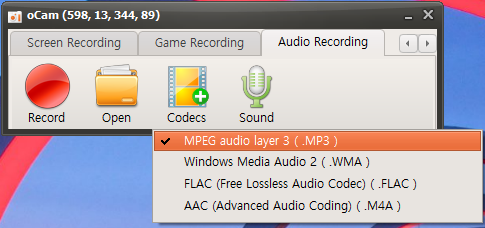
Then the mode is changed to audio recording.
In this state, when you click the Record button, system sound is recorded instead of screen recording.
Then click the Codec button as shown below to set which audio file type to save.
(Currently, MP3, WMA, FLAC, and M4A extensions are supported.)
1. MP3 (MPEG-1 Audio Layer 3)
- Features: MP3 is the most widely used audio compression format, developed in the 1990s.
- Compression method: It uses lossy compression, which greatly reduces file size.
- Sound quality: Some audio data is lost during compression, so quality may drop compared to the original. However, at 192 kbps or higher, most users may not notice a clear difference.
- File size: About 2.4 MB per minute at 320 kbps, which is relatively small.
- Compatibility: It is supported on almost all devices and software, making it suitable for streaming, downloading, and playback.
- Use case: Commonly used for portable music players, online streaming, and everyday music listening.
2. WMA (Windows Media Audio)
- Features: An audio format developed by Microsoft, designed as an alternative to MP3.
- Compression method: Supports both lossy and lossless compression modes.
- Sound quality: Claimed to provide better quality than MP3 at the same bitrate, though the actual difference is often minimal. Lossless WMA preserves original audio quality.
- File size: Similar to MP3 in lossy mode; in lossless mode, files are much larger (about 10~20 MB per minute).
- Compatibility: Strong support in Windows environments, though compatibility may be weaker on other platforms such as macOS or some Android devices.
- Use case: Mainly used in Windows-based software and Microsoft products such as Xbox; DRM support makes it suitable for protected content distribution.
3. FLAC (Free Lossless Audio Codec)
- Features: A popular lossless audio format among audiophiles.
- Compression method: Uses lossless compression, preserving 100% of the original audio data.
- Sound quality: Provides original-quality audio with no loss, suitable for high-resolution playback.
- File size: Much larger than MP3, but about 50~70% smaller than the original WAV file (roughly 20~30 MB per minute).
- Compatibility: Supported by most advanced audio players and software, but may be difficult on some low-spec or older devices.
- Use case: Suitable for high-quality music listening, audio archiving, and studio work where preserving quality is important.
4. M4A (MPEG-4 Audio)
- Features: An MPEG-4 based audio format mainly used by Apple, including AAC (Advanced Audio Coding) and ALAC (Apple Lossless Audio Codec).
- Compression method: Supports lossy AAC and lossless ALAC.
- Sound quality: AAC is more efficient than MP3 and often provides better quality at the same bitrate. ALAC preserves original quality as lossless.
- File size: AAC is similar to or slightly smaller than MP3 (about 2 MB per minute), while ALAC is similar in size to FLAC (about 20~30 MB per minute).
- Compatibility: Strongly supported on Apple devices (iTunes, iPhone, iPad) and macOS; some Android devices or other platforms may require additional codecs.
- Use case: Mainly used in iTunes, Apple Music streaming, and podcasts, with AAC suitable for streaming and efficient storage.
Additional tips
- If you prioritize quality: choose FLAC or M4A (ALAC).
- If you prioritize file size and compatibility: choose MP3 or M4A (AAC).
- In Windows environments: WMA is also a good option, but MP3 may be more universally compatible.
- For Apple device users: M4A is most suitable, and AAC is especially good for streaming and saving storage.