How to Record Gameplay
* Game recording supports DirectX 8 through DirectX 12 and OpenGL.
Click the Game Recording tab at the top.
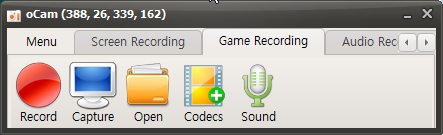
Once clicked, it will switch to the Game Recording tab as shown below, and the resize button will disappear.
Now move to the running game window, and you will see a yellow FPS counter appear at the top left of the game screen, as shown below.
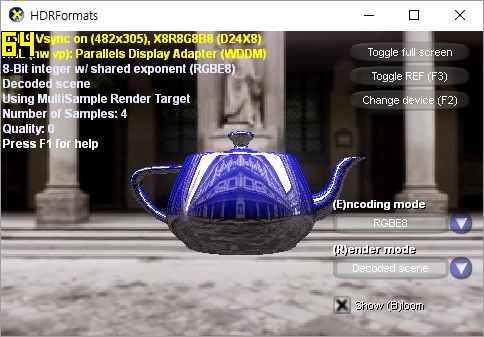
Now press the recording hotkey F2 ( you can change it in Settings. )
Then the FPS counter will turn red as shown below, indicating that recording is in progress.
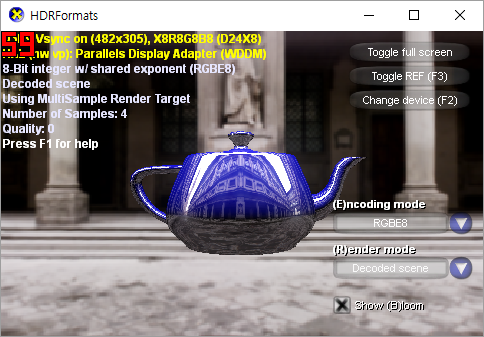
To stop recording, press the recording hotkey F2 again.
Please note that game recording does not work with all games.
If a game that used to work no longer records properly, it is likely being blocked by the game security solution used by the game company. In that case, it is recommended to ask the game company to add an exception so recording with oCam is allowed.
Today's News/Tips
How do I record in ultra-high quality (lossless)?
Generally, recorded video is usually compressed, which can cause some color loss compared to the original screen.
If you want to record in lossless mode, you can use the Lagarith Lossless Video external codec.
You can download it from the following address.
http://lags.leetcode.net/codec.html
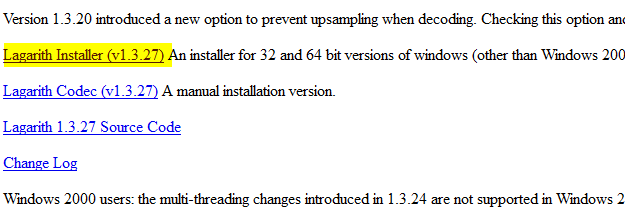
After downloading, install it as shown below.
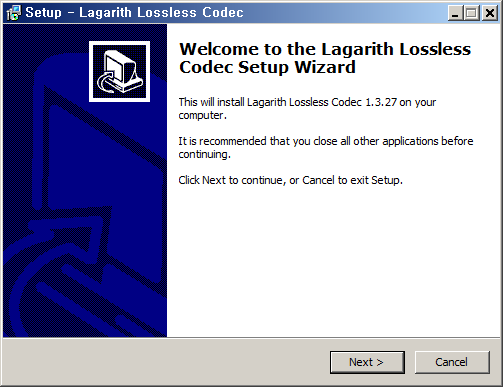
If oCam is already running, restart it. Then in the oCam main window, click Codec - External Codec, check the Use External Codec box,
and select Lagarith Lossless Video from the list.
After selecting it, click Settings. The settings window opens as shown below. Usually you can leave it as is, but you can adjust it according to your environment.
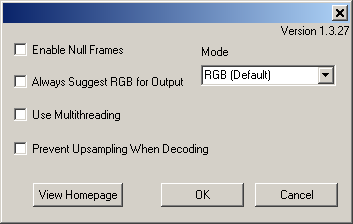
Note that this codec produces visually lossless video, but the resulting files are very large and decoding takes a long time, which may cause playback stuttering.
Therefore, this codec is generally better suited for editing purposes.