The "The endpoint device is already in use." Error Appears When Recording Starts
When recording with oCam, you may sometimes encounter problems with sound recording. In particular, when a DAW (Digital Audio Workstation, for example FL Studio) program using Asio4all is running, it may take exclusive control of the system audio, making sound playback or recording unavailable in other programs. As a result, normal sound recording in oCam may become difficult. Below is a detailed explanation of how to solve this problem and record smoothly with oCam.
Asio4all is a driver used for low-latency audio processing and is mainly used in DAW programs. However, when Asio4all is enabled, it takes exclusive control of the system audio, so other programs such as oCam may not be able to capture system sound. To solve this problem, you need to change the audio output device in the DAW program to something other than Asio4all.
The following is how to change the settings:
1. Run the DAW program (for example, FL Studio).
2. In the case of FL Studio, click 'Options' in the top menu, then go to 'Audio Settings'.
3. In the 'Audio Settings' window, check the audio output device and change it from Asio4all to 'Primary Sound Driver' or 'DirectSound'.
4. After saving the settings, play audio in the DAW and then try recording with oCam. The system sound should then be recorded normally.
If you must use Asio4all because of latency issues with a MIDI keyboard, it is best to switch the settings flexibly depending on your working environment. For example:
- When producing music or doing MIDI work in the DAW, use Asio4all to maintain a low-latency environment.
- After finishing your work and when you want to record with oCam, change the playback device in the DAW audio settings to 'DirectSound' or 'Primary Sound Driver' to disable Asio4all.
- After changing the setting, restart the DAW, or reboot the computer if necessary, then confirm that the setting has been applied properly before starting recording with oCam.
Using this method, you can resolve the audio exclusivity issue caused by Asio4all and record system sound smoothly in oCam. If you are working in a DAW and recording at the same time, try switching the audio output device according to the situation to maintain the best environment.
Today's News/Tips
How to Add a Custom Watermark to Recorded Videos
Adding a watermark to videos recorded with oCam helps clearly indicate the source of the video and reduce the chance of unauthorized use by others. A watermark is a feature that inserts a specific image into the video, such as a logo, text, or icon, to identify the creator or ownership. This is effective for protecting the uniqueness of the video and promoting your brand.
To add a watermark in oCam, first click 'Tools' in the top menu of the oCam main window, then select 'Options'. When the Settings window opens, click 'Watermark' in the left menu to go to the watermark settings screen.
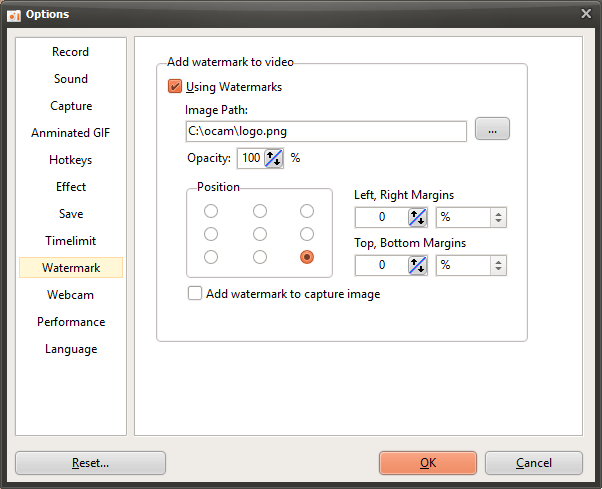
On the watermark settings screen, you can adjust several options. First, if you check 'Use Watermark', the selected image will be inserted as a watermark in the recorded video. You can choose the image to use as the watermark under 'Image Path', and PNG, JPG, and BMP formats are supported. PNG format in particular also supports images with an alpha channel (transparency), so you can use logos or images with transparent backgrounds.
The 'Opacity' setting adjusts the transparency of the watermark image. If the opacity is set to 100%, the watermark image will appear fully opaque. The lower the value, the more transparent the image becomes, allowing it to blend more naturally into the video. This lets you adjust the watermark so it does not interfere with the readability of the video.
The 'Position' setting determines where the watermark appears in the video. For example, you can choose the top left or bottom right so the watermark appears in the desired area of the screen. This allows you to place the watermark without covering the main content of the video.
For example, if you set a specific logo image as the watermark and start recording, that image will appear as a watermark at the selected position in the final video. A watermark added in this way makes the source of the video clear and helps viewers easily identify the creator.
If you want to create your own watermark image, search for "create watermark" on a search site to find various design tools and methods. For example, you can use graphic editing programs such as Photoshop or Canva to create a logo or text, or use an online watermark generator to easily create a distinctive watermark.
Using the watermark feature in oCam, you can give your videos a more professional and secure finish with just a few simple settings. Try creating your own unique videos with the right image and settings.