BIOS and CMOS Error Messages and How to Fix Them
▶ BIOS ROM Checksum error
This error appears when there is a problem with the ROM that stores system information.
It occurs when there is an issue while reading the information stored in CMOS. In this case, enter CMOS SETUP and check whether each setting is configured correctly for the current system state.
After completing the settings, select 'SAVE AND EXIT SETUP' to save the changes.
If the system is old, the ROM itself that stores the BIOS information may be damaged. In that case, it is recommended to have it inspected at a motherboard repair shop or service center.
▶ Press [F1] to continue
This message usually appears when the keyboard or mouse is not connected properly.
Please check whether both devices are connected securely to their connectors.
It is also a good idea to check whether the hard disk information is set correctly in CMOS SETUP.
▶ CMOS memory size mismatch
This error occurs when the system cannot properly recognize the memory (RAM).
When new RAM is added, CMOS usually detects it automatically, but in some cases the correct memory size is reflected only after running CMOS SETUP.
Enter CMOS SETUP, check the settings, and then reboot the system.
▶ NO ROM BASIC
This message appears when an error occurs during booting.
It usually occurs when the system cannot boot from drive A. In this case, you need to insert a bootable floppy disk into drive A or change the boot setting to boot from the hard disk drive.
Similar error messages include 'Diskette Boot Failure' and 'Invalid Boot Diskette'.
▶ CMOS display type mismatch
This error occurs when there is a problem with the graphics-related settings in CMOS.
It happens when the graphics type in the 'Video...' item in CMOS SETUP is not set to EGA/VGA.
Since this is the default setting used by most graphics cards, please make sure to check it.
▶ Cache Memory Bad..
This indicates a problem with the cache memory installed on the motherboard.
Cache memory is used to improve system speed, and on some motherboards, this error may appear if the cache memory fails.
In this case, you can replace the cache memory or try setting the cache memory usage option in CMOS SETUP to 'Disable'.
The same symptom may also appear when cache-related settings such as 'Cache Write' are configured incorrectly, so please check those settings as well.
Today's News/Tips
A Quick Look at VirtualDVD Features
Features of product
* Completely 100% FREE Software
* All supported CD/DVD/Blu-ray image formats
CloneCD (*.ccd), CDRWin (*.bin), Cue Sheets (*.cue), CDImage (*.img), ISO (*.iso),
BlindRead (*.bwt), BlindWrite (*.b5t; *.b6t), Alcohol 120% Image (*.mds;*.mdf),
Disc Juggler (*.cdi), Instant CD/DVD (*.pdi), Compressed ISO (*.isz), Nero (*.nrg),
CloneDVD (*.dvd), CDSpace6 (*.LCD), Media Data eXtended (*.MDX), Media Descriptor Sidecar(*.MDS)
* Emulate up to 24 SCSI devices in all
* Perform image mounting to local NTFS folders
* Customize virtual drives: change a drive letter, DVD region
* Support Encrypted isz(Compressed ISO) file
How to Start
VirtualDVD is very easy and simple.
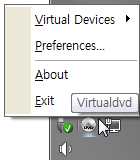
1. Click(Left or Right) the VirtualDVD's trayicon.
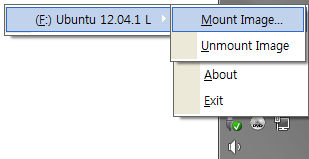
2. Select Menu(Virtual Devices->Mount Image).
3. Select CD/DVD Image file.
- Trayicon Menu
- Mount Image Menu
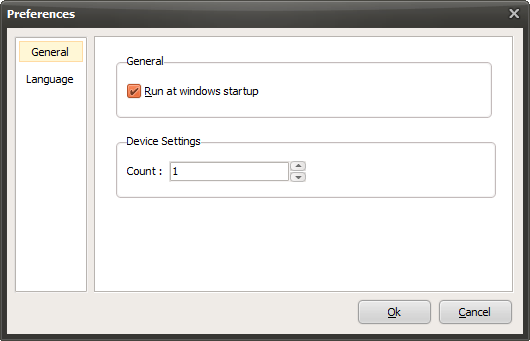
- Preferences