oCam Advanced Settings - Mouse Cursor Effects - Click Effects
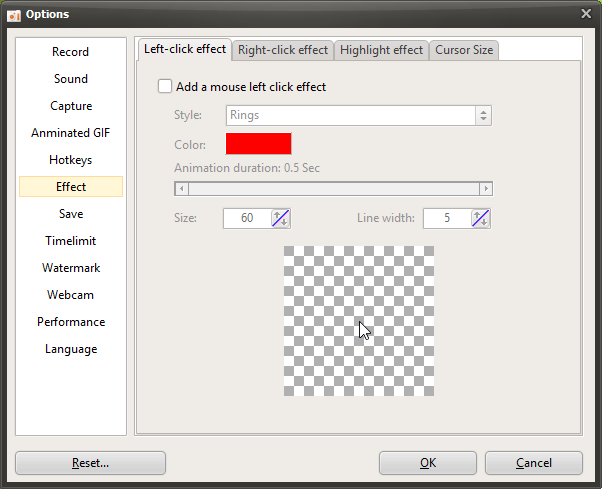
Click Tools - Options on the oCam main menu to open the settings under the Effects category.
Click Effects lets you apply separate effects when clicking the left mouse button and the right mouse button.
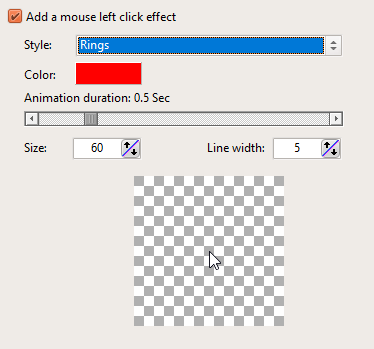
The available options for click effects are as follows. Below is an overview of each option.
The Style option supports five different styles.
1. Ring

2. Star

3. Star (Random Colors)
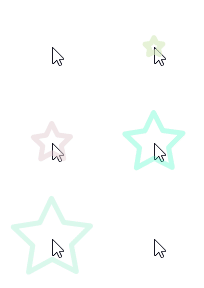
4. Rotating Star

5. Rotating Star (Random Colors)

Color is the color used for the click effect, and the selected color is ignored when Random Colors is used.
By default, it is red. For example, if the style is Ring and you change the color to black, it will appear as shown below.
( Note: The highlight animation starts slightly to the left of the text cursor, and this is normal. This is because the click position of the text cursor is slightly to the left. )
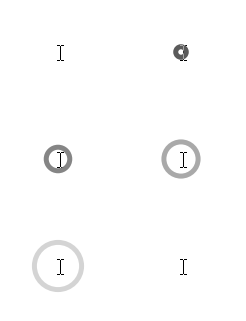
Animation Duration refers to how long the mouse cursor effect remains visible.
If the animation duration is set to about 0.5 seconds
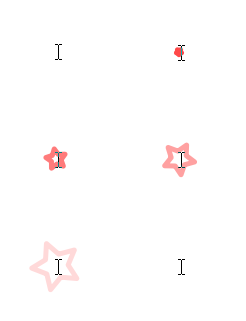
If the animation duration is set to about 2.5 seconds
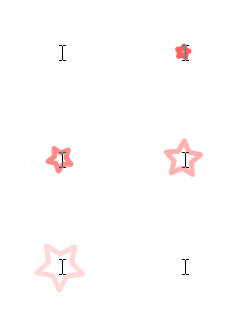
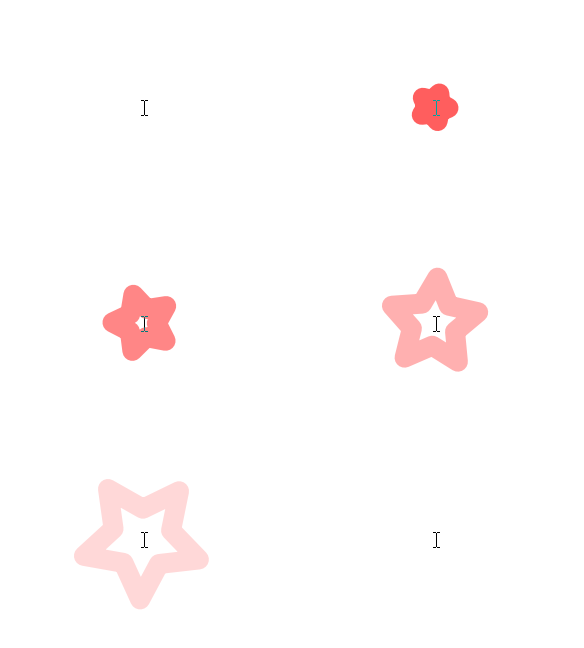
Size and Line Thickness refer to the size of the shape and the thickness of its outline, depending on the selected style.
If you increase the size to 150 and set the line thickness to about 20
Finally, the area shown below is the preview window where you can preview the options you have selected.
If you move the mouse over the preview area shown above and left-click or right-click, you can preview the click effect.
Today's News/Tips
How to fine-tune and accurately adjust the recording area window
oCam supports shortcut keys for moving the recording area window and adjusting its size, so here is a summary.
oCam provides various keyboard shortcut features to conveniently control the recording area window.
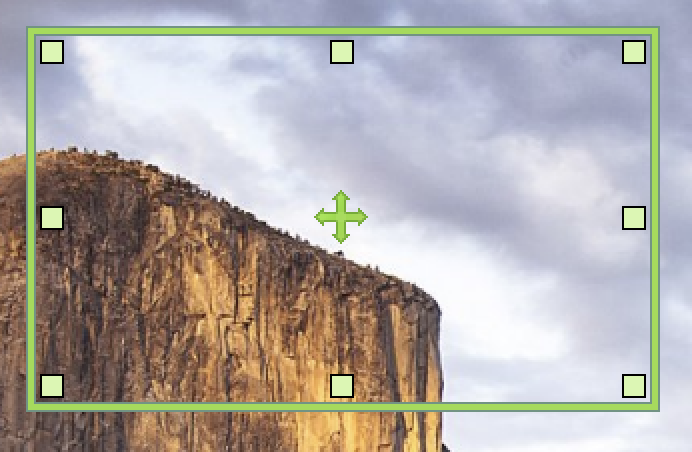
First, you can move the recording area window precisely using the arrow keys.
If you want to move it in larger steps, hold down the Ctrl key and use the arrow keys together.
This allows the Ctrl + arrow key combination to move the window faster and over a wider range.
Also, when you want to resize the window, use the Shift key together with the arrow keys.
Using the Shift + arrow combination makes it easy to enlarge or shrink the recording area window in the desired direction.
If you want to adjust the size in larger steps, press Shift + Ctrl + arrow keys together.
This combination lets you resize the window more significantly and faster, making it very useful.
oCam maximizes user convenience through this detailed and fine-grained shortcut support.