What to Do If the "Failed to url_fopen" Error Message Appears and Recording Does Not Start
When creating a recording file in oCam, an error may occur if the file cannot be saved to the save path specified by the user. This issue is usually caused by access permissions for the save path or an incorrect path setting. Below is a detailed explanation of how to change the save path to resolve this problem.
To fix the recording file save error, the most effective method is to change oCam's save path to a different location. Please follow the steps below:
1. In the oCam main window, click 'Tools' in the top menu, then select 'Options'.
2. When the Settings window opens, click the 'Save' category in the left menu.
3. In the 'Save' tab, find the 'Save Path' item, check the currently configured path, and change it to a new location.
4. After making the change, click the 'OK' button to save the settings.
By default, it is recommended to set the save path to the Desktop. The Desktop generally has the access permissions needed for all programs to create files, so save errors are less likely to occur. For example, if you set the Desktop path to `C:\Users\[User Name]\Desktop`, in most cases the recording file will be saved without errors.
After changing the save path, restart oCam and try recording again to check whether the problem has been resolved. If the issue continues, it is also a good idea to check whether the selected folder has write permission and whether there is enough disk space.
Today's News/Tips
How do I record in ultra-high quality (lossless)?
Generally, recorded video is usually compressed, which can cause some color loss compared to the original screen.
If you want to record in lossless mode, you can use the Lagarith Lossless Video external codec.
You can download it from the following address.
http://lags.leetcode.net/codec.html
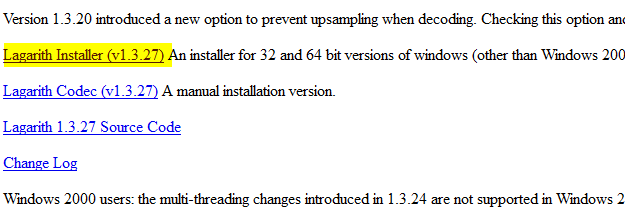
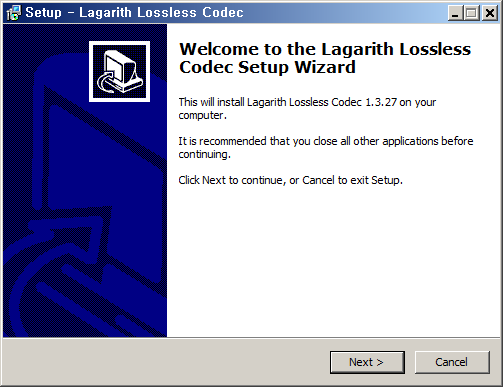
After downloading, install it as shown below.
If oCam is already running, restart it. Then in the oCam main window, click Codec - External Codec, check the Use External Codec box,
and select Lagarith Lossless Video from the list.
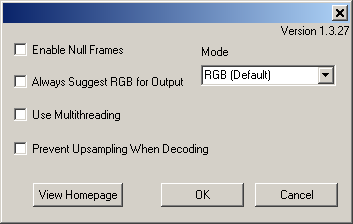
After selecting it, click Settings. The settings window opens as shown below. Usually you can leave it as is, but you can adjust it according to your environment.
Note that this codec produces visually lossless video, but the resulting files are very large and decoding takes a long time, which may cause playback stuttering.
Therefore, this codec is generally better suited for editing purposes.