oCam Advanced Settings - Recording - Game Tab
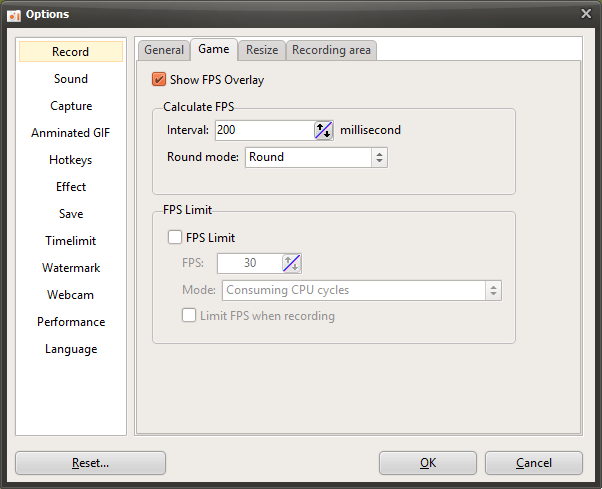
oCam is software that provides settings specialized for game recording, helping gamers and content creators capture high-quality gameplay footage with ease. In the settings window that appears when you click the "Tools - Options" menu, the "Game" tab under the "Recording" category provides detailed settings optimized specifically for game recording. The options in this tab include various features for managing gameplay frame rates (FPS) and optimizing system resources, allowing users to adjust recording to suit their own environment. Below is a detailed explanation of the main settings in the "Game" tab.
Show FPS
The "Show FPS" option determines whether the real-time FPS (frames per second) value is displayed in the top-left corner of the screen while using game recording mode. By default, this option is checked, so the FPS value appears on the screen during game recording. This feature is useful for users who want to monitor game performance in real time. For example, it helps you check whether the game is running smoothly or whether frame drops are occurring during recording. If you do not need the FPS display, you can disable this option to keep the screen cleaner.
FPS Calculation - Interval (Milliseconds)
The "FPS Calculation - Interval" setting lets you specify the time interval used to display FPS in milliseconds (ms). FPS means the number of frames drawn per second and is calculated based on 1,000 milliseconds (1 second). If the user enters a value smaller than 1,000 ms, oCam calculates and displays a predicted FPS value based on that interval. For example, if it is set to 500 ms, the FPS will be updated every 0.5 seconds. This setting is useful when you want to monitor frame rate changes in more detail.
In addition, "Rounding Mode" is an option that lets you choose how decimal values are handled when calculating FPS. You can select rounding, round up, or round down, allowing you to adjust how the FPS value is displayed. For example, if you choose rounding, the FPS will be shown as a neatly rounded whole number.
FPS Limit
"FPS Limit" is a feature that restricts the game's frame rate in game recording mode to a value specified by the user. This setting allows you to adjust the game's FPS to the level you want, which is useful for optimizing system resource usage or maintaining consistent recording quality. Two modes are provided for FPS limiting:
Consume CPU Cycles: This mode continuously uses the CPU to keep the frame rate as close as possible to the FPS value entered by the user. This method is suitable when precise FPS control is needed, such as when you want stable recording in a high-spec game. However, CPU usage may increase, so you should pay attention to system performance.
Yield to CPU: This mode limits FPS while minimizing CPU usage. It adjusts frames by using idle time, so it has the advantage of reducing CPU load, but FPS limiting may have a slight margin of error. This method is useful for users who want to save system resources or record on a lower-spec PC.
Limit FPS Only While Recording
The "Limit FPS Only While Recording" option applies the FPS limit only while recording is actually in progress. In other words, the specified FPS limit works only while recording is active after pressing the record button, and once recording stops, the game runs again at its original FPS. This setting is useful for users who want to manage gameplay and recording separately. For example, you can enjoy the game at maximum performance during normal play and limit FPS only during recording to get more stable video.
Usage Tips
The settings in the "Game" tab play a key role in balancing recording quality and system performance. For example, when recording a high-spec game, you can use the "Consume CPU Cycles" mode to set an accurate FPS limit and adjust FPS to 60 or higher for smoother footage. On the other hand, on a lower-spec system, it is better to choose the "Yield to CPU" mode to reduce resource usage. In addition, by enabling the Show FPS feature to check performance in real time, you can quickly identify frame drops or performance degradation during recording.
Today's News/Tips
How to Use an External Codec - Xvid
Go to the official Xvid website.
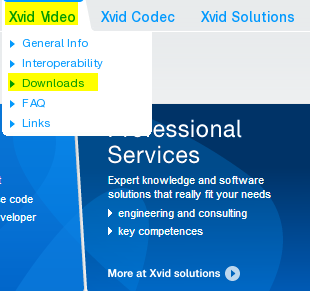
Click Xvid Video - Downloas in the menu at the top right. ( Do not select Xvid Codec. )
Click the link below.
Click the Download button to download it.
This is the installation screen. Click OK right away.
The detailed explanation is omitted. Just keep clicking the Next button to continue.
If oCam is already running, restart it, then click the Codec button in the oCam main window and click the External Codec menu.
Then check the Use External Codec checkbox, and you will see that the newly added Xvid MPEG-4 Codec is available.
Select that codec.
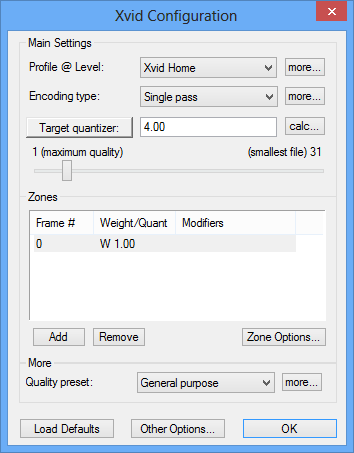
Click the Settings button to configure the detailed options of the Xvid codec.