How to Record Exactly What You Hear While Recording
After recording video or audio with oCam, you may find that the sound is too quiet, too loud, or that the audio quality does not meet your expectations. To solve these issues and record with the best possible audio quality, it is helpful to understand a few important points. Below is a detailed explanation of the main audio quality factors and how to address them.
One of the most important ways to improve recording quality is to use Windows 7 or later. In Windows XP, recording is done through Stereo Mix, so the audio quality can vary greatly depending on the sound driver manufacturer. As a result, there is a high chance that the recorded sound may not be satisfactory. In contrast, Windows 7 and later use WASAPI (Windows Audio Session API), which makes it possible to record in high quality very close to the original sound. However, because the recording process still goes through an encoding stage, it may not be perfectly identical to the original sound.
However, even in Windows 7 or later, there are certain factors that can affect audio quality during recording or playback. First, one of the main factors that can affect audio quality at the start of recording is when the speaker configuration is set to 2.1 channels or higher. oCam currently saves audio in stereo (2-channel) format and plans to support more channels in the future. However, if your speakers are configured as 2.1 channels or higher, in other words 3 channels or more, oCam will downmix the audio to stereo before saving it. In this process, converting audio with 3 or more channels into 2 channels will inevitably cause some change in audio quality. Therefore, if you want to record the sound exactly as you hear it through the speakers, the most effective solution is to change the speaker configuration to stereo (2 channels).
The following factors can affect audio quality when playing back the recorded file. First, if the volume control setting on the Windows taskbar is different between the time you start recording and the time you play back the file, the sound level may be different. For example, if the volume was set to 50% during recording, the sound may seem louder when played back with the volume set to 100%. Naturally, this can create a noticeable difference in both loudness and perceived audio quality.
Second, the settings in your video player can also affect audio quality. Some players have the normalize feature enabled by default, which amplifies the sound so that it plays back close to 0 dB. In this process, the sound may become excessively loud, or in severe cases, the audio quality may become distorted and sound broken. For example, PotPlayer has normalize enabled by default, so it may play the recorded sound louder than it was originally recorded or alter the audio quality. To fix this, disable the normalize feature in PotPlayer's settings menu to get playback that is closer to the originally recorded sound.
Third, the player's volume setting also has an important effect. In most players, the volume should be set to 100% in order to match the sound level you heard during recording. For example, if the player volume is set to 50% when playing a file recorded with PotPlayer, the sound will be reduced by half and may sound different from the original. Therefore, it is recommended to set the player volume to 100% during playback.
There are also other factors that can affect audio quality. For example, if an equalizer is enabled in the player, the sound frequencies may be altered, which changes the audio quality. Also, if the Fade In effect is turned on, the sound may start quietly at the beginning of playback. However, the three most important factors are the volume settings, normalize, and the player volume level mentioned above.
In addition, using the Windows volume control is not the proper way to adjust the recording volume. For example, even if you are playing an MP3 file and set the speaker volume to 0 using the Windows volume control, recording with oCam will not result in a silent recording. The Windows volume control only affects speaker output and has nothing to do with the volume level being recorded. Instead, the volume setting inside the program that is playing the sound, such as a media player, directly affects the recorded audio level. If that program does not provide its own volume control option, you can click the Windows volume icon at the bottom of the taskbar and open the Mixer to adjust the volume of the currently running application. This allows you to control the volume level of the sound being recorded as needed.
Today's News/Tips
How to Add Your Own Watermark
A watermark is an image added to your video to identify its source, since others may copy or repost it.
To add a watermark, follow these steps.
1. In the oCam main window, click Tools - Options from the menu.
2. When the Settings window appears, click Watermark on the left.
You can configure the watermark as shown below.
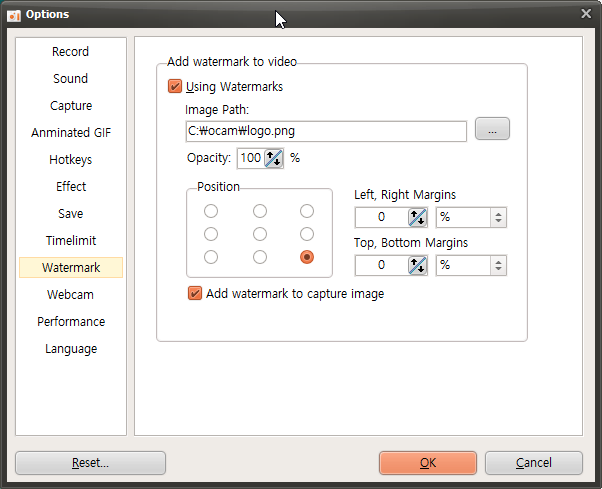
If you check Use Watermark, the image set in the image path will be displayed in the recorded video.
If the opacity is 100%, the image will be shown as is. The lower the value, the more transparent it becomes.
The coordinates set the position where the watermark will appear in the video.
Set the following image as the watermark,
( The copyright for this image belongs to http://ploupdesign.fr/. )

and when you start recording, the image will appear as shown below.
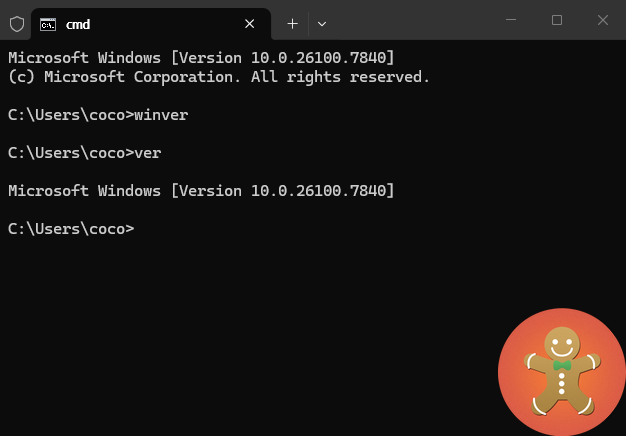
Watermark images support PNG, JPG, and BMP formats, and PNG files with alpha channels are also supported.
To create your own watermark, search for "create watermark" on a search site.