How to Capture Images with oCam
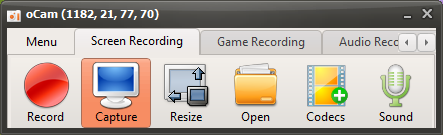
Clicking the Capture button on the main screen of oCam immediately captures the screen within the recording area you have set. This feature is very useful when you want to save a precise snapshot of a specific part of the screen. Through oCam's intuitive interface, users can freely adjust the capture area in advance and take screenshots exactly as needed by selecting the full screen, a specific window, or a custom area. This flexibility is especially useful for document work, preparing presentation materials, or for IT professionals who need to record specific UI elements.
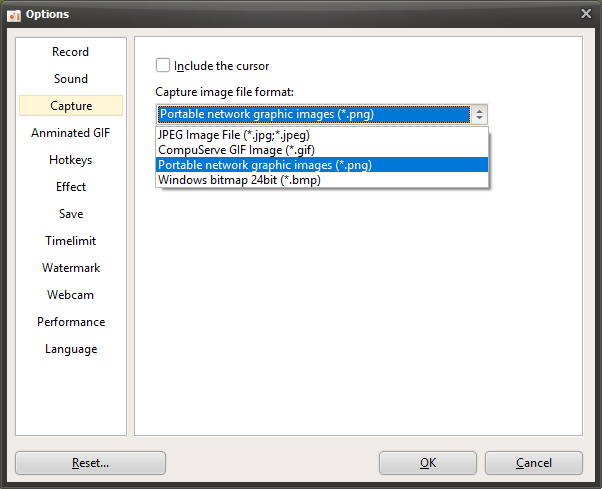
Once the capture is complete, oCam saves the image in PNG format by default, providing a sharp, high-quality result. PNG format supports lossless compression, so you can keep clear screenshots without any loss of image quality, and it is compatible with most image editing software and platforms. In the oCam settings menu, users can also change the save format to other types such as JPG or BMP, allowing them to balance file size and quality according to project requirements.
To check the captured image, click the "Open" button on the main screen of oCam. When you click this button, Windows Explorer opens automatically and shows the most recently captured file already selected. This feature helps users review and use captured images right away. Since it takes you directly to the folder where the file is saved through Windows Explorer, file management also becomes much easier.
oCam's capture feature is simple yet powerful, making it useful in a wide range of situations from everyday tasks to professional environments. For example, software developers can use it to record bugs or share UI designs, while instructors can use it to prepare teaching materials. In addition, through the oCam settings menu, you can change the save location to a custom folder or set file naming rules when capturing for more organized file management. In this way, oCam provides high-quality screenshots with simple controls and greatly improves work efficiency.
Today's News/Tips
How to Add Your Own Watermark
A watermark is an image added to your video to identify its source, since others may copy or repost it.
To add a watermark, follow these steps.
1. In the oCam main window, click Tools - Options from the menu.
2. When the Settings window appears, click Watermark on the left.
You can configure the watermark as shown below.
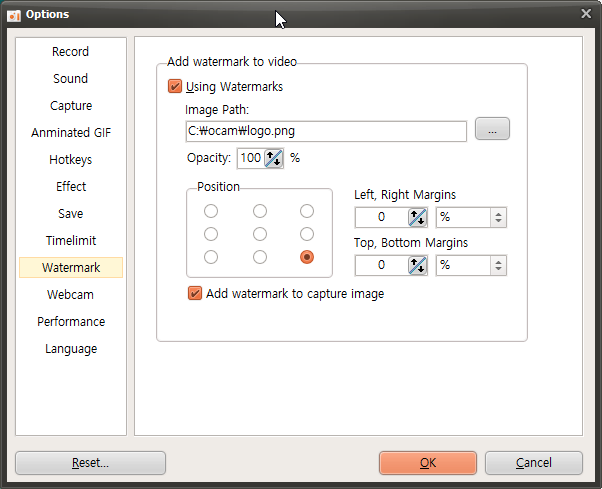
If you check Use Watermark, the image set in the image path will be displayed in the recorded video.
If the opacity is 100%, the image will be shown as is. The lower the value, the more transparent it becomes.
The coordinates set the position where the watermark will appear in the video.
Set the following image as the watermark,
( The copyright for this image belongs to http://ploupdesign.fr/. )

and when you start recording, the image will appear as shown below.
Watermark images support PNG, JPG, and BMP formats, and PNG files with alpha channels are also supported.
To create your own watermark, search for "create watermark" on a search site.