How to Fix the "Error while writing video frame (error=-28)" Error
When recording with oCam, the following error message may appear after a certain amount of time:
"Error while writing video frame (error=-28)"
This error (error code 28) occurs when the file system of the path where the recorded video file is being saved is formatted as FAT (FAT32). The FAT file system has a maximum single-file size limit of 4 GB, so this error occurs when the recorded file size exceeds 4 GB. Below is a detailed explanation of how to resolve this issue.
To fix this error, you can choose one of the following two methods:
1. Change the save path to an NTFS file system
The NTFS file system has a much larger file size limit (up to 16 EB), so it can store video files larger than 4 GB without any problems. To change oCam's save path to a drive or folder that uses the NTFS format, follow these steps:
1. In the oCam main window, click 'Tools' in the top menu, then select 'Options'.
2. In the Settings window, click the 'Save' category in the left menu.
3. Under the 'Save Path' item, check the current path and change it to another drive or folder that uses the NTFS file system (for example, `C:\Videos` or `D:\Recordings`).
4. Click the 'OK' button to save the settings, restart oCam, and then try recording again.
2. Format the existing drive as NTFS
If the drive you are currently using is formatted as FAT or FAT32, you can convert or format it to NTFS. However, formatting will erase all data on the drive, so be sure to back up any important files first. To format the drive, follow these steps:
1. Open File Explorer and right-click the drive you want to format (for example, a USB drive or external hard drive).
2. Select 'Format' and set the file system to 'NTFS'.
3. Choose the formatting options, then click 'Start' to begin formatting.
4. After formatting is complete, set that drive as the save path in oCam and use it.
Additional Checks
- To check whether the drive's file system is FAT32, right-click the drive in File Explorer and select 'Properties' to view the file system information.
- If the problem continues even after changing to NTFS, check whether the drive has enough free space and whether you have write permission.
By changing the save path to an NTFS file system or formatting the drive, you can save large video files over 4 GB without errors. After changing the settings, make a test recording to confirm that the problem has been resolved.
Today's News/Tips
Setting the Codec - Choosing a Video Codec
oCam is an intuitive and lightweight free software tool that allows users to record or capture their screen, making it suitable for a wide range of users from beginners to IT professionals.
It is also a screen recording and capture program with a simple interface and powerful features, making it useful for gameplay recording, online lectures, tutorial creation, and simple screenshot capture. Thanks to the intuitive buttons on the main screen, even beginners can use it easily, while advanced users can create an optimized recording environment through detailed settings.
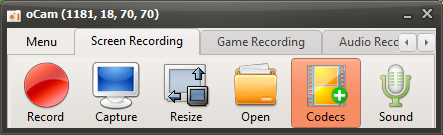
Codec Settings and Video Containers
When you click the "Codec" button on the main screen of oCam, a settings window appears where you can choose the video container and video codec. This settings window is designed to let users freely adjust the recording file format and quality. The video containers supported by oCam include the following formats:
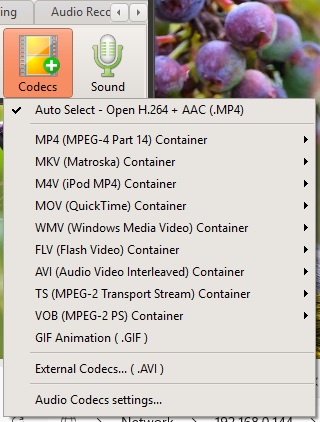
MP4: The most widely used video format, offering excellent compatibility and reasonable file sizes.
MKV: A multimedia container that supports high-quality video and various codecs. (A container that can continue playback even if recording is interrupted partway through.)
M4V: A format optimized for compatibility with Apple devices.
MOV: A QuickTime-related format suitable for users who prefer high-quality video.
WMV: A Microsoft video format mainly used in Windows environments.
FLV: A Flash-based video format often used for web streaming.
AVI: An older format that is still compatible with a wide range of software.
TS: A streaming format suitable for high-definition broadcast recording.
VOB: A format mainly used for DVD video.
By supporting such a wide range of containers, users can choose the file format that best fits their platform or purpose.
Supported Video Codecs
oCam provides a variety of video codecs to help optimize recording quality and performance. The supported video codecs are as follows:
NVIDIA NVENC H.264: A high-efficiency codec that uses hardware acceleration and delivers excellent performance on systems equipped with NVIDIA graphics cards.
Open H.264: An open-source H.264 codec that provides high compression efficiency and good quality.
MPEG-4: A widely used codec with excellent compatibility across many devices.
Microsoft MPEG-4 Part 2 and Part 3: Codecs optimized for Microsoft environments.
Windows Media Video 8 (WMV8): Provides efficient compression on Windows-based systems.
MPEG-2: A codec suitable for DVD-quality video.
MPEG-1: An older format that is still useful on lower-spec systems.
FLV: A codec specialized for Flash video.
In particular, the NVIDIA NVENC H.264 codec uses the hardware encoder built into NVIDIA graphics cards to minimize CPU load, allowing smooth recording with almost no lag even during demanding tasks such as gameplay recording. However, this codec is only supported on certain NVIDIA graphics cards or higher, so recording may fail if your graphics card does not support it. For that reason, it is important to check your system specifications before selecting this codec.
Audio Codecs and Additional Features
oCam supports not only video recording but also audio recording, allowing you to capture sound together with screen recordings. The supported audio codecs are as follows:
AAC: Offers high sound quality and efficient compression, and is compatible with most modern video containers.
MP3: The most widely used audio format, offering a good balance between file size and sound quality.
MP2: An audio codec often used for broadcasting and DVDs.
WMA: A Microsoft audio format optimized for Windows environments.
FLAC: A lossless audio codec that provides high-quality sound close to the original source.
With these audio codec options, users can adjust the sound quality of recorded videos as needed. For example, you can use AAC for clear lecture audio or MP3 for gameplay recordings to maintain a good balance between quality and file size.
GIF Support
oCam also supports GIF format, which is useful for users who want to create short and lightweight animated files. When you select GIF mode, an animated GIF file is created instead of a video file, making it suitable for sharing on social media or creating simple tutorials. Since GIF files can be large and are not ideal for high-resolution video, it is best to choose this format according to your needs.
Things to Keep in Mind
There are a few things to keep in mind when using oCam. In particular, if you use the NVIDIA NVENC H.264 codec, you should always check your hardware specifications first. If you select this codec on an unsupported graphics card, recording may fail or errors may occur. It is also important to make sure you have enough storage space and system resources when recording in high resolution or for long periods.
Conclusion
oCam is software designed to make screen recording and capture easy for anyone through a simple interface and powerful features. It supports a wide range of video containers and codecs, and hardware-accelerated recording with the NVIDIA NVENC H.264 codec in particular delivers excellent performance even for demanding tasks. With support for audio codecs and GIF creation as well, oCam is a versatile tool that can be useful in many different environments, from individual users to professionals. If you carefully choose the codec and settings that match your system specifications and intended use before starting a recording, you will be able to get the best results.