Using an external codec - Using Xvid
Using an external codec - using Xvid
Go to the official Xvid website.
In the top right menu, click Xvid Video - Download. (Do not select Xvid Codec.)
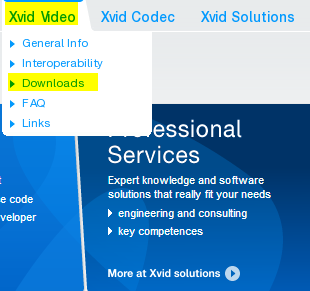
Click the Download button to download it.
This is the installation screen. Just click OK.
As with the details, you can just click the Next button and proceed.
If oCam is already running, restart oCam, then click the Codec button on oCamโs main window and click the External Codec menu.
After that, check the Use External Codec checkbox and you will see the newly added Xvid MPEG-4 Codec.
Select that codec.
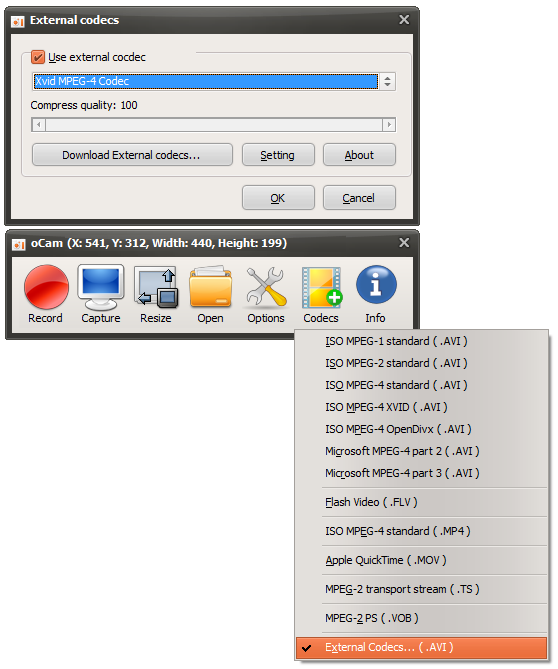
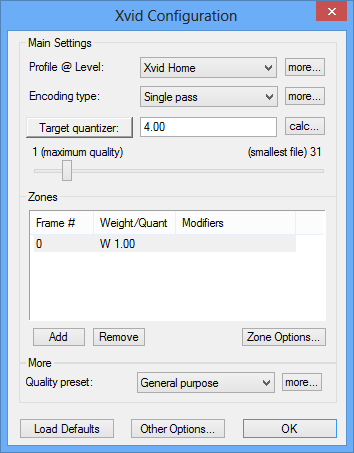
If you click the Settings button, you can set detailed options for the Xvid codec.
Today's News/Tips
Setting the Codec - Adjusting Audio Codec Quality

oCam is user-friendly software that supports high-quality audio recording along with screen recording, and it provides powerful features that let you record at the sound quality you want through a variety of audio codecs. In particular, oCam supports a wide range of audio codecs such as AAC, MP3, MP2, WMA, and FLAC, helping users choose the best sound quality for their recording purpose. Below is a detailed guide to setting audio codecs in oCam, along with the characteristics of each codec and their sound quality settings. This guide is designed so that anyone from beginners to IT professionals can follow it easily.
How to Set the Audio Codec
To configure the audio codec in oCam, first click the Codec button on the main screen of the program. Clicking this button opens a pop-up menu where you can manage both video and audio settings. From this menu, select the audio codec settings option to open a separate settings window where you can choose an audio codec and adjust detailed sound quality settings. The process is intuitive, and you can complete your preferred audio settings with just a few clicks.
When the settings window opens, it displays a list of available audio codecs along with the bitrate and sample rate settings supported by each codec. In this window, users can choose sound quality options that match the characteristics of each codec. For example, you can select the appropriate codec and settings depending on whether you need higher sound quality or want to reduce file size. After selecting the desired codec and sound quality, click the OK button to save the settings, and those settings will then be applied automatically during recording. This process is simple yet flexible, allowing users to customize audio quality easily.

Supported Audio Codecs and Sound Quality Settings
oCam is designed to support a variety of audio codecs so users can choose the best sound quality for their recording purpose. Each codec offers its own bitrate and sample rate range, and below is a detailed description of the main audio codecs supported by oCam and their characteristics.
1. AAC Codec
Bitrate: 48kbps ~ 512kbps
Sample Rate: 7,350Hz ~ 96,000Hz
Features: AAC (Advanced Audio Coding) is a modern codec that delivers excellent sound quality through highly efficient compression technology. Because it supports a wide range of bitrates and sample rates, it is ideal for recording music, lectures, or videos that require high-quality voice audio. Setting a higher bitrate and sample rate gives you clearer and richer sound quality, but file size may increase, so storage space should be considered.
2. MP3 Codec
Bitrate: 48kbps ~ 320kbps
Sample Rate: 22,050Hz ~ 48,000Hz
Features: MP3 is one of the most widely used audio formats in the world and offers an excellent balance between file size and sound quality. It is suitable for general screen recording, voice recording, and streaming, and provides high compatibility with most editing software and platforms. If set to 320kbps, it can maintain high sound quality while keeping file size manageable.
3. MP2 Codec
Bitrate: 48kbps ~ 320kbps
Sample Rate: 16,000Hz ~ 48,000Hz
Features: MP2 (MPEG-1 Audio Layer II) is a codec mainly used in broadcasting environments and provides stable sound quality. Although it is somewhat older than MP3, it is still useful because it remains highly compatible with certain video formats. MP2 is suitable for simple voice recordings or when mid-level sound quality is sufficient.
4. WMA Codec
Bitrate: 48kbps ~ 320kbps
Sample Rate: 8,000Hz ~ 48,000Hz
Features: WMA (Windows Media Audio) is a codec developed by Microsoft and offers strong compatibility with Windows environments. It maintains good sound quality even at lower bitrates, making it advantageous in environments with limited system resources. WMA is suitable for users who want simple voice recording or smaller file sizes.
5. FLAC Codec
Bitrate: No bitrate setting, uses lossless compression
Sample Rate: 8,000Hz ~ 192,000Hz
Features: FLAC (Free Lossless Audio Codec) is a lossless codec that preserves the original sound quality without any loss, providing the highest level of audio quality. File sizes can be larger than with other codecs, but it is ideal for music production, high-resolution audio recording, or archiving purposes. FLAC is recommended for professional users who are sensitive to sound quality.
Things to Consider When Choosing an Audio Codec
When choosing an audio codec, you should consider the recording purpose, the required sound quality, and the system environment as a whole. For example, AAC or FLAC is suitable for high-quality music or lecture recordings, while MP3 or WMA is a better choice when minimizing file size is important. Since bitrate and sample rate directly affect both sound quality and file size, it is important to adjust them according to your intended use. For example, when recording content such as game streaming that mixes background music and voice, it is best to choose a higher bitrate (for example, 256kbps or higher) and sample rate (44,100Hz or higher) to maintain clear sound quality.
Also, audio codec settings work independently from video codec settings, so it is important to balance the video and audio settings properly. For example, combining a high-quality video codec such as x264vfw with FLAC can produce very high-quality results, but the file size may become quite large, so you should check available storage space and processing performance. Some codecs support detailed options such as stereo/mono selection or more precise bitrate adjustments, so using those settings when needed can help create a more optimized recording environment.
Disabling Audio Codec Settings and Restoring Defaults
If you want to stop using a specific audio codec setting and return to the default settings, you can easily revert the configuration. Go back to the Codec menu in oCam, open the audio codec settings again, and switch back to the built-in codec you were previously using, such as the default MP3 or AAC setting, or reset the settings. When the settings are reset, oCam automatically restores the default audio codec, which provides stable sound quality that is easy for beginners to use. This process is intuitive and can be completed quickly with just a few clicks.
If the sound quality does not meet expectations after changing the audio codec settings, or if system resources are being used too heavily, you can return to the default settings or choose a lighter codec, such as MP3 at 128kbps and 44,100Hz, to continue recording more reliably. Thanks to oCam's flexible settings, users can change configurations at any time and create the most suitable environment.
Advantages and Precautions When Using Audio Codecs
One major advantage of using audio codecs in oCam is that users can freely adjust the sound quality and file size they want. For example, FLAC provides lossless audio quality and is suitable for professional audio work, while AAC offers both high sound quality and efficient compression. On the other hand, higher-quality codecs may consume more system resources and create larger files, so you should take your hardware specifications and available storage space into account. Also, if you plan to edit or share the recorded video afterward, it is important to check the compatibility of the selected codec. For example, MP3 and AAC are supported by most platforms, while FLAC may require additional conversion in some software.
In addition to audio codec settings, oCam also provides various audio-related features such as microphone input and system sound adjustment, allowing users to fine-tune the recording environment as needed. For example, if you record microphone audio and system sound at the same time, you can balance the volume levels of each source to maintain the best possible audio quality.