Useful Tips for Microphone Recording in Windows 7 or Later
When recording microphone and system audio with oCam, knowing how to adjust the sound balance and audio quality is an important factor that can greatly improve recording quality. Below is a detailed guide to the settings and tips related to microphone and system audio recording.
1. If you want to record only the microphone
If you want to record only the microphone audio and exclude system audio, click the 'Sound' button in the oCam main window. In the sound settings menu, uncheck the 'Record System Audio' option. With this setting, oCam will record only the microphone input without system audio, allowing you to focus on the microphone sound.
2. If you want to record both the microphone and system audio
To record both microphone and system audio at the same time, click the 'Sound' button in the oCam main window, then select both the 'Record System Audio' and 'Microphone' options. With this setting, you can record system audio such as game sound or background music together with voice input from the microphone, such as commentary or conversation. This is useful when you want to create a video in which both sounds blend naturally.
3. If the microphone volume is too low
If the microphone volume is too low and hard to hear, you can adjust the microphone volume through the Windows sound settings. Follow the steps below:
- Open 'Control Panel' from the Start menu and click 'Sound'.
- In the Sound settings window, go to the 'Recording' tab.
- Find the microphone you are using in the list of recording devices and double-click it to open the 'Microphone Properties' window.
- In the 'Levels' tab, adjust the 'Microphone Volume' slider to increase the base volume, and if necessary, enable the 'Microphone Boost' option to make the sound louder. With this setting, the microphone audio will be recorded more clearly and at a higher volume.
4. If the system audio is too loud and drowns out the microphone
If the recorded system audio is too loud and makes the microphone hard to hear, you should reduce the system audio volume. You can use the following two methods for this:
- Adjust the volume inside the playback program: If the program producing the system audio, such as a game or media player, has its own volume control option, lower the volume in that program. This reduces the system audio level during recording and helps balance it with the microphone audio.
- Use the Windows Volume Mixer: If the program itself does not allow volume adjustment, right-click the speaker icon in the tray at the bottom right of the taskbar. From the menu that appears, select 'Open Volume Mixer'. This will open the mixer window, where you can adjust the volume of each currently running program individually. Lower the volume slider for that program to reduce the system audio.
*Note*: Lowering the overall Windows speaker volume does not affect the volume of the recorded sound, so you must adjust the volume of the individual program.
5. If increasing the microphone volume only increases noise and the audio quality is poor
If you increased the microphone volume as described in section 3 but the noise became worse or the audio quality is still unsatisfactory, then instead of forcing the microphone volume too high, you should also reduce the system audio appropriately. As explained in section 4, lower the system audio volume to balance it with the microphone audio so that the microphone voice can be heard more clearly. During this process, carefully adjust the balance between the microphone and system audio to find the best sound quality.
6. If you want to further improve microphone quality or completely remove noise
If you want to maximize microphone quality or reduce noise, software settings alone may have limitations. In that case, the most effective solution is to purchase a professional audio interface and a high-quality microphone. Many standard microphones produce a lot of noise or have low audio quality, making it difficult to fully compensate through software. Therefore, using a high-quality audio interface and a matching microphone can give you clear audio with minimal noise. For example, combining a condenser microphone with a USB audio interface can deliver professional-level recording quality.
Use the methods above to adjust the microphone and system audio in oCam the way you want and create the best recording environment. By fine-tuning each setting carefully, you can record better sound quality and more balanced audio.
Today's News/Tips
How to Set Recording Quality (From High Quality to Low Quality)
How to Set Recording Quality ( From High Quality to Low Quality )
Note: This setting does not apply to external codecs and only applies to oCam's built-in codecs. Lowering the recording quality will reduce the size of the recorded video file, but the video quality will also decrease.
There is a menu at the top of oCam. Click Tools - Options, then click Encoding on the left, and you can select the quality as shown below. By default, it is set to Very High (high quality).
You can choose from the following quality levels when recording.
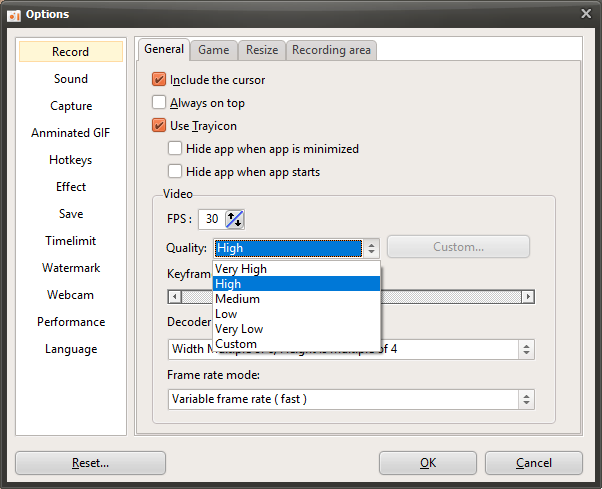
Below are captured preview images showing the recorded quality from Very High to Very Low.
Recorded at Very High

Recorded at High

Recorded at Medium

Recorded at Low

Recorded at Very Low