How to Fix Audio Sync Issues When Editing in Adobe Premiere
oCam is set to use Variable Frame Rate (VFR) mode by default, which allows it to adjust the frame rate flexibly depending on system performance and the recording environment. This setting is advantageous for efficient use of system resources, but it can cause compatibility issues with certain video editing software.
In particular, in professional editing software such as Adobe Premiere Pro, when loading a video file recorded with Variable Frame Rate, the irregular frame intervals may cause the audio and video to go out of sync. To fix this, you should change the setting in oCam to Constant Frame Rate (CFR) before recording.
To set it to Constant Frame Rate, follow these steps:
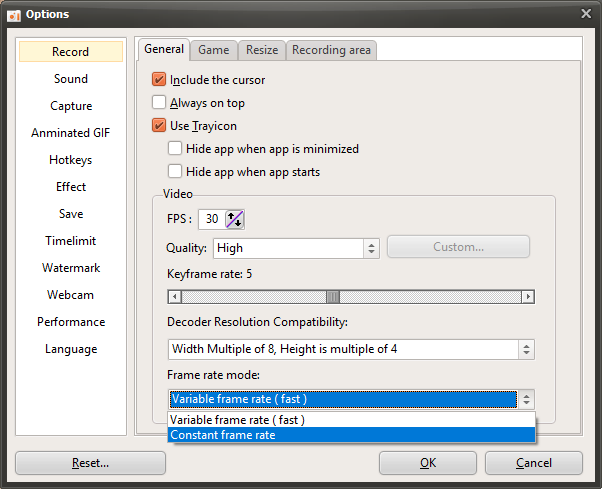
1. In the oCam main window, click 'Tools' in the top menu, then select 'Options'.
2. When the Settings window opens, go to the 'Recording' tab in the left menu.
3. In the 'Recording' tab, find the 'General' section and check the 'Frame Rate Mode' option.
4. Change the frame rate mode from 'Variable Frame Rate' to 'Constant Frame Rate'.
5. Click the 'OK' button to save the setting.
After changing to Constant Frame Rate and recording again, the frame intervals in the video will remain consistent, which can resolve audio and video sync issues in editing software such as Adobe Premiere Pro. This setting is especially essential for users who plan to edit videos and provides a more stable editing environment. After changing the setting, restart oCam and make a test recording to confirm that the result plays back correctly.
Today's News/Tips
What Are Codecs and Digital Container Formats?
When using oCam normally, you do not need an in-depth understanding of codecs and digital container formats. However, if you want to use oCam's extended features or optimize your recording settings, it is useful to understand these two terms. Below is an easy explanation of codecs and digital container formats, focused on how they relate to oCam.
* What is a digital container format?
A digital container format refers to familiar file extensions such as AVI, MP4, MOV, and FLV. It is a meta file format that defines the structure for storing video, audio, and metadata (for example, subtitles and time information) together in a single file. Simply put, you can think of a container format as the framework of a file structure that determines how video and audio data are stored.
For more information, see Wikipedia:
https://en.wikipedia.org/wiki/Container_format
For example, if a file is an AVI file, the container format is AVI, and the video and audio data inside that file are stored according to the structure defined by AVI. A container format acts like a "container" that holds the data, while the actual method used to encode the data is determined by the codec.
* What is a codec?
A codec is hardware or software that performs encoding and decoding. It includes algorithms for compressing data, decompressing it, or converting it into another format. In oCam, codecs are used to convert screen video data into a video file and to generate audio data. The generated data is then saved according to the digital container format selected by the user.
For more information about codecs, see Wikipedia:
https://en.wikipedia.org/wiki/CodecSimply put, a codec is a tool that compresses and converts video or audio data so it can be stored or played back efficiently. Common codecs used in oCam include XVID, MPEG-1, MPEG-2, MPEG-4, and H.264, while common audio codecs include MP3 and PCM.
* Codecs and container formats in oCam
In oCam, a codec is used to encode video and audio data in order to convert screen recording data into a video file. This encoded data is then saved as a file in the digital container format selected by the user, such as AVI or MP4. For example:
- If the file extension is AVI, the container format is AVI, and the video data inside may be encoded with H.264 or MPEG-4. The audio data may be saved as MP3 or PCM.
- In the case of an MP4 file, the container format is MP4, and it may similarly contain video encoded with H.264 and audio encoded with MP3.
* Summary
In oCam, the digital container format is the framework that defines the file structure, such as AVI or MP4, while the codec is the method used to compress and convert the video and audio data inside it, such as H.264 or MP3. oCam's default settings are enough for high-quality recording, but depending on your specific purpose, such as optimizing file size or improving editing compatibility, adjusting the codec and container format can make your workflow more efficient. If needed, try selecting the codec and format you want in oCam's codec settings menu.