oCam Advanced Settings - Animated GIF
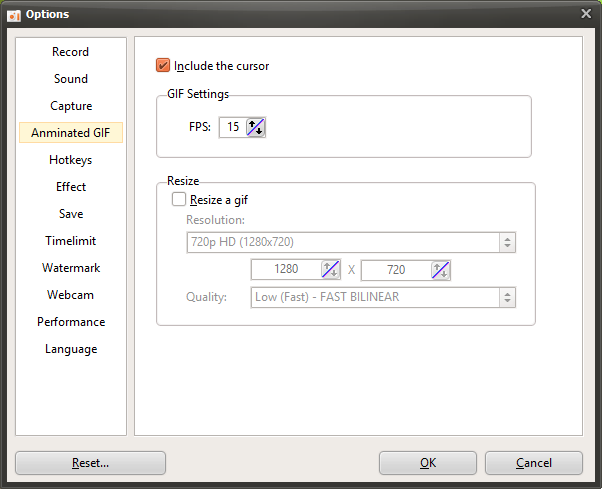
oCam is versatile software that not only supports screen recording and capture but also provides a GIF animation feature, allowing users to save short video clips as lightweight and easy-to-share GIF files. In the settings window that appears when you click the "Tools - Options" menu, the "Animated GIF" category on the left provides options for adjusting settings related to GIF creation. This tab applies when you click the "Codec" button in the main oCam window and choose the "Animated GIF (.GIF)" codec, and it is useful for optimizing the quality and format of GIF files. Below is a detailed explanation of the main settings in the "Animated GIF" category.
Overview of GIF Settings
The settings in the "Animated GIF" category are options that apply when recording in GIF format in oCam, and they are only enabled when the codec in the main window is set to "Animated GIF (.GIF)." GIF is a format suitable for sharing short animated clips on social media, websites, or messaging apps because the file size is relatively small and it can be played easily on most platforms. Through these settings, users can adjust the visual elements and quality of the GIF as needed.
Include Mouse Cursor
The "Include Mouse Cursor" option determines whether the mouse cursor will be included when recording a GIF animation. By default, this option is checked, so the mouse cursor is included in the GIF. This is useful when creating GIFs for tutorials, software demos, or situations where you want to emphasize mouse movement. For example, if you want to show the process of clicking a specific button in a GIF, including the cursor is effective. On the other hand, if the cursor is unnecessary or you want a cleaner GIF, you can disable this option to record without the cursor.
GIF Settings - FPS
The "GIF Settings - FPS" option sets the number of frames per second for the GIF animation. FPS directly affects both the smoothness of the GIF and the file size. Choosing a higher FPS, such as 30 FPS, makes the GIF play more smoothly, but the file size may become larger. On the other hand, choosing a lower FPS, such as 10 to 15 FPS, reduces the file size but may make the animation look less smooth. Users should choose an appropriate FPS based on the requirements of the sharing platform or file size limits. For example, for a short GIF uploaded to social media, 15 to 20 FPS is usually enough to get a natural-looking result.
Resize
The "Resize" option sets the output resolution of the GIF animation and works in the same way as the settings under the "Recording - Resize" tab. This setting applies only to the GIF codec and allows users to adjust the size of the GIF to the resolution they want. The supported resolution presets are as follows:
4320p UHD 8K (7680x4320), 2160p UHD 4K (3840x2160), 1440p QHD (2560x1440), 1080p FHD (1920x1080), 720p HD (1280x720), 480p (854x480), 360p (640x360), 240p (426x240), 144p (256x144), 120p (160x120), 96p (128x96)
Half Size: Reduces both the width and height of the recording area by half.
Specify Width Only and Keep Height Fixed: Sets the width while adjusting the height to match the original aspect ratio.
Specify Height Only and Keep Width Fixed: Sets the height while adjusting the width to match the original aspect ratio.
Custom: Lets the user directly enter the width and height to adjust the size exactly as desired.
Since GIF files are generally easier to share when the file size is small, it is common to choose a lower resolution such as 720p or below, or use the "Half Size" option. However, if you set a GIF to a very high resolution such as 8K, the file size can increase dramatically, so it is important to choose the settings while considering the upload limits and intended use of the platform.
Usage Tips
The settings in the "Animated GIF" category play a key role in creating GIF animations quickly and effectively. For example, if you want to make a short clip for social media, you can set the FPS to 15 to 20 and the resolution to 480p or 720p to optimize file size. Including the mouse cursor is useful when you want to highlight user actions, but if you prefer a cleaner visual style, it is better to leave the cursor out. Also, after creating a GIF, you can check the file size and, if necessary, re-record it with a lower FPS or resolution to match the limitations of the target platform.
GIF uses lossless compression, so it can maintain clear images without quality loss, but the number of colors may be limited, so it is a good idea to preview the result when recording screens with complex colors. Setting the save path in advance in oCam can also help you quickly find and use the GIF files you create.
Today's News/Tips
oCam Advanced Settings - Capture
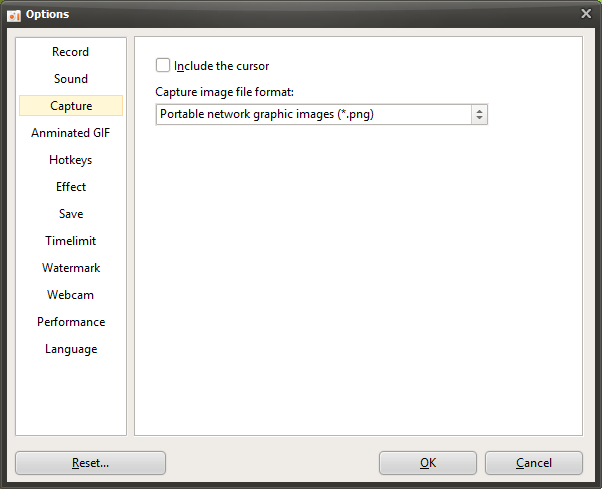
oCam is a multifunctional program that not only supports screen recording but also provides a screen capture feature, allowing users to save specific moments on the screen as images easily. In the settings window that appears when you click the "Tools - Options" menu, the "Capture" category on the left provides options for adjusting settings related to screen capture. This tab is designed so users can customize the details of the capture feature, and it can be used intuitively by everyone from beginners to IT professionals. Below is a detailed explanation of the main settings in the "Capture" category.
Overview of the Capture Feature
The settings in the "Capture" category are the options that apply when you click the "Capture" button in the main oCam window or press the default hotkey (F3). Through these settings, users can choose the format of the captured image and decide whether to include additional elements such as the mouse cursor. The capture feature is very useful when creating tutorials, preparing software documentation, or saving a specific moment on the screen.
Include Mouse Cursor
The "Include Mouse Cursor" option determines whether the mouse cursor will be included in the captured image. By default, this option is unchecked, so the mouse cursor is not included in captured images. This is suitable when you want a clean image. However, if you want to highlight the cursor position for lecture materials or software usage guides, you can check this option to include the cursor in the image. For example, when capturing the process of clicking a specific button, including the cursor can make the material visually clearer.
Image File Format for Capture
The "Image File Format for Capture" setting lets you choose the file format used to save captured images. oCam supports several image formats, and by default it is set to PNG. PNG is the most recommended format because it provides lossless compression, allowing you to save clear images without any loss in quality. Other supported formats may include JPEG and BMP. JPEG is useful when you want to reduce file size, but it may cause some loss of image quality. Users can choose the most appropriate format by considering storage space, image quality requirements, or compatibility with a particular platform.
Usage Tips
The settings in the "Capture" category are simple, but they play an important role in improving how captured images can be used. For example, when creating tutorials, enabling the "Include Mouse Cursor" option can clearly show where the user is clicking or interacting. Using PNG format by default helps maintain high image quality, making it suitable for professional documentation. On the other hand, if minimizing file size is important, you can choose JPEG format to save storage space. If you often use the capture hotkey (F3), changing it to a different key or becoming familiar with it can also help improve your workflow.
In addition, if you want to review and edit captured images immediately after saving them, it is a good idea to set the save location in advance in oCam. This makes it easier to find and use captured images quickly. If you are capturing the UI of specific software or a game screen, be sure to define the capture area accurately so that unnecessary parts are not included.