oCam Closes Automatically a Few Seconds After Launching
When trying to record with oCam, a specific issue may occur if an online video lecture site is running. This problem is usually caused by anti-recording software used by the site to protect its content. Below is a detailed explanation of the issue and how to handle it.
Online video lecture sites often use anti-recording software to protect copyrighted content. This software detects recording programs such as oCam and force-closes them at regular intervals. As a result, oCam may not be able to continue recording normally or may close unexpectedly.
To resolve this issue, you need to contact the online video lecture site directly where you want to record. Ask the site operator whether recording is allowed and check their related policy. If necessary, request permission to record. Some sites may allow recording under certain conditions or provide a way to temporarily disable the anti-recording feature.
Attempts to bypass issues caused by anti-recording software may violate the site's terms of use, so it is important to follow the site's policy. Therefore, if you want to record lecture content with oCam, first consult the site administrator and follow the proper procedure.
Today's News/Tips
Can I record only the computer system sound and save it as MP3?
Not only video recording, but audio recording is also now supported.
You can record through the following simple steps.
In the oCam main window, click the Sound tab at the top.
Then the mode is changed to audio recording.
In this state, when you click the Record button, system sound is recorded instead of screen recording.
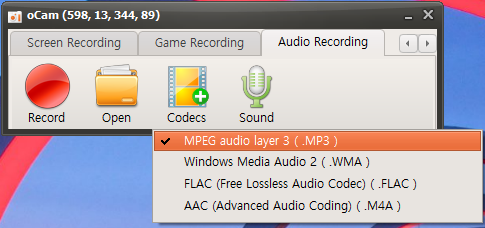
Then click the Codec button as shown below to set which audio file type to save.
(Currently, MP3, WMA, FLAC, and M4A extensions are supported.)
1. MP3 (MPEG-1 Audio Layer 3)
- Features: MP3 is the most widely used audio compression format, developed in the 1990s.
- Compression method: It uses lossy compression, which greatly reduces file size.
- Sound quality: Some audio data is lost during compression, so quality may drop compared to the original. However, at 192 kbps or higher, most users may not notice a clear difference.
- File size: About 2.4 MB per minute at 320 kbps, which is relatively small.
- Compatibility: It is supported on almost all devices and software, making it suitable for streaming, downloading, and playback.
- Use case: Commonly used for portable music players, online streaming, and everyday music listening.
2. WMA (Windows Media Audio)
- Features: An audio format developed by Microsoft, designed as an alternative to MP3.
- Compression method: Supports both lossy and lossless compression modes.
- Sound quality: Claimed to provide better quality than MP3 at the same bitrate, though the actual difference is often minimal. Lossless WMA preserves original audio quality.
- File size: Similar to MP3 in lossy mode; in lossless mode, files are much larger (about 10~20 MB per minute).
- Compatibility: Strong support in Windows environments, though compatibility may be weaker on other platforms such as macOS or some Android devices.
- Use case: Mainly used in Windows-based software and Microsoft products such as Xbox; DRM support makes it suitable for protected content distribution.
3. FLAC (Free Lossless Audio Codec)
- Features: A popular lossless audio format among audiophiles.
- Compression method: Uses lossless compression, preserving 100% of the original audio data.
- Sound quality: Provides original-quality audio with no loss, suitable for high-resolution playback.
- File size: Much larger than MP3, but about 50~70% smaller than the original WAV file (roughly 20~30 MB per minute).
- Compatibility: Supported by most advanced audio players and software, but may be difficult on some low-spec or older devices.
- Use case: Suitable for high-quality music listening, audio archiving, and studio work where preserving quality is important.
4. M4A (MPEG-4 Audio)
- Features: An MPEG-4 based audio format mainly used by Apple, including AAC (Advanced Audio Coding) and ALAC (Apple Lossless Audio Codec).
- Compression method: Supports lossy AAC and lossless ALAC.
- Sound quality: AAC is more efficient than MP3 and often provides better quality at the same bitrate. ALAC preserves original quality as lossless.
- File size: AAC is similar to or slightly smaller than MP3 (about 2 MB per minute), while ALAC is similar in size to FLAC (about 20~30 MB per minute).
- Compatibility: Strongly supported on Apple devices (iTunes, iPhone, iPad) and macOS; some Android devices or other platforms may require additional codecs.
- Use case: Mainly used in iTunes, Apple Music streaming, and podcasts, with AAC suitable for streaming and efficient storage.
Additional tips
- If you prioritize quality: choose FLAC or M4A (ALAC).
- If you prioritize file size and compatibility: choose MP3 or M4A (AAC).
- In Windows environments: WMA is also a good option, but MP3 may be more universally compatible.
- For Apple device users: M4A is most suitable, and AAC is especially good for streaming and saving storage.