oCam Quick Overview of Key Features
oCam (oCam) Key Features Overview
You can see the following screen when you run the program.
Select one of the top tabs to choose the recording type first: Screen Recording, Game Recording, or Sound Recording, and then start.
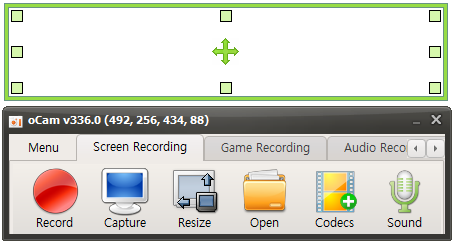
This is a brief explanation of the buttons for each function.

Record - Pressing this button starts recording immediately. The recorded video can be viewed by pressing the Open button.

Capture - Captures the screen.

Open - Opens the folder containing recorded videos, recorded audio, and captured images in Windows Explorer.

Codec - Sets the codec to use when pressing the record button in oCam.
By default, you can use oCam's built-in codec, hardware codecs such as NVIDIA NVENC, and VFW (external codec).
You can also select GIF recording.
Sound - For screen recording and sound-only recording, you can set whether to record only system sound, record both system sound and microphone, or not record sound.
Game Recording - To record a game, click the Game Recording button. When the Game Recording button is activated, activate the game window and then press the recording hotkey to start recording.
In addition, you can configure many detailed program features in Menu -> Options.
Recording Area - There is a large rectangle, several small square boxes, and a drag-shaped icon in the center.

The large rectangle is the recording or capture area.
The small squares can be dragged to adjust the size of the recording or capture area.
The drag icon in the center can move the recording or capture area.
You can also move it more precisely by using the arrow keys together with Ctrl and Shift.
Today's News/Tips
What are the supported video codecs and container formats?
What are the supported video codecs and container formats?
You can check supported codecs immediately by clicking the Codec button in the main oCam window.
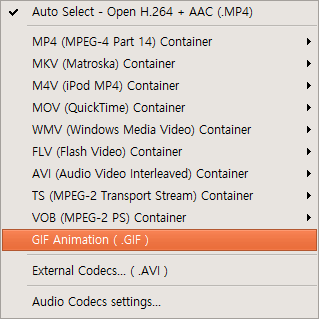
The default video codec is Open H.264 + AAC (.MP4).
In addition, MPEG-1, MPEG-2, MPEG-4, XVID, OpenDivX, Microsoft MPEG-4 Part 2, and Microsoft MPEG-4 Part 3 are also supported.
All of these codecs are saved in MP4 or AVI container formats.
oCam records using optimized codecs at installation time, and when these codecs are used, the recorded files can be played on almost all media players without installing additional codecs, unlike many other screen recording programs.
Usually, you may need to install codecs to play a recorded video, but with these codecs, most are supported by default.
This means that you can play oCam-recorded video files directly in Windows Media Player immediately after installing Windows without installing any additional software.
So there is no extra hassle of having to install extra codecs.
Also, MPEG-4, XVID, and OpenDivX are internally encoded with the MPEG-4 codec in oCam, with only the FourCC value changed for XVID and OpenDivX.
Additionally, supported container formats include FLV.
FLV stands for Flash Video and supports live streaming, so you can upload FLV files directly to places like a Zboard forum and preview them immediately on the web.
You can also use an FLV player. FLV is encoded with the MPEG-4 codec in oCam.
For Apple’s QuickTime format, MOV is a QuickTime-only format and uses the MPEG-4 codec.
Also, MPEG-2 Transport Stream has the .TS extension, and MPEG-PS has the .VOB extension; both use MPEG-2 as the codec.
If you choose GIF animation for creating animations, you can make a moving image.
Finally, all audio codecs used during video recording are saved as MP3.
Additionally, external codecs are supported; please refer to a separate post for details on external codecs.