Gemini 3.1 Flash Live enables natural conversations through voice.
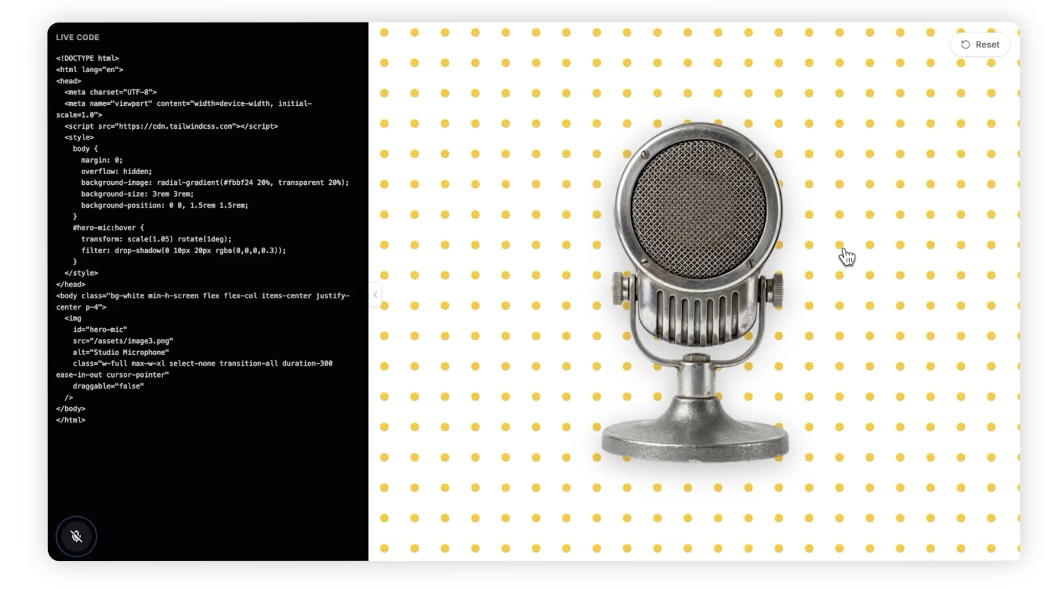
AI voice technology has been advancing rapidly, and at the center of this progress is Google’s latest model, Gemini 3.1 Flash Live. This model boasts top-tier quality among all audio and voice AI released to date and is regarded as a major milestone toward building next-generation voice-first agents.
In particular, Gemini 3.1 Flash Live significantly improves upon the limitations of previous voice models. One of the most notable advancements is the dramatic reduction in latency. Since response speed directly impacts the level of immersion in conversations between users and AI, this model delivers near real-time responses, enabling a much more natural conversational experience.
In addition, speech recognition accuracy has been greatly enhanced. It can reliably understand speech across various accents, pronunciations, and even in noisy environments, making it highly practical for real-world applications. This is especially important for use cases such as customer support, voice assistants, and interactive educational systems.
Furthermore, Gemini 3.1 Flash Live goes beyond simple voice recognition to provide more human-like interactions. By understanding the flow of conversation and reflecting context in its responses, it moves away from mechanical responses and enables more natural and flexible communication. These capabilities are key factors in significantly improving the overall user experience (UX).
Ultimately, this model represents more than just a technological upgrade—it serves as an important milestone that points to the future direction of voice-based interfaces. As voice-driven AI agents continue to expand across various industries, Gemini 3.1 Flash Live is expected to play a central role in this evolution.
For more details, you can try it directly on the official site below.
https://aistudio.google.com/live
Today's News/Tips
How to Reset oCam Settings (When the oCam Main Window Is Not Visible)
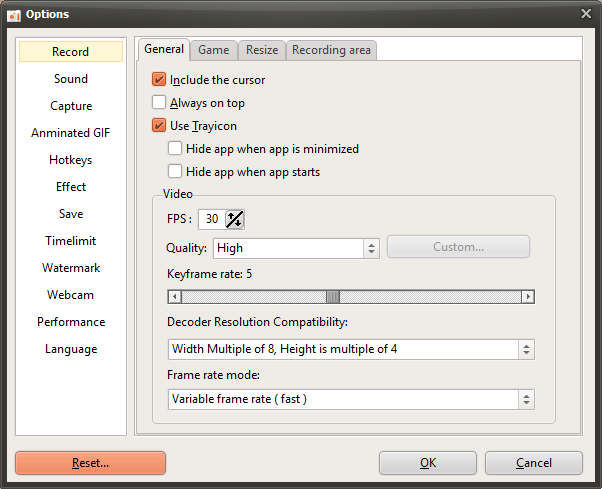
When the oCam main window is visible, you can reset the settings from the Options menu.
Go to Menu - Options, then click the Reset button as shown below to reset all oCam settings.
However, if the oCam main window has moved to another area of the PC screen for some reason and is no longer visible, you can reset it using the following method.
After closing oCam, open Windows File Explorer, go to the `%appdata%\ocam` folder, and delete the `Config.ini` file.
However, if you delete the `Config.ini` file directly, your registration information may also be deleted, so this method is not recommended unless absolutely necessary.