How to Move the Recording Area While Recording
The ability to move the recording area while recording with oCam is very useful when you want to flexibly capture a specific part of the screen in real time. Below is a detailed explanation of how to move the recording area during recording.
To change the recording area while recording is in progress, you can use the border of the recording area. Specifically, even after recording has started in oCam, you can click and drag the border of the recording area window with the mouse to move the recording area to the desired position in real time. This feature can be used simply with mouse control and is intuitive to use without any separate shortcut keys or complicated settings.
For example, when recording gameplay, if a specific part of the screen moves or changes, such as a character's position or a certain UI element, you can drag the border to adjust the recording area in real time and capture the scene you want without missing it. This method is especially useful when recording dynamic content, helping the user respond quickly and continue tracking the necessary screen area.
When moving the recording area, you need to click and drag the border accurately. If you move it too quickly, it may shift to an unintended position, so it is best to control it smoothly and precisely. By using this feature, you can perform more flexible and efficient recording with oCam.
Today's News/Tips
Moving the recording area while recording is in progress.
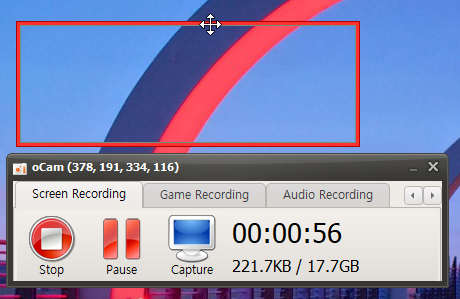
Here is how to move the recording area while recording.
oCam provides the ability to adjust the recording area flexibly even while recording.
When recording is in progress, click the border of the recording area with the mouse.
While holding it, drag the mouse to move the recording area freely to the desired position.
This feature is very useful when you need to follow and record a specific part of the screen in real time.
For example, you can track a moving window or specific content while recording.
However, if you drag too quickly, recording may stutter, so move it smoothly.
Use this method to adjust the area smoothly while recording and continue your work smoothly.