How to Fix Audio Coming from Only One Speaker During Microphone Recording
When recording microphone audio with oCam through a professional audio interface, the sound may not be recorded properly because of issues that differ from those of a standard microphone. In particular, when using an audio interface, problems can occur because the microphone input is handled as mono (a single channel). Below is a detailed explanation of how to resolve this issue and important points to keep in mind.
When recording microphone audio through an audio interface, you may encounter a problem where the sound comes from only one speaker channel, such as the left or right side. This happens because of the way the audio interface handles mono input. To fix this, you need to adjust the microphone input source setting in oCam. Please follow the steps below:
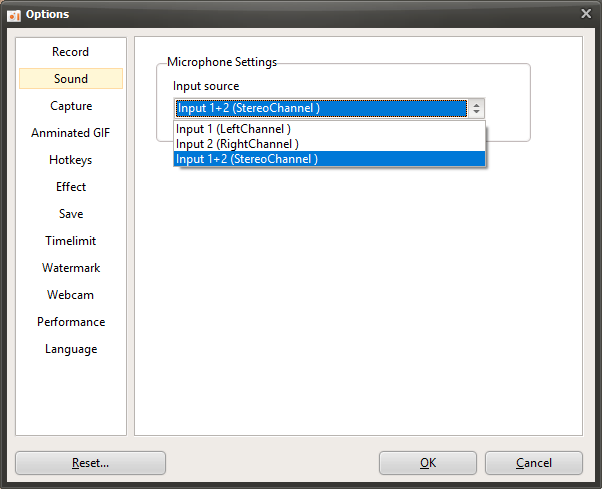
1. In the oCam main window, click 'Tools' in the top menu, then select 'Options'.
2. When the Settings window opens, click the 'Sound' tab in the left menu.
3. In the 'Sound' tab, find the 'Microphone Settings' section and check the 'Input Source' setting.
4. If the microphone audio is heard only from the left speaker, change the input source to 'Input 1 (Left Channel)'.
5. Conversely, if the microphone audio is heard only from the right speaker, change the input source to 'Input 2 (Right Channel)'.
6. After saving the settings, try recording again and check whether the sound is recorded properly.
Notes
- In general, microphone input is mono, but in the case of inexpensive standard microphones, even if the physical input is mono, the software may process it as stereo, with identical data on the left and right channels. However, microphones used with professional audio interfaces are handled as mono both in the actual input and in software processing, so you must explicitly set the input source as described above for proper recording.
- If the microphone audio is heard only from the left speaker and you set it to 'Input 1 (Left Channel)' but no sound is recorded, while it records normally when set to 'Input 2 (Right Channel)', the left and right speaker channels may be physically reversed. In that case, you should check whether the physical speaker positions have been swapped or whether the left and right inputs of the cables connected to the audio interface have been reversed. For example, the speaker cables may be connected incorrectly, or the output settings of the audio interface may be reversed.
With these settings, you can record microphone audio properly in oCam even when using an audio interface. If the problem continues after changing the settings, it is recommended to also check the audio interface driver settings and connection status.
Today's News/Tips
How to Resize the Recording Area in oCam
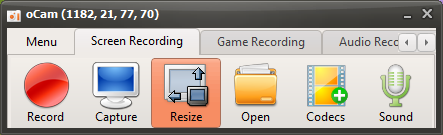
The main screen of oCam includes various buttons designed for intuitive use of its features, and among them, the "Resize" button is one of the key functions for customizing the recording area. When you click this button, a clean and user-friendly pop-up menu appears. This menu provides a variety of options for flexibly adjusting the size and resolution of the recording area, making it easy for everyone from beginners to IT professionals to configure settings that best fit their working environment.
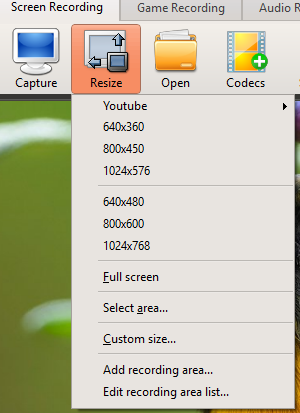
When the pop-up menu opens, the sizes shown represent the resolution of the recording area, and clicking a menu item immediately adjusts the recording area to the selected resolution. For example, if you choose a standard resolution such as 1920x1080 (Full HD) or 1280x720 (HD) under the YouTube category, the oCam recording frame will be set to that size and recording will proceed at the exact resolution. oCam supports resolutions up to 4K (3840x2160) by default, making high-resolution content creation possible. In particular, when using the MPEG-4 codec, it supports resolutions up to 8K (7680x4320). This is especially useful for professionals who need high-quality video production, such as recording high-resolution gameplay footage or performing professional video editing work.
The pop-up menu also includes a "Full Screen" menu item. Clicking this option automatically sets the recording area to cover the entire monitor screen. If you press the Record button in this state, the whole screen will be recorded, which is especially useful when capturing the entire desktop, presentations, or full-screen gameplay. Full Screen mode is the best choice when you want to record all on-screen content easily without setting a separate area.
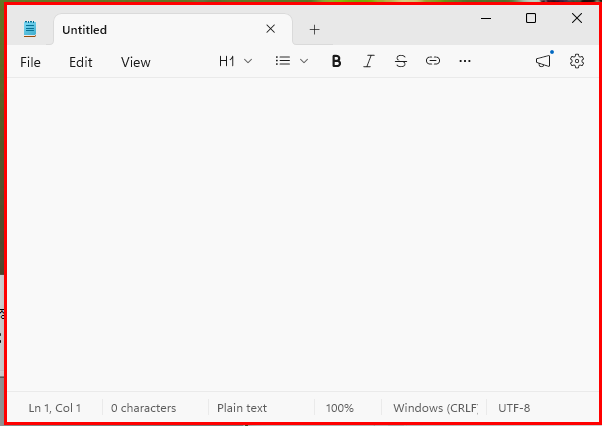
Another powerful feature is the "Find Recording Target Window" menu item. When you click this option, the window under the mouse pointer is highlighted with a red rectangular box. If you move the mouse over the window you want and click it, that window area is automatically set as the recording area. This feature is very useful when you want to record or capture only a specific window, such as an application or browser window. For example, when creating software tutorials or recording the workflow of a specific program, you can capture only the necessary window cleanly without unnecessary background, greatly improving work efficiency.
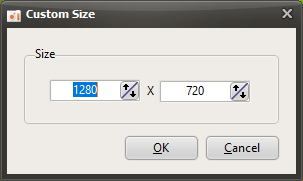
Finally, the "Custom Size" menu item is an option that allows users to control the size of the recording area more precisely. Clicking this menu opens a separate input window, where users can directly enter the horizontal and vertical pixel values of the desired resolution to set the recording area. This feature is especially useful when a non-standard resolution or a custom size is needed for a specific project. For example, it can be used when you need to match the resolution requirements of a video for upload to a social media platform or record at a size optimized for a specific device.
With these various options, oCam's resize feature makes it possible to set the recording area flexibly and precisely according to the user's needs. The ability to set the desired resolution and area with just a few clicks clearly shows oCam's intuitive design and efficiency. In addition, you can further optimize your workflow by adjusting the save path, file naming rules, or detailed codec settings in the Settings menu. If you want high-quality video or need to capture a specific window, we recommend actively using oCam's resize feature to get the results you want with ease.