How to Record Your Screen with oCam
First, use the mouse to adjust the green recording frame and set the recording area.
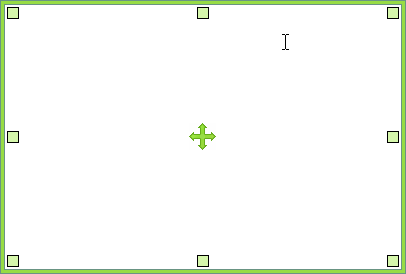
The center drag handle lets you move the recording area with the mouse,

The small squares at each corner can be dragged with the mouse to resize the recording area.

The large rectangular box is the area that will be recorded on the screen.
Once the recording area is set, click the Record button on the oCam main window or press the default hotkey ( F2 ) to start recording. ( The hotkey can be changed in Options. )
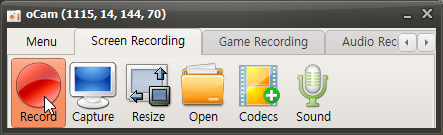
When recording starts, the oCam main window changes as shown below.

The Stop button stops recording, Pause pauses the recording, and Capture lets you take a capture even while recording is in progress.
It also shows the remaining time, the size of the file currently being recorded, and the remaining space on the hard disk.
The recording frame also turns red, and when the frame is red, it means recording is in progress.

When you click Stop Recording, the recording ends. To check the recorded video, click the Open button.
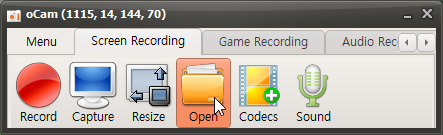
Clicking the Open button opens Windows Explorer and selects the recorded file.
The recorded video can be played in a video player,
and it can also be uploaded to sites like YouTube.
Today's News/Tips
Anthropic Unveils “Channels,” a New Way to Control Claude Code Sessions Directly from Mobile
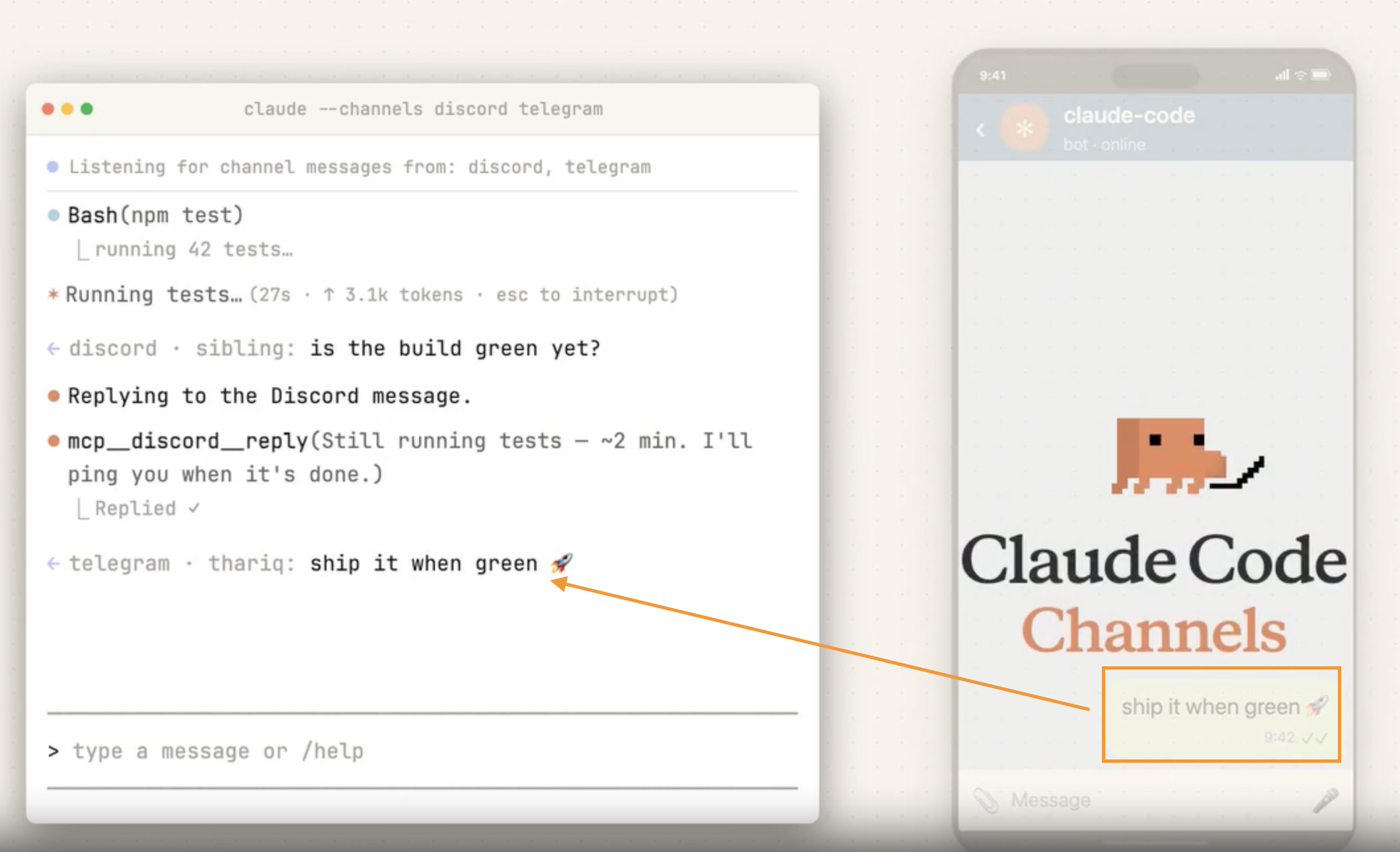
Anthropic has introduced Channels, a new feature that makes it much easier to use Claude Code in mobile environments. With this update, users can control their AI coding agent through messaging apps like Telegram and Discord, sending instructions from their smartphones as casually as they would text a friend.
At launch, Channels supports Telegram and Discord first. This means users no longer need to be sitting in front of a desktop development setup to interact with an active Claude Code session. Whether they are commuting, away from their desk, or simply on the go, they can reconnect to an existing session and send prompts in real time. Requests like “check that error again,” “summarize the test results,” or “continue refactoring that code” can now be handled directly from a mobile device.
What makes this update especially interesting is how it expands the development environment into communication tools people already use every day. Until now, coding agents were typically accessed through traditional developer interfaces such as IDEs or terminals. With Channels, familiar messaging apps themselves become the interface for directing the agent. Instead of learning a new workflow, users can collaborate with AI in an environment that already feels natural and intuitive.
Another important aspect is continuity of context. This is not just about sending isolated commands from a phone. Users can stay connected to the flow of an existing session and continue work without losing momentum. That makes the feature especially practical for developers who are in meetings, traveling, or working asynchronously with teammates. Even when they are away from their main machine, they can still monitor progress and provide instructions as needed.
Ultimately, Channels makes AI coding agents more accessible, more lightweight, and more integrated into everyday work. It reflects a broader shift away from development environments tied to a single device or location, and toward workflows that can continue anywhere. If Anthropic expands platform support and continues refining the experience, messenger-based AI development workflows could become mainstream sooner than many expect.