How to Record Audio Only with oCam
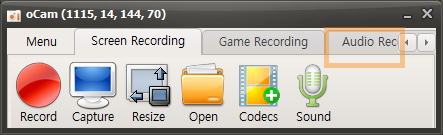
On the main screen of oCam, click the Audio Recording tab to open a simple, user-friendly menu. This menu provides various recording options in oCam, allowing users to adjust the settings as needed. One of oCam's strengths is its intuitive interface, which makes it easy to use for everyone from beginners to IT professionals.
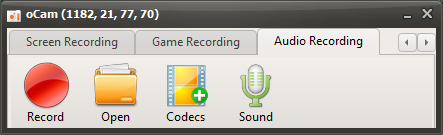
You can use this feature whenever you want to record only audio, such as for creating audio content, recording podcasts, or capturing background music.
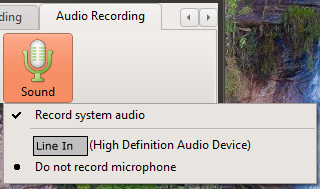
Click the Sound button to choose the audio source, such as system sound or microphone input settings, and then click the Record button on the screen to start recording. This feature is very useful for tasks where you need to focus only on audio. For example, it is efficient when you want to extract lecture audio separately, record an interview, or make a simple voice recording. Thanks to oCam's simple controls, these settings can be changed in just a few clicks, making the user experience even more convenient.
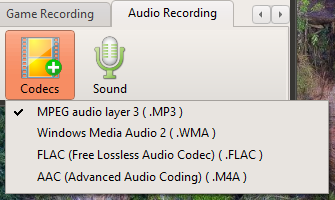
By default, audio files are saved in MP3 format. MP3 is one of the most widely used formats for audio recording because it offers small file sizes and excellent compatibility with most devices and software. It provides a good balance between sound quality and file size, making it suitable for general use. However, for users with more specific needs, oCam also provides an option to select audio codecs other than MP3 through the Codec button. If you choose AAC format, you can maintain high sound quality with efficient compression, giving you more flexibility depending on your project.
These settings clearly show how simple yet powerful oCam is. oCam is more than just a screen recording tool. It is versatile software that also supports professional audio recording tasks. Users can further adjust details such as the file save location, audio quality, and input source in the oCam settings menu. For example, you can adjust the volume levels of the microphone and system sound separately, or specify a save folder to optimize your workflow. Thanks to this flexibility and convenience, oCam is widely used in many different environments, from individual users to IT professionals. If you want high-quality audio recordings, it is recommended to adjust the codec and detailed settings to match your working environment for the best results.
Today's News/Tips
Setting the Codec - Choosing a Video Codec
oCam is an intuitive and lightweight free software tool that allows users to record or capture their screen, making it suitable for a wide range of users from beginners to IT professionals.
It is also a screen recording and capture program with a simple interface and powerful features, making it useful for gameplay recording, online lectures, tutorial creation, and simple screenshot capture. Thanks to the intuitive buttons on the main screen, even beginners can use it easily, while advanced users can create an optimized recording environment through detailed settings.
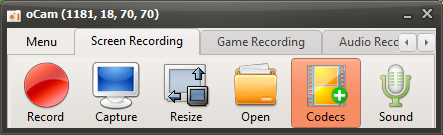
Codec Settings and Video Containers
When you click the "Codec" button on the main screen of oCam, a settings window appears where you can choose the video container and video codec. This settings window is designed to let users freely adjust the recording file format and quality. The video containers supported by oCam include the following formats:
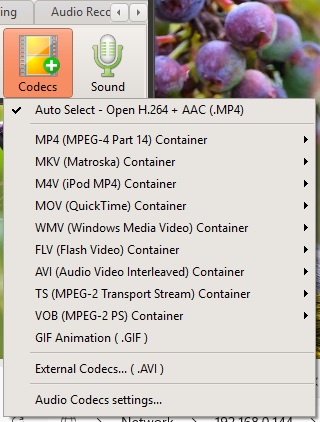
MP4: The most widely used video format, offering excellent compatibility and reasonable file sizes.
MKV: A multimedia container that supports high-quality video and various codecs. (A container that can continue playback even if recording is interrupted partway through.)
M4V: A format optimized for compatibility with Apple devices.
MOV: A QuickTime-related format suitable for users who prefer high-quality video.
WMV: A Microsoft video format mainly used in Windows environments.
FLV: A Flash-based video format often used for web streaming.
AVI: An older format that is still compatible with a wide range of software.
TS: A streaming format suitable for high-definition broadcast recording.
VOB: A format mainly used for DVD video.
By supporting such a wide range of containers, users can choose the file format that best fits their platform or purpose.
Supported Video Codecs
oCam provides a variety of video codecs to help optimize recording quality and performance. The supported video codecs are as follows:
NVIDIA NVENC H.264: A high-efficiency codec that uses hardware acceleration and delivers excellent performance on systems equipped with NVIDIA graphics cards.
Open H.264: An open-source H.264 codec that provides high compression efficiency and good quality.
MPEG-4: A widely used codec with excellent compatibility across many devices.
Microsoft MPEG-4 Part 2 and Part 3: Codecs optimized for Microsoft environments.
Windows Media Video 8 (WMV8): Provides efficient compression on Windows-based systems.
MPEG-2: A codec suitable for DVD-quality video.
MPEG-1: An older format that is still useful on lower-spec systems.
FLV: A codec specialized for Flash video.
In particular, the NVIDIA NVENC H.264 codec uses the hardware encoder built into NVIDIA graphics cards to minimize CPU load, allowing smooth recording with almost no lag even during demanding tasks such as gameplay recording. However, this codec is only supported on certain NVIDIA graphics cards or higher, so recording may fail if your graphics card does not support it. For that reason, it is important to check your system specifications before selecting this codec.
Audio Codecs and Additional Features
oCam supports not only video recording but also audio recording, allowing you to capture sound together with screen recordings. The supported audio codecs are as follows:
AAC: Offers high sound quality and efficient compression, and is compatible with most modern video containers.
MP3: The most widely used audio format, offering a good balance between file size and sound quality.
MP2: An audio codec often used for broadcasting and DVDs.
WMA: A Microsoft audio format optimized for Windows environments.
FLAC: A lossless audio codec that provides high-quality sound close to the original source.
With these audio codec options, users can adjust the sound quality of recorded videos as needed. For example, you can use AAC for clear lecture audio or MP3 for gameplay recordings to maintain a good balance between quality and file size.
GIF Support
oCam also supports GIF format, which is useful for users who want to create short and lightweight animated files. When you select GIF mode, an animated GIF file is created instead of a video file, making it suitable for sharing on social media or creating simple tutorials. Since GIF files can be large and are not ideal for high-resolution video, it is best to choose this format according to your needs.
Things to Keep in Mind
There are a few things to keep in mind when using oCam. In particular, if you use the NVIDIA NVENC H.264 codec, you should always check your hardware specifications first. If you select this codec on an unsupported graphics card, recording may fail or errors may occur. It is also important to make sure you have enough storage space and system resources when recording in high resolution or for long periods.
Conclusion
oCam is software designed to make screen recording and capture easy for anyone through a simple interface and powerful features. It supports a wide range of video containers and codecs, and hardware-accelerated recording with the NVIDIA NVENC H.264 codec in particular delivers excellent performance even for demanding tasks. With support for audio codecs and GIF creation as well, oCam is a versatile tool that can be useful in many different environments, from individual users to professionals. If you carefully choose the codec and settings that match your system specifications and intended use before starting a recording, you will be able to get the best results.