How to Record Microphone and Computer Audio Together While Recording (Windows Vista, 7, 8)
For Windows Vista, 7, and 8, normal operation may not be guaranteed because Microsoft has ended support for these operating systems. (Reference)
In the oCam main window, click the Sound button.
The following menu will appear, and by default, No Microphone Recording is selected.
Select the microphone you want to record. ( If your microphone does not appear in the list, refer to the instructions below. )
Once selected, the setting will be applied as shown below, and the microphone audio will be recorded together.
If the microphone device does not appear in the list above even though the microphone is connected, proceed as follows.
( If, as shown below, no microphone-related menu appears at all and only the system sound recording menu is shown, or if a microphone item appears but not all microphone devices are listed, or if you are using a separately purchased audio interface, the audio interface device rather than the default microphone device should appear in the list. If it does not, follow this procedure. )
Go to Start Menu - Control Panel.
In Control Panel, find and click Sound.
The following window will appear. Click the Recording tab.
In the Recording tab, right-click the white area where it says No audio devices are installed to open the pop-up menu. ( Or, if recording devices are listed but the device you want does not appear. )
Click Show Disabled Devices.
Select the microphone device you want to use, right-click it, and click Enable.
( If you are using an audio interface, a separate recording device called Line In may appear instead of a microphone, and you should record using that device. )
In oCam, click the Sound button to check whether the microphone device now appears correctly.
Today's News/Tips
How to Improve Recording Video and Audio Quality in oCam
How to Improve Video Recording Quality
By default, oCam uses the
MPEG-4 video codec.
The MPEG-4 codec, which is used by default, provides medium-level video quality by nature. However, it is set as the default because it is suitable for recording on low- to mid-spec computers, does not use a hardware encoder, and offers good software compatibility ( it can be played in most video players ).
If you have an NVIDIA graphics card ( GTX 600 series or later for desktops, or GTX 650M or later for laptops ) or if your CPU performance is high, you can improve video quality by recording with the NVENC H.264 encoder or the Open H.264 encoder.
As shown below, click the Codec button in the oCam main window and select either NVIDIA NVENC H.264 ( your graphics card must support it, and if it does not, an error will occur and recording will fail when you start recording ) or the Open H.264 codec to record.
For the Open H.264 codec, you need to set Recording - General - Quality to Very High in the settings to get the best video quality, as shown below. ( In the case of the NVIDIA NVENC H.264 codec, the settings below do not apply. You can change its settings from Codec - Hardware Encoder Settings in the oCam main window. )
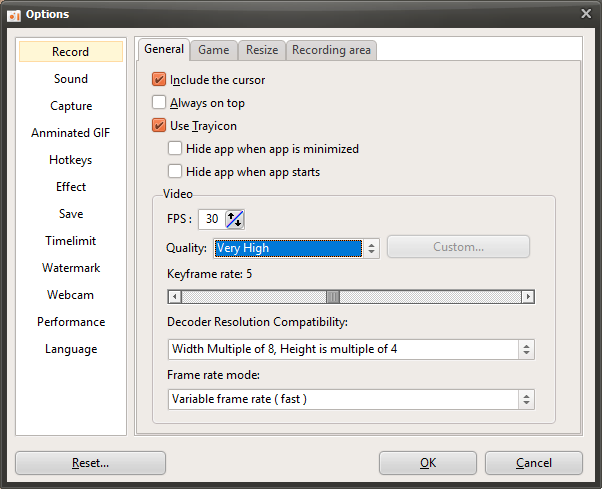
* In the case of the Open H.264 codec, setting the quality to Very High provides good video quality, but it uses a lot of CPU resources, so frame rates may drop significantly when recording games. If your system performance is not sufficient, we recommend using the MPEG-4 codec.
* In the case of the NVIDIA NVENC codec, because it is a hardware encoder, it causes almost no frame drops during game recording and offers the best recording performance among all built-in codecs in oCam. If your graphics card supports it, using the NVENC codec is the best option.
* When using the NVIDIA NVENC codec, some games use a large amount of GPU memory, and encoding also uses a large amount of GPU memory, so recording may fail if GPU memory is insufficient.
* The MP4 container was used in the example above, but it can also be used with MKV, M4A, MOV, and AVI containers.
How to Improve Audio Quality
By default, oCam uses the
AAC audio codec ( 192 kbps ).
To change the sample rate or bitrate of the audio codec, click the Codec button in the oCam main window, then click Audio Codec Settings.
Then the following window will appear.
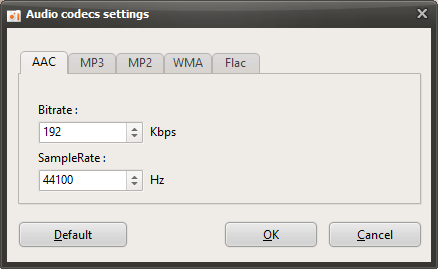
As shown in the image above, the supported audio codecs are AAC, MP3, MP2, WMA, and Flac.
Personally, I recommend using the AAC codec because it is the most widely used and offers the best compatibility.
You can improve audio quality by changing the bitrate or sample rate.
For the AAC codec, the maximum supported bitrate is 512 kbps, and the maximum sample rate is 96000 kHz.
If you want to record losslessly, you can use the Flac codec, but the recording file size may become large.
To change the audio codec you want to use for recording, click the Codec button in oCam, select the container you want ( for example, assuming you are using MKV ), and then select a codec in that container that includes the audio codec you want before recording.