How to Fix the Issue of a Black Screen After Recording (Windows XP)
How to fix the issue where a black screen appears after recording in a Windows XP environment
This issue occurs because the program you are trying to record is using an overlay mixer.
The easiest way to resolve it is as follows.
Right-click on the desktop and click Properties.
Display properties will open; click the Settings tab.
Click the Advanced button.
Click the Troubleshooting tab.
As shown below, the hardware acceleration is set to maximum. Set it to None.
After setting it as shown, click OK, close the program you want to record, and try recording again.
Today's News/Tips
The "Failed to initialize sound library." Error Appears When Recording Starts
When recording with oCam, sound-related errors may occur. To prevent this, it is important to first check whether sound playback is working properly on your PC. If you try to record on a PC where sound playback is not available, an error is likely to occur. Below is a detailed explanation of how to record with oCam in an environment where sound playback is unavailable and how to configure the settings to avoid errors.
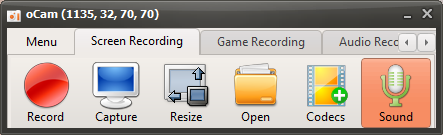
If sound is not playing properly on your PC, you can solve the problem by disabling oCam's system audio recording feature. Please follow the steps below:
1. Launch the oCam main window.
2. In the main window, click the 'Sound' button.
3. When you click it, a pop-up menu will appear, and in most cases the 'Record System Audio' option will be checked by default.
4. Click the 'Record System Audio' item to uncheck it.
With this setting, oCam will not try to record system audio, so you can continue recording without errors even on a PC where sound playback is not available. This setting is especially useful in environments where system audio is not output due to sound driver problems or hardware issues.
Before recording, always check the sound playback status of your PC and apply the setting above if necessary to create a stable recording environment. If you want to resolve the sound playback issue more fundamentally, updating the sound driver or checking the device's sound settings is also a good approach.