Tips for Precisely Adjusting the Recording Area Window
Tips for precisely adjusting the recording area window
When setting the recording area in oCam, being able to precisely adjust the position and size of the window is very useful. oCam provides intuitive shortcut keys for this, allowing users to fine-tune the recording area exactly as needed. Below are some tips for precisely adjusting the recording area window and how to use the shortcut keys.
In oCam, you can drag the window used to set the recording area with the mouse to move or resize it, but using shortcut keys allows for much more precise adjustment. Shortcut keys are especially useful when you need to set an exact position or size.
Adjusting the recording area position
- Arrow keys: Press the arrow keys (up, down, left, right) to move the recording area window precisely one pixel at a time. This is useful when fine adjustment is needed.
- Ctrl + Arrow keys: If you want to move it by a larger amount, use the arrow keys while holding down the Ctrl key. This combination moves the window more quickly, making it easier to adjust the position efficiently.
Adjusting the recording area size
- Shift + Arrow keys: Hold down the Shift key and use the arrow keys to resize the recording area window. The up and down arrow keys adjust the height of the window, and the left and right arrow keys adjust the width. This also allows precise adjustment one pixel at a time.
- Shift + Ctrl + Arrow keys: If you want to resize the window by a larger amount, use the arrow keys while holding down both the Shift and Ctrl keys. This combination changes the window size more quickly in larger increments, which is useful when major resizing is needed.
These shortcut keys help you adjust oCam's recording area settings very precisely and carefully. For example, if you want to record only a specific game window or a certain part of the screen, you can first set the approximate area with the mouse and then use the shortcut keys to fine-tune it pixel by pixel for the exact result you want.
In this way, oCam provides user-friendly shortcut keys that support precise adjustment of the recording area. Make active use of these shortcut keys to set the recording area more accurately and efficiently.
Today's News/Tips
The System Becomes Sluggish During Recording
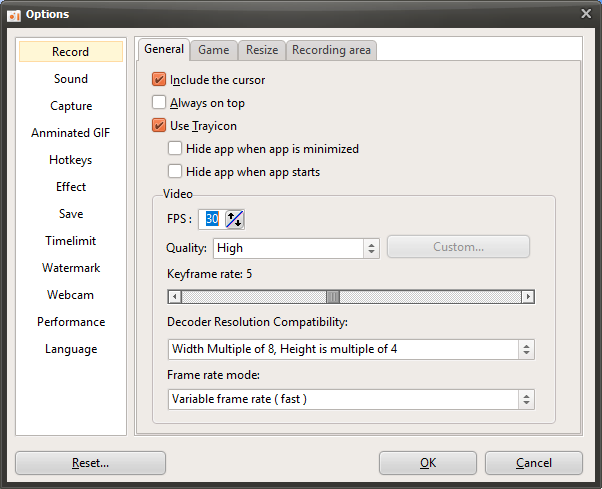
When recording with oCam, if the mouse moves slowly or the entire system feels sluggish, you need to adjust the settings to resolve the issue. Below is a detailed explanation of how to reduce the problem and lower the system load.
1. Click the 'Settings' button in the oCam main window.
2. When the Settings window opens, go to the 'Encoding' tab in the menu on the left.
3. In the 'Encoding' tab, check the 'Frames Per Second (FPS)' setting. The default value is likely set to 30.
4. Gradually lower the FPS value while testing system performance. For example, start at 30 and reduce it step by step to 25, 20, 15, and 10.
5. At each step, start recording and check whether the mouse movement or system sluggishness improves.
6. After finding the optimal FPS value for your PC specifications, click the 'OK' button to save the settings.
Lowering the FPS may reduce video smoothness, but it can also reduce system resource usage and improve slowdown during recording. It is important to experimentally find the FPS value that best suits your PC specifications (CPU, GPU, RAM, etc.). After changing the setting, make a test recording to find the best balance.