Overview of CapturePlus Additional Features
CapturePlus provides a feature that lets users print captured screens for added convenience.
Print Feature
You can print captured screens directly to a printer with a variety of options.
The available options include margins, center alignment, fit to paper size, maintain original aspect ratio, paper orientation, and the number of copies to print.
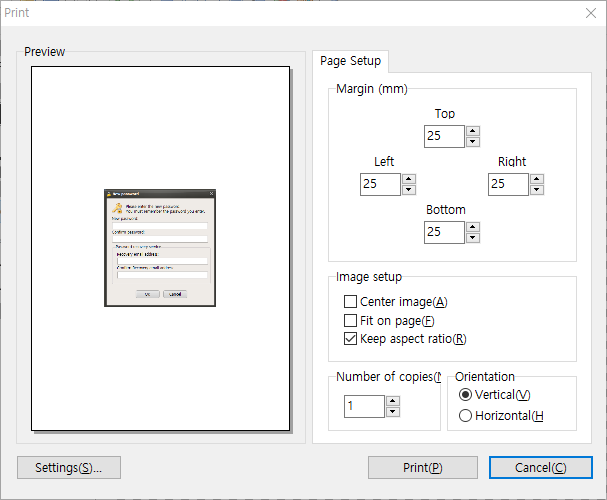
CapturePlus also offers many more features throughout its menus than can all be listed here.
Once you try it, you will immediately see how powerful it is.
Today's News/Tips
What is the oCam portable version, and is it okay to install it?
The oCam portable version is not an officially supported or distributed file by Ohsoft.
Therefore, using such a portable version is absolutely not recommended.
Therefore, using such a portable version is absolutely not recommended.
Currently, files distributed on the internet with names like “oCam v[version]_Portable.7z” exist on torrent sites and other unofficial routes.
Our investigation confirmed that these files are illegal modified versions made by Russian crackers.
Our investigation confirmed that these files are illegal modified versions made by Russian crackers.
Osoft (the developer) provides no warranty for portable versions.
In addition, because this portable version is made by Russian crackers, the security risk is very high.
For example, there is a high possibility that it contains threats such as ransomware, malware, or viruses.
Installing these files can lead to serious issues such as personal information leakage or system damage, so do not install them under any circumstances.
For example, there is a high possibility that it contains threats such as ransomware, malware, or viruses.
Installing these files can lead to serious issues such as personal information leakage or system damage, so do not install them under any circumstances.
To download and use oCam safely, you must use the official Osoft website.
It is recommended to use only the official versions distributed through trusted major portal sites.
Files downloaded from non-official sources can cause security threats, so always be cautious.
For safe use, the smartest choice is to download the legitimate version and immediately delete any suspicious files.
It is recommended to use only the official versions distributed through trusted major portal sites.
Files downloaded from non-official sources can cause security threats, so always be cautious.
For safe use, the smartest choice is to download the legitimate version and immediately delete any suspicious files.
Blog - etc
Anthropic Unveils “Channels,” a New Way to Control Claude Code Sessions Directly from Mobile
oCam - faq
What to Do If Chrome Blocks the Download with "Blocked by Chrome because it's dangerous."
oCam - faq
What to Do If the "WASRecord: pAudioClient->Initialize failed. (hr=0x80070005)" Error Occurs
oCam - faq
The System Becomes Sluggish During Recording
oCam - faq
What to Do If the Sound Becomes Louder or Distorted When Playing Recorded Videos in PotPlayer
oCam - faq
What to Do If Minecraft Crashes as Soon as You Start Recording with oCam (NVIDIA Graphics Card)
oCam - faq
How to Fix the Issue of 7 Days to Die Not Being Detected for Game Recording (Anti-Cheat Related)
oCam - faq
What to Do If the "Failed to url_fopen" Error Message Appears and Recording Does Not Start
oCam - tips
How to Move the Recording Area While Recording
oCam - howto
How to Add a Custom Watermark to Recorded Videos
oCam - tips
How to Use an External Codec - Xvid
oCam - tips
How to Record Losslessly Using x264vfw
oCam - tips
How to Use the x264vfw External Codec
oCam - tips
How to Ensure Recorded Videos Can Be Recovered Even If the App Is Force-Closed During Recording
oCam - tips
Download Useful External Codecs
oCam - tips
How to Install oCam in a Different Location
oCam - tips
How to Record Microphone and Computer Audio Together While Recording (Windows Vista, 7, 8)
oCam - howto
oCam Advanced Settings - Save
oCam - howto
oCam Advanced Settings - Hotkeys
oCam - howto
oCam Advanced Settings - Animated GIF
oCam - howto
oCam Advanced Settings - Capture
oCam - howto
oCam Advanced Settings - Sound
oCam - howto
oCam Advanced Settings - Recording - Resize
oCam - howto
oCam Advanced Settings - Recording - Game Tab
oCam - howto
oCam Advanced Settings - Recording - General Tab
oCam - howto
How to Record Microphone and System Audio
oCam - howto
Setting the Codec - Adjusting Audio Codec Quality
oCam - howto
Setting the Codec - Choosing a Video Codec
oCam - howto
How to Resize the Recording Area in oCam
oCam - howto
How to Capture Images with oCam
oCam - howto
How to Record Audio Only with oCam
OhSoft - secretfolder
Please make sure to enter your recovery email address correctly.
OhSoft - secretfolder
The File Appears to Be Encrypted
Blog - notice
The OhSoft Website Has Been Redesigned.
oCam - howto
How to Record Your Screen with oCam
Blog - etc
How to Find Animated GIFs: Try Using GIPHY.
Blog - windows
How to Set Up Automatic Login Using Autologon.exe
Blog - windows
BIOS and CMOS Error Messages and How to Fix Them
Blog - windows
End-of-Support Dates for Windows Operating Systems
OhSoft - captureplus
Screenshots of All CapturePlus Features
OhSoft - captureplus
Overview of CapturePlus Additional Features
OhSoft - captureplus
Detailed Guide to CapturePlus Preferences
OhSoft - captureplus
Overview of CapturePlus Image Effect Features
OhSoft - captureplus
Overview of CapturePlus Image Editing Features
OhSoft - captureplus
Overview of CapturePlus Screen Capture Features
OhSoft - captureplus
A Brief Overview of CapturePlus Features
OhSoft - virtualdvd
How to Fix the "Failed to Initialize the VirtualDVD Engine" Error
OhSoft - virtualdvd
A Quick Look at VirtualDVD Features
OhSoft - secretfolder
How to Change the SecretFolder Password
OhSoft - secretfolder
What to Do If the SecretFolder "Failed to ConnectToFilterDriver" Error Occurs
OhSoft - secretfolder
Overview of SecretFolder's Key Features
oCam - howto
How to Record Gameplay
oCam - howto
How to Add Your Own Watermark
oCam - tips
Using an external codec - Using Xvid
oCam - tips
Using external codecs - using x264.
oCam - faq
The system stutters during recording.
oCam - howto
What are codec and digital container format?
oCam - howto
How to record both microphone and computer audio together during recording (Windows Vista, 7, 8)
oCam - howto
oCam Quick Overview of Key Features