Detailed Guide to CapturePlus Preferences
In Preferences, you can configure capture options, image saving settings, and hotkeys.
If you adjust the various options to suit your preferences, CapturePlus becomes even more convenient to use.
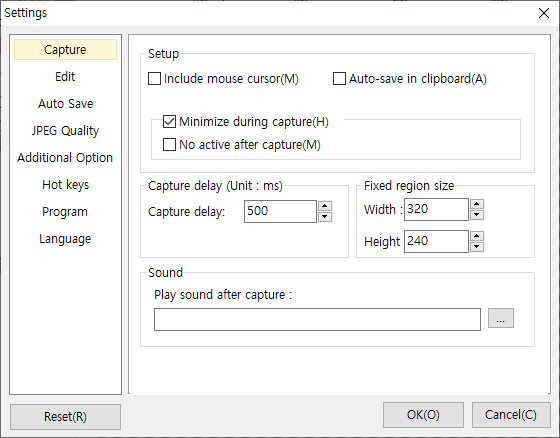
It is divided into Capture, Save, JPEG Quality, Additional Features, Hotkeys, and Language, and below is an introduction to the functions available in each option.
As shown on the screen above, the Capture section contains options you can apply when capturing, and each one can produce a noticeably different effect.
Below are the settings that users especially need to pay attention to.
-Include mouse cursor in capture: Check this if you want the mouse cursor to appear in the captured image.
-Automatically save to clipboard after capture: This option saves the capture to the clipboard at the same time, so you can paste it immediately.
-Hide the program during capture & do not activate the program after capture: This allows the program to remain minimized only on the taskbar without becoming active.
-Fixed rectangle area size: Capture inside a fixed rectangle area (Shift+Ctrl+F) sets the window size used for that capture mode.
- Editor Background: If you find the default checkered grid hard on the eyes, you can check Apply Solid Color and choose the color you want.
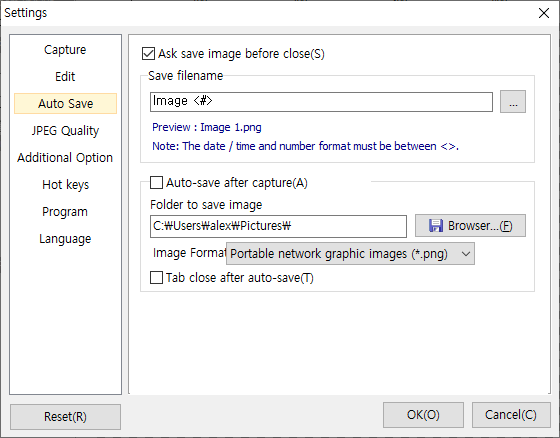
In the Save section, the Ask whether to save the image option is useful because
even though you can click the "No to All" button when closing with dozens of capture tabs open,
it is more convenient to disable this option if you often sort through many captured screens.
Automatically save the image after capture. If you check this option, each captured image is saved immediately to the specified folder as you capture.
And if you check the Close the tab immediately after auto-saving. option, the image is saved and the tab closes automatically.
The file name-related features, which many users had requested, were improved with the greatest care.
The File name after capture or auto-save section outlined in orange on the screen above has been expanded with various options to satisfy as many users as possible.
====================================================================
You can change the file name to match your preferences.
Inside <>, you can use date/time and serial number formats, and any text outside <> remains unchanged in the file name.
( The serial number is explained after the date section below. )
There are several available formats, as follows.
[The following are the default formats used. (These are the formats used inside <>.)]
YYYY = year, YY = year (two digits)
MM = month, M = month (single digit if possible)
DD = day, D = day (single digit if possible)
HH = hour
NN = minute
SS = second
C = time format displayed by the computer ( 2011-04-13 8:26:17 PM - however, it cannot be used as a file name. )
ZZZ = millisecond
# = serial number
## = serial number (two digits)
### = serial number (three digits)
########## = serial number (ten digits)
[More broadly, you can also use formats like the following. ( Actual usage examples )]
<d-m-y> = 5-6-00
<dd-mm-yy> = 05-06-00
<dddd d mmmm yyyy> = Wednesday 13 April 2011
<ddddd> = 2011-04-13
<dddddd> = Wednesday, April 13, 2011
<h_m_s.z> = 1_2_3.4
<hh_mm_ss.zzz> = 01_02_03.004
<t> = 01:02 ( cannot be used as a file name. )
<tt> = 01:02:03 ( cannot be used as a file name. )
[Time formats and serial numbers can be used together.]
<YYYY_MM_DD_##> = 2011_04_13_01
[You can insert any file name you want outside <> and use the <> format to define the full file name.]
Capture_<YYYY_MM_DD_##> = Capture_2011_04_13_01
<YYYY_MM_DD_##>_Capture = 2011_04_13_01_Capture
[<> can appear repeatedly in the same file name, and serial numbers can also be repeated.]
Year_<YYYY>_Month_<mm>_Capture = Year_2011_Month_04_Capture
SerialNumber<###>_SerialNumber<#> = SerialNumber001_SerialNumber1
SerialNumber<## # # ##> = SerialNumber01 1 1 01
[Serial Number]
The serial number behaves differently depending on whether Automatically Save Captured Images is checked or not.
If auto-save is not checked, the serial number increases internally by 1 each time you capture,
and that number is assigned.
For example, if you capture 3 times and the file name is set to "Image <##>,"
the file name will become "Image 03."
If auto-save is checked, the serial number is assigned based on the auto-save path and whether a duplicate file name already exists.
For example, if the file name is set to "Capture_<##>," the program checks the auto-save folder
to see whether a file named "Capture_01" exists. If it does not, "Capture_01" is saved. If it does, it checks whether "Capture_02" exists.
If "Capture_02" does not exist, it is saved as "Capture_02."
In other words, the program keeps checking whether the file already exists and assigns the serial number accordingly.
If the serial number format is not included in the file name while using auto-save, the program automatically assigns a serial number internally
before saving. For example, if the file name is <YYYY>, it works the same as <YYYY#>.
====================================================================
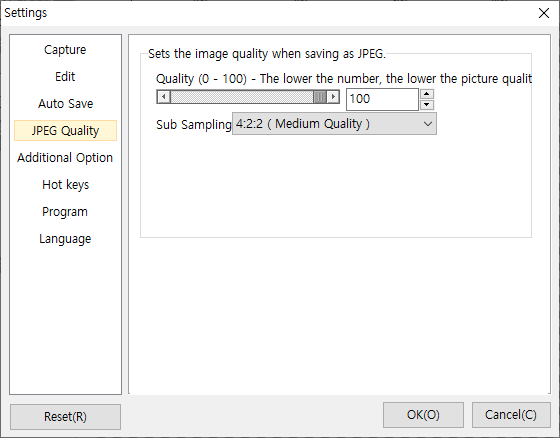
The JPEG Quality section lets you adjust the quality to reduce file size when saving as JPEG.
Using the concept of subsampling, images can be saved with better image quality.
For reference, the medium-quality setting, 4:2:2, is the general default option.
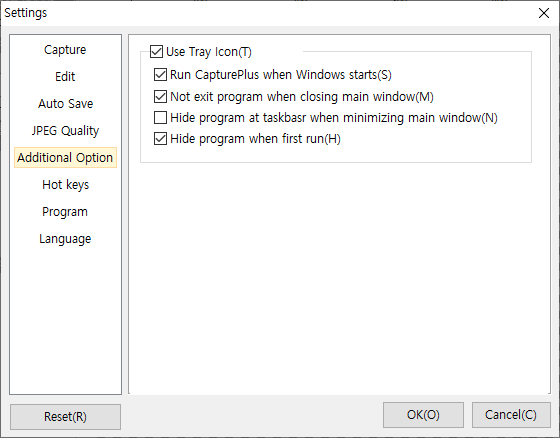
In the Additional Features section, Use Tray Icon allows the program to run automatically when Windows starts,
and it can also be hidden to run from the tray icon.
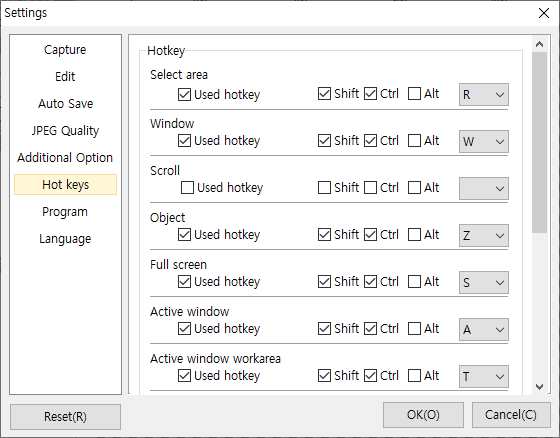
In the Hotkeys section, you can assign whatever hotkeys are most convenient for each capture method.
For example, you can assign the PrintScreen key.
Today's News/Tips
Overview of CapturePlus Image Effect Features
This feature lets you adjust image brightness, mosaic effects, size, and more.
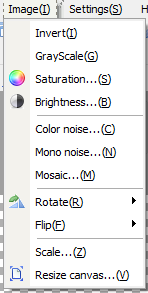
-Invert Colors: Applies an overall color inversion effect to the image.
-Black and White Effect: Applies a black-and-white effect to the image.
-Adjust Saturation: Lets you adjust the saturation level.
-Adjust Brightness: Lets you adjust the brightness.
-Add Noise (Color): Creates a color noise effect.
-Add Noise (Mono): Mono creates a white noise effect.
-Add Mosaic: Applies a mosaic effect to the entire image.
-Rotate: Lets you rotate the image to 90, 180, 270 degrees, or a custom angle.
-Flip: Flips the image left/right or up/down.
-Zoom In and Out: Lets you enlarge or reduce the image, and you can keep the aspect ratio when changing the width or height.
-Resize Canvas: Lets you change the canvas size and background color.