oCam is a user-friendly screen recording program that offers powerful features for a wide range of uses. It is widely used in situations that require screen recording, especially for gameplay recording, lecture creation, and tutorial video production. By default, oCam is set to use Variable Frame Rate (VFR), which is designed to operate flexibly depending on system performance and the recording environment.
Variable Frame Rate mode is the default setting in oCam. Even if the user sets the frame rate to 60 FPS in the recording settings, the actual recorded result may vary depending on system performance or the condition of the content being recorded. For example, when recording a game, if the game itself cannot maintain 60 FPS and runs at an average of 30 FPS, oCam will reflect that and record at 30 FPS. This design helps use system resources efficiently and ensures stable recording without interruptions.
In addition, Variable Frame Rate works effectively even when the system specifications do not fully meet the recording requirements. If lag occurs during gameplay, or if the system cannot maintain 60 FPS while attempting high-spec screen recording, oCam will automatically adjust the frame rate to match system performance and continue recording. This allows video to be saved at the best possible quality without overloading the system.
However, videos recorded with Variable Frame Rate can cause inconvenience in certain situations. In particular, problems may occur when using professional video editing software such as Adobe Premiere Pro. Because videos recorded with Variable Frame Rate do not have consistent frame intervals, audio and video may go out of sync during editing. To prevent this, it is recommended to change the setting in oCam to Constant Frame Rate (CFR) before recording.
When set to Constant Frame Rate, oCam tries to maintain the frame rate specified by the user, such as 60 FPS, and records frames at consistent intervals regardless of system performance. This makes editing more stable in video editing software and is especially helpful for keeping audio and video perfectly synchronized. Therefore, if you plan to edit the video afterward, recording with Constant Frame Rate is strongly recommended.
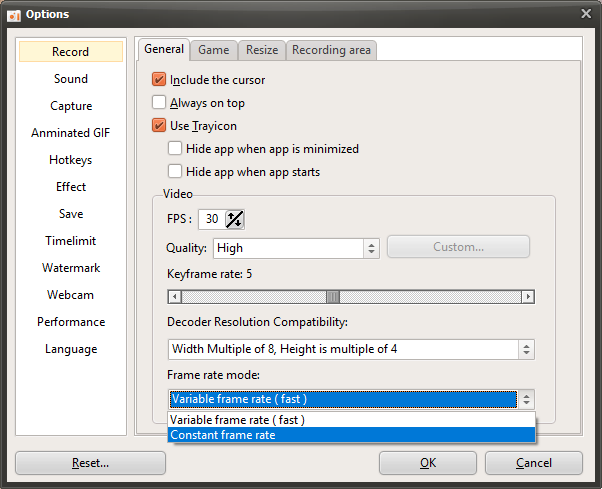
Changing the frame rate mode in oCam is very simple. After launching oCam, select 'Options' from the menu and go to the 'Recording' tab. Then click the 'General' tab, where you can find the setting to change the frame rate mode to either Variable Frame Rate (VFR) or Constant Frame Rate (CFR). With this setting, users can freely adjust the recording method to suit their working environment and purpose.
With its intuitive interface and simple controls, oCam is software that can be used easily by anyone from beginners to professionals. By selecting Variable Frame Rate or Constant Frame Rate according to the situation, you can smoothly handle a variety of tasks, from game recording to video editing.