Overview of CapturePlus Image Editing Features
This feature lets you easily edit captured images and supports various drawing tools as well as text input tools.
It also includes features such as automatically expanding the image area when you open the selected area in a new window (Ctrl+Del) or paste an image from the clipboard.
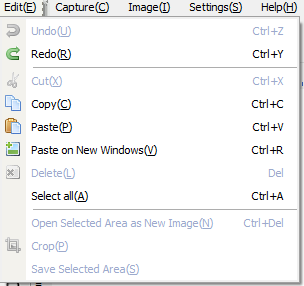
After selecting the parts you want from the captured screen, you can copy them to the clipboard with Ctrl + C, open them in a new window, or save only the selected area directly as a file using the Save Selected Area feature.
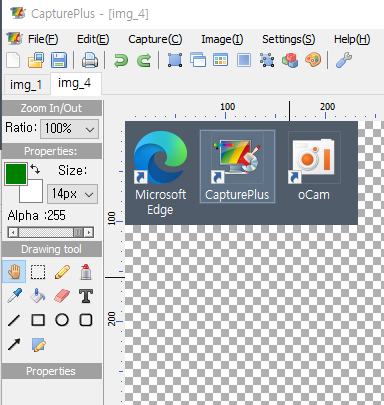
-Zoom In / Zoom Out: You can also use (Ctrl + Scroll Up) / (Ctrl + Scroll Down).
-Alpha (transparency) values can be applied to drawing tools.
-Provides common drawing tools, shapes, and arrows.
-Supports adding text (including frame and font properties).
Today's News/Tips
What is the oCam portable version, and is it okay to install it?
Therefore, using such a portable version is absolutely not recommended.
Our investigation confirmed that these files are illegal modified versions made by Russian crackers.
For example, there is a high possibility that it contains threats such as ransomware, malware, or viruses.
Installing these files can lead to serious issues such as personal information leakage or system damage, so do not install them under any circumstances.
It is recommended to use only the official versions distributed through trusted major portal sites.
Files downloaded from non-official sources can cause security threats, so always be cautious.
For safe use, the smartest choice is to download the legitimate version and immediately delete any suspicious files.