Overview of CapturePlus Screen Capture Features
It offers a variety of capture methods, from easily capturing an entire scrollable screen that does not fit on one page by using Window Scroll, to letting users manually select an area to capture.
Each capture is added to a new tab, and options such as automatically saving each capture to the clipboard or automatically saving it as a file to a desired location can be changed in Preferences.
Each capture feature also has a default hotkey assigned, and these hotkeys can also be changed in Preferences to suit your needs.
Each function provides powerful capture options for different situations, so if you try them out yourself, you should be able to get familiar with them without much difficulty.
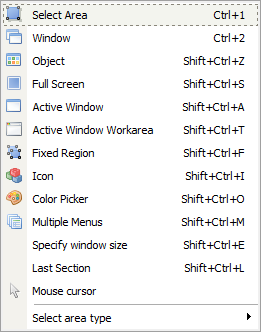
-Select Area (Shift+Ctrl+R): Lets the user manually select the area to capture.
-Window (Shift+Ctrl+W): Helps the user select by window.
-Window Scroll (Shift+Ctrl+C): Easily captures the entire scrollable screen in browsers and Microsoft Office products.
-Object (Shift+Ctrl+Z): Unlike Window Capture, this allows more detailed selection.
-Full Screen (Shift+Ctrl+S): Captures the entire screen.
-Active Window (Shift+Ctrl+A): Captures the currently active program window.
-Active Window Work Area (Shift+Ctrl+T): Captures only the content area of the active program window, with the frame removed.
-Capture Inside a Fixed Rectangle Area (Shift+Ctrl+F): Lets you select a capture area based on the fixed size set in Preferences.
-Window Icon (Shift+Ctrl+I): Lets you select a program area and automatically extracts the icon when selected.
-Color Capture (Color Picker) (Shift+Ctrl+O): This tool, commonly called a color picker, lets you extract the color at the current mouse position on the screen.
-Set Window Size (Shift+Ctrl+E): Lets you select a window, resize it, and then capture it.
-Menu (Shift+Ctrl+M): When a program menu or a shell extension menu opened by right-clicking is displayed, pressing the menu capture hotkey captures only that exact area.
-Last Capture Area (Shift+Ctrl+L): Captures the same area that was used most recently.
-Mouse Cursor Capture: Captures the current mouse cursor.
Today's News/Tips
How to Record Your Screen with oCam
First, use the mouse to adjust the green recording frame and set the recording area.
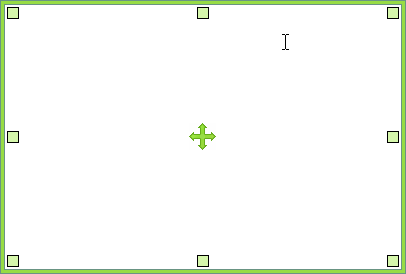
The center drag handle lets you move the recording area with the mouse,

The small squares at each corner can be dragged with the mouse to resize the recording area.

The large rectangular box is the area that will be recorded on the screen.
Once the recording area is set, click the Record button on the oCam main window or press the default hotkey ( F2 ) to start recording. ( The hotkey can be changed in Options. )
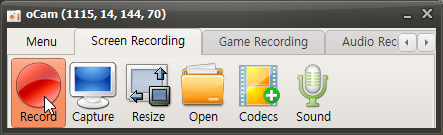
When recording starts, the oCam main window changes as shown below.

The Stop button stops recording, Pause pauses the recording, and Capture lets you take a capture even while recording is in progress.
It also shows the remaining time, the size of the file currently being recorded, and the remaining space on the hard disk.
The recording frame also turns red, and when the frame is red, it means recording is in progress.

When you click Stop Recording, the recording ends. To check the recorded video, click the Open button.
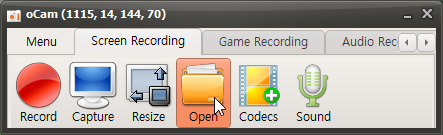
Clicking the Open button opens Windows Explorer and selects the recorded file.
The recorded video can be played in a video player,
and it can also be uploaded to sites like YouTube.