A Brief Overview of CapturePlus Features
CapturePlus is a convenient screen capture tool that supports a wide range of capture and editing features.
It is compatible with Windows XP through Windows 11, and supports more than 20 image formats as well as dual monitors.
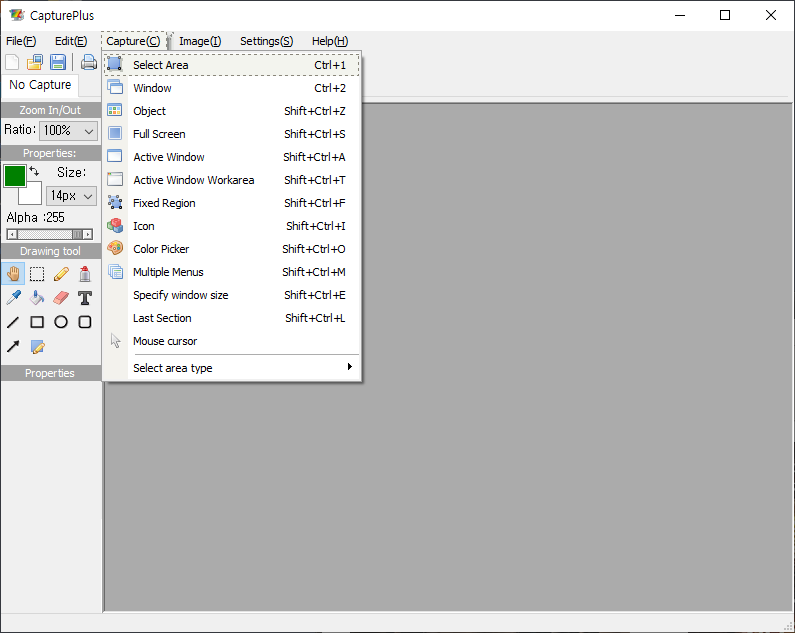
The main screen is arranged with the main menu and toolbar at the top, and drawing tools on the left.
If you are using CapturePlus for the first time, go to Screen Capture -> Select Area from the menu (hotkey: Shift + Ctrl + R), then drag to select the area you want to capture. You will then be able to view the captured screen immediately.

Screen Capture Feature(Screen Capture)
Select Area, Window, Window Scroll, Object, Full Screen, Active Window, Active Window Work Area, Fixed Rectangle Area, Window Icon, Color Capture, Menu Capture, Set Window Size, Last Capture Area, Mouse Cursor

Image Editor(Image Editor)
With the built-in image editor, you can annotate and highlight images with text, arrows, shapes, and more, along with many other useful features.

Image Effect(Image Effect)
You can apply effects to images very easily. Invert Colors, Black and White Effect, Saturation Adjustment, Brightness Adjustment, Add Noise (Color), Add Noise (Mono), Apply Mosaic, Rotate, Flip, Resize Image, Resize Canvas

Preferences and Additional Features(Additional Function)
Using the advanced settings, you can customize hotkeys, file naming, image quality, tray icons, and many other options.
Today's News/Tips
How to Fix the Issue of a Black Screen After Recording (Windows XP)
How to fix the issue where a black screen appears after recording in a Windows XP environment
This issue occurs because the program you are trying to record is using an overlay mixer.
The easiest way to resolve it is as follows.
Right-click on the desktop and click Properties.
Display properties will open; click the Settings tab.
Click the Advanced button.
Click the Troubleshooting tab.
As shown below, the hardware acceleration is set to maximum. Set it to None.
After setting it as shown, click OK, close the program you want to record, and try recording again.