How to Fix the "Failed to Initialize the VirtualDVD Engine" Error
VirtualDVD Troubleshooting Guide
Cause of the Problem
The main cause of issues in VirtualDVD is usually a conflict with third-party CD-ROM-related filter drivers installed on the system, such as UpperFilters or LowerFilters. These drivers can interfere with the normal operation of virtual drives.
How to Fix It
You can resolve the issue by following the steps below. Please proceed carefully.
1. Open the Registry Editor
- Click the Windows Start menu.
- Type
regeditin the search box or Run dialog, then click OK to open the Registry Editor.
2. Go to the Registry Path
- In the Registry Editor, navigate to the following path:
HKEY_LOCAL_MACHINE\SYSTEM\CurrentControlSet\Control\Class\{4d36e965-e325-11ce-bfc1-08002be10318}- This path contains settings related to the CD/DVD drive class.
3. Delete the Filter Drivers
- If you see
UpperFiltersorLowerFiltersin that location: - Right-click each entry and select Delete.
- Before deleting them, it is recommended to back up any important data.
- Deleting both entries increases the likelihood of resolving the issue completely.
4. Restart Windows
- Close the Registry Editor.
- Restart your computer to apply the changes.
- After restarting, run VirtualDVD again and check whether it works normally.
Additional Notes
- Editing the registry can have a significant effect on your system, so be careful not to delete the wrong entries.
- If the problem continues, contact VirtualDVD support or try updating to the latest version.
- Removing third-party software, such as other virtual drive programs, may help prevent additional conflicts.
Most filter driver-related issues can be resolved by following the steps above. Proceed carefully so you can use VirtualDVD smoothly!
Today's News/Tips
Gemini 3.1 Flash Live enables natural conversations through voice.
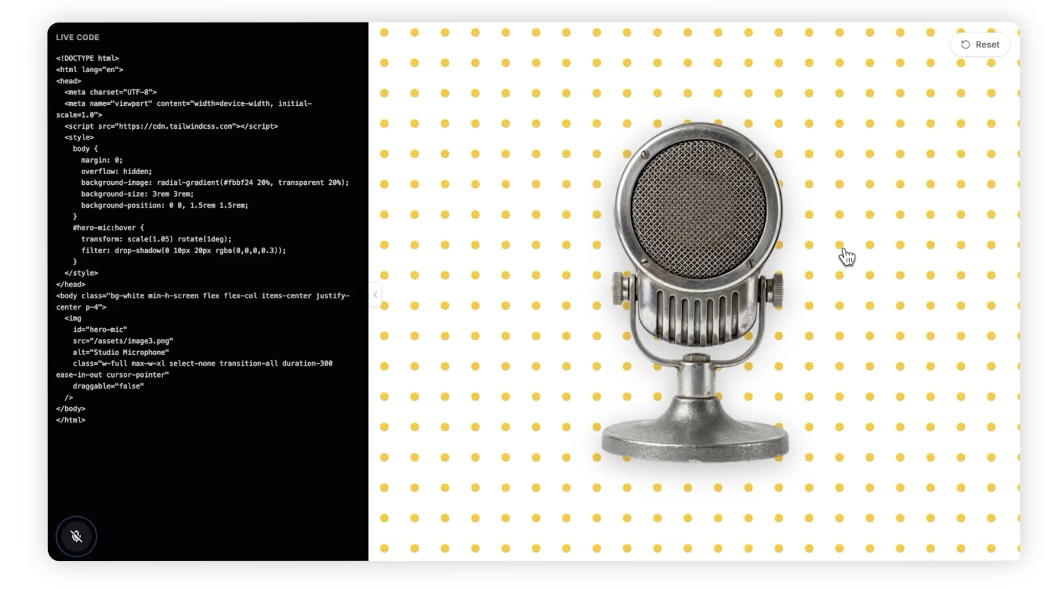
AI voice technology has been advancing rapidly, and at the center of this progress is Google’s latest model, Gemini 3.1 Flash Live. This model boasts top-tier quality among all audio and voice AI released to date and is regarded as a major milestone toward building next-generation voice-first agents.
In particular, Gemini 3.1 Flash Live significantly improves upon the limitations of previous voice models. One of the most notable advancements is the dramatic reduction in latency. Since response speed directly impacts the level of immersion in conversations between users and AI, this model delivers near real-time responses, enabling a much more natural conversational experience.
In addition, speech recognition accuracy has been greatly enhanced. It can reliably understand speech across various accents, pronunciations, and even in noisy environments, making it highly practical for real-world applications. This is especially important for use cases such as customer support, voice assistants, and interactive educational systems.
Furthermore, Gemini 3.1 Flash Live goes beyond simple voice recognition to provide more human-like interactions. By understanding the flow of conversation and reflecting context in its responses, it moves away from mechanical responses and enables more natural and flexible communication. These capabilities are key factors in significantly improving the overall user experience (UX).
Ultimately, this model represents more than just a technological upgrade—it serves as an important milestone that points to the future direction of voice-based interfaces. As voice-driven AI agents continue to expand across various industries, Gemini 3.1 Flash Live is expected to play a central role in this evolution.
For more details, you can try it directly on the official site below.
https://aistudio.google.com/live