How to Fix the "Failed to Initialize the VirtualDVD Engine" Error
VirtualDVD Troubleshooting Guide
Cause of the Problem
The main cause of issues in VirtualDVD is usually a conflict with third-party CD-ROM-related filter drivers installed on the system, such as UpperFilters or LowerFilters. These drivers can interfere with the normal operation of virtual drives.
How to Fix It
You can resolve the issue by following the steps below. Please proceed carefully.
1. Open the Registry Editor
- Click the Windows Start menu.
- Type
regeditin the search box or Run dialog, then click OK to open the Registry Editor.
2. Go to the Registry Path
- In the Registry Editor, navigate to the following path:
HKEY_LOCAL_MACHINE\SYSTEM\CurrentControlSet\Control\Class\{4d36e965-e325-11ce-bfc1-08002be10318}- This path contains settings related to the CD/DVD drive class.
3. Delete the Filter Drivers
- If you see
UpperFiltersorLowerFiltersin that location: - Right-click each entry and select Delete.
- Before deleting them, it is recommended to back up any important data.
- Deleting both entries increases the likelihood of resolving the issue completely.
4. Restart Windows
- Close the Registry Editor.
- Restart your computer to apply the changes.
- After restarting, run VirtualDVD again and check whether it works normally.
Additional Notes
- Editing the registry can have a significant effect on your system, so be careful not to delete the wrong entries.
- If the problem continues, contact VirtualDVD support or try updating to the latest version.
- Removing third-party software, such as other virtual drive programs, may help prevent additional conflicts.
Most filter driver-related issues can be resolved by following the steps above. Proceed carefully so you can use VirtualDVD smoothly!
Today's News/Tips
oCam Advanced Settings - Recording - Game Tab
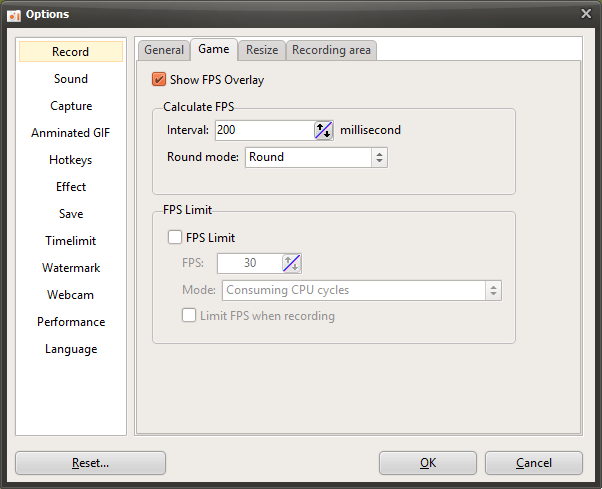
oCam is software that provides settings specialized for game recording, helping gamers and content creators capture high-quality gameplay footage with ease. In the settings window that appears when you click the "Tools - Options" menu, the "Game" tab under the "Recording" category provides detailed settings optimized specifically for game recording. The options in this tab include various features for managing gameplay frame rates (FPS) and optimizing system resources, allowing users to adjust recording to suit their own environment. Below is a detailed explanation of the main settings in the "Game" tab.
Show FPS
The "Show FPS" option determines whether the real-time FPS (frames per second) value is displayed in the top-left corner of the screen while using game recording mode. By default, this option is checked, so the FPS value appears on the screen during game recording. This feature is useful for users who want to monitor game performance in real time. For example, it helps you check whether the game is running smoothly or whether frame drops are occurring during recording. If you do not need the FPS display, you can disable this option to keep the screen cleaner.
FPS Calculation - Interval (Milliseconds)
The "FPS Calculation - Interval" setting lets you specify the time interval used to display FPS in milliseconds (ms). FPS means the number of frames drawn per second and is calculated based on 1,000 milliseconds (1 second). If the user enters a value smaller than 1,000 ms, oCam calculates and displays a predicted FPS value based on that interval. For example, if it is set to 500 ms, the FPS will be updated every 0.5 seconds. This setting is useful when you want to monitor frame rate changes in more detail.
In addition, "Rounding Mode" is an option that lets you choose how decimal values are handled when calculating FPS. You can select rounding, round up, or round down, allowing you to adjust how the FPS value is displayed. For example, if you choose rounding, the FPS will be shown as a neatly rounded whole number.
FPS Limit
"FPS Limit" is a feature that restricts the game's frame rate in game recording mode to a value specified by the user. This setting allows you to adjust the game's FPS to the level you want, which is useful for optimizing system resource usage or maintaining consistent recording quality. Two modes are provided for FPS limiting:
Consume CPU Cycles: This mode continuously uses the CPU to keep the frame rate as close as possible to the FPS value entered by the user. This method is suitable when precise FPS control is needed, such as when you want stable recording in a high-spec game. However, CPU usage may increase, so you should pay attention to system performance.
Yield to CPU: This mode limits FPS while minimizing CPU usage. It adjusts frames by using idle time, so it has the advantage of reducing CPU load, but FPS limiting may have a slight margin of error. This method is useful for users who want to save system resources or record on a lower-spec PC.
Limit FPS Only While Recording
The "Limit FPS Only While Recording" option applies the FPS limit only while recording is actually in progress. In other words, the specified FPS limit works only while recording is active after pressing the record button, and once recording stops, the game runs again at its original FPS. This setting is useful for users who want to manage gameplay and recording separately. For example, you can enjoy the game at maximum performance during normal play and limit FPS only during recording to get more stable video.
Usage Tips
The settings in the "Game" tab play a key role in balancing recording quality and system performance. For example, when recording a high-spec game, you can use the "Consume CPU Cycles" mode to set an accurate FPS limit and adjust FPS to 60 or higher for smoother footage. On the other hand, on a lower-spec system, it is better to choose the "Yield to CPU" mode to reduce resource usage. In addition, by enabling the Show FPS feature to check performance in real time, you can quickly identify frame drops or performance degradation during recording.