Overview of SecretFolder's Key Features
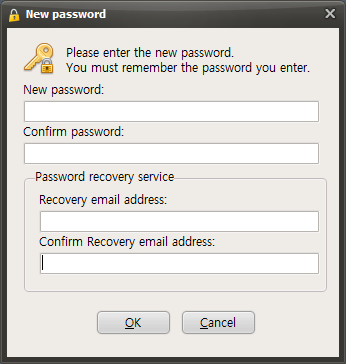
When you launch SecretFolder for the first time, a password setup window like the one below will appear, and you must enter a password before you can use the program.
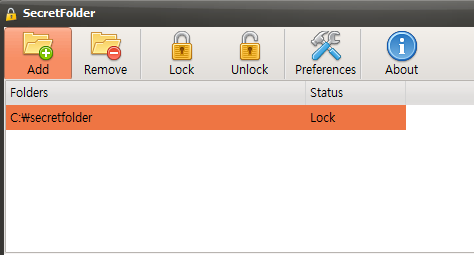
After setting a password and launching SecretFolder, you will see buttons like the ones below.

Add - Adds the folder you want to hide.
Remove - Removes a previously added folder. ( The folder itself is not deleted; it is only removed from the list. )
Lock - Hides the folder added through the Add button.
Unlock - Makes a folder hidden through the Add or Lock button visible again.
Preferences - Opens the window where you can configure the main settings.
About - Opens the program information window.
Now let's look at how to hide a folder and restore it again.
First, to hide a folder, click the "Add" button.
When the Browse for Folder window appears, "select the folder you want to hide" and click the "OK" button.
You will then see that it has been added to the list as shown below, and the folder will be changed to a hidden state.
To remove a folder from the list, click the "Remove" button.
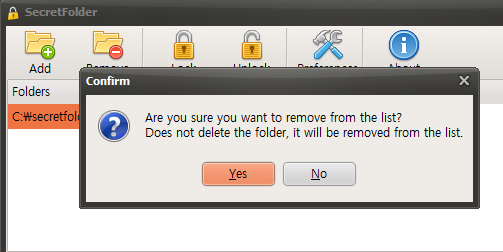
Clicking the "Yes" button will remove it from the list, but the actual folder will not be deleted.
Today's News/Tips
Moving the recording area while recording is in progress.
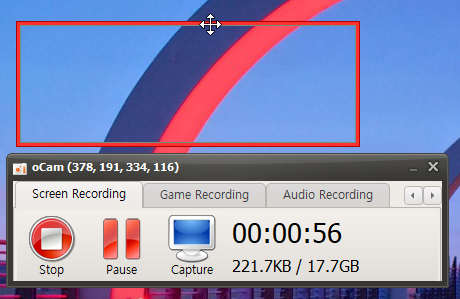
Here is how to move the recording area while recording.
oCam provides the ability to adjust the recording area flexibly even while recording.
When recording is in progress, click the border of the recording area with the mouse.
While holding it, drag the mouse to move the recording area freely to the desired position.
This feature is very useful when you need to follow and record a specific part of the screen in real time.
For example, you can track a moving window or specific content while recording.
However, if you drag too quickly, recording may stutter, so move it smoothly.
Use this method to adjust the area smoothly while recording and continue your work smoothly.