Overview of SecretFolder's Key Features
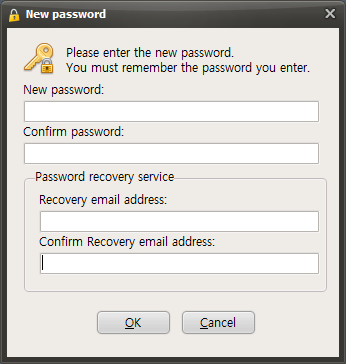
When you launch SecretFolder for the first time, a password setup window like the one below will appear, and you must enter a password before you can use the program.
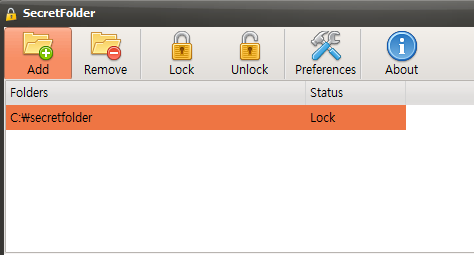
After setting a password and launching SecretFolder, you will see buttons like the ones below.

Add - Adds the folder you want to hide.
Remove - Removes a previously added folder. ( The folder itself is not deleted; it is only removed from the list. )
Lock - Hides the folder added through the Add button.
Unlock - Makes a folder hidden through the Add or Lock button visible again.
Preferences - Opens the window where you can configure the main settings.
About - Opens the program information window.
Now let's look at how to hide a folder and restore it again.
First, to hide a folder, click the "Add" button.
When the Browse for Folder window appears, "select the folder you want to hide" and click the "OK" button.
You will then see that it has been added to the list as shown below, and the folder will be changed to a hidden state.
To remove a folder from the list, click the "Remove" button.
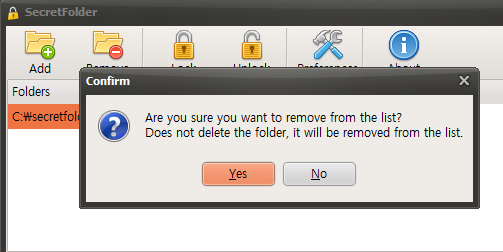
Clicking the "Yes" button will remove it from the list, but the actual folder will not be deleted.
Today's News/Tips
How to Record Gameplay
* Game recording supports DirectX 8 through DirectX 12 and OpenGL.
Click the Game Recording tab at the top.
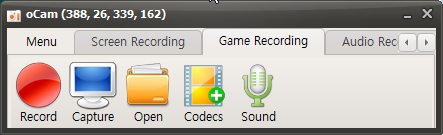
Once clicked, it will switch to the Game Recording tab as shown below, and the resize button will disappear.
Now move to the running game window, and you will see a yellow FPS counter appear at the top left of the game screen, as shown below.
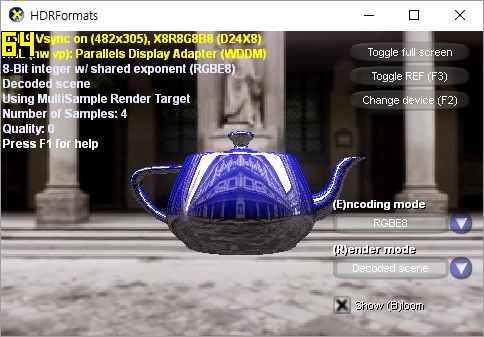
Now press the recording hotkey F2 ( you can change it in Settings. )
Then the FPS counter will turn red as shown below, indicating that recording is in progress.
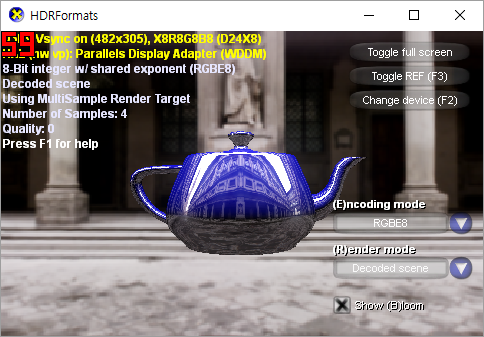
To stop recording, press the recording hotkey F2 again.
Please note that game recording does not work with all games.
If a game that used to work no longer records properly, it is likely being blocked by the game security solution used by the game company. In that case, it is recommended to ask the game company to add an exception so recording with oCam is allowed.