A Quick Look at VirtualDVD Features
Features of product
* Completely 100% FREE Software
* All supported CD/DVD/Blu-ray image formats
CloneCD (*.ccd), CDRWin (*.bin), Cue Sheets (*.cue), CDImage (*.img), ISO (*.iso),
BlindRead (*.bwt), BlindWrite (*.b5t; *.b6t), Alcohol 120% Image (*.mds;*.mdf),
Disc Juggler (*.cdi), Instant CD/DVD (*.pdi), Compressed ISO (*.isz), Nero (*.nrg),
CloneDVD (*.dvd), CDSpace6 (*.LCD), Media Data eXtended (*.MDX), Media Descriptor Sidecar(*.MDS)
* Emulate up to 24 SCSI devices in all
* Perform image mounting to local NTFS folders
* Customize virtual drives: change a drive letter, DVD region
* Support Encrypted isz(Compressed ISO) file
How to Start
VirtualDVD is very easy and simple.
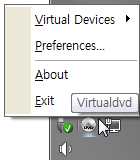
1. Click(Left or Right) the VirtualDVD's trayicon.
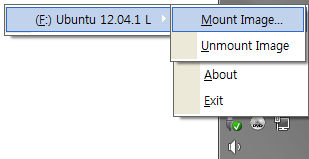
2. Select Menu(Virtual Devices->Mount Image).
3. Select CD/DVD Image file.
- Trayicon Menu
- Mount Image Menu
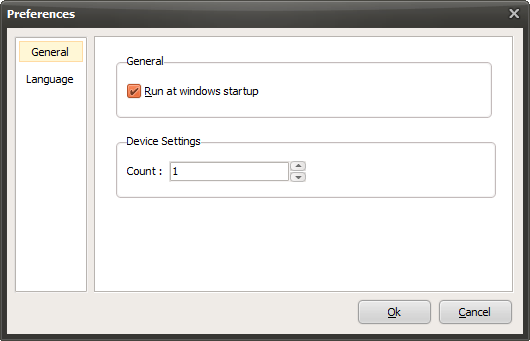
- Preferences
Today's News/Tips
Overview of CapturePlus Image Editing Features
This feature lets you easily edit captured images and supports various drawing tools as well as text input tools.
It also includes features such as automatically expanding the image area when you open the selected area in a new window (Ctrl+Del) or paste an image from the clipboard.
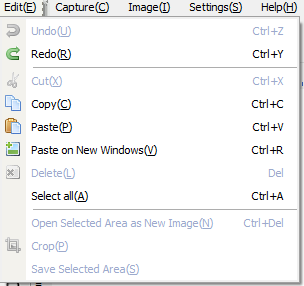
After selecting the parts you want from the captured screen, you can copy them to the clipboard with Ctrl + C, open them in a new window, or save only the selected area directly as a file using the Save Selected Area feature.
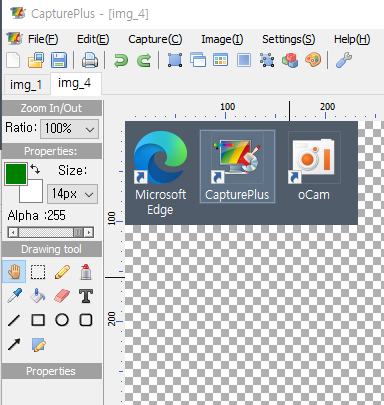
-Zoom In / Zoom Out: You can also use (Ctrl + Scroll Up) / (Ctrl + Scroll Down).
-Alpha (transparency) values can be applied to drawing tools.
-Provides common drawing tools, shapes, and arrows.
-Supports adding text (including frame and font properties).