Screenshots of All CapturePlus Features
[Main Menu Screenshots]
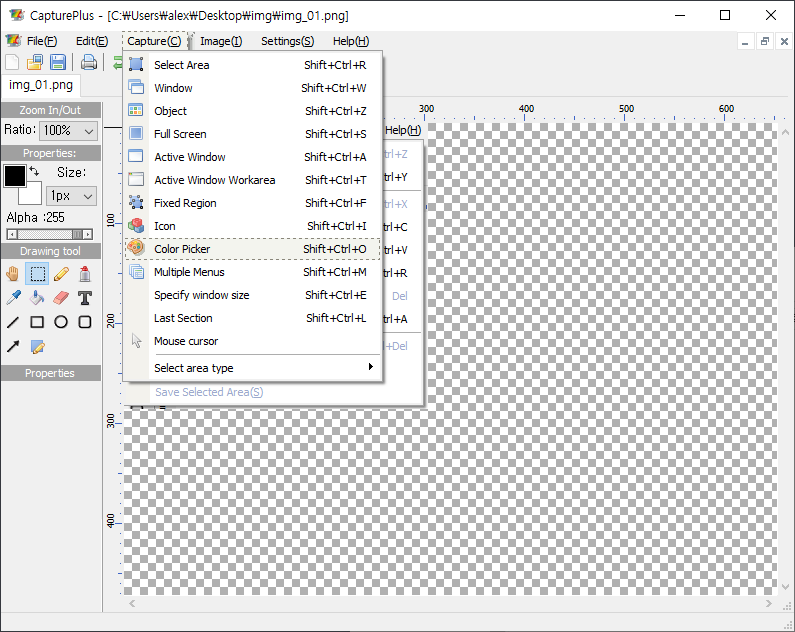
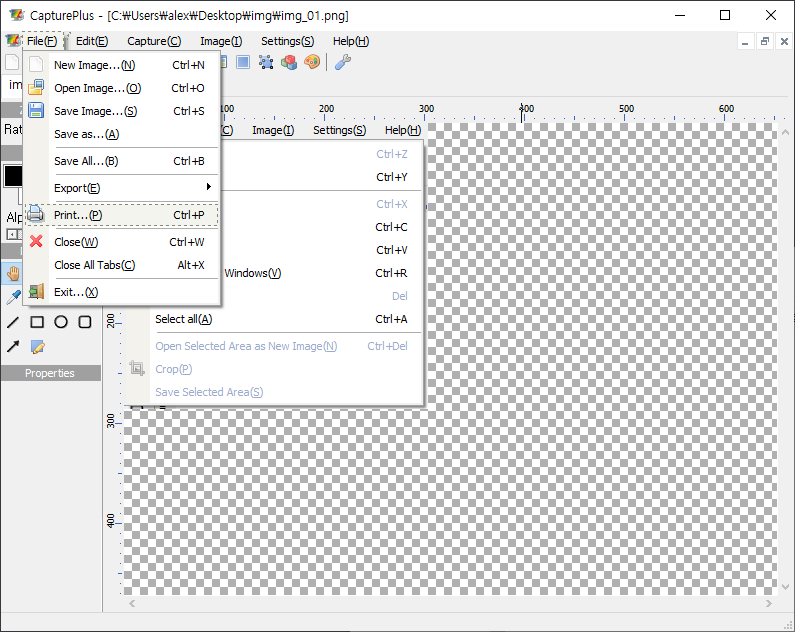
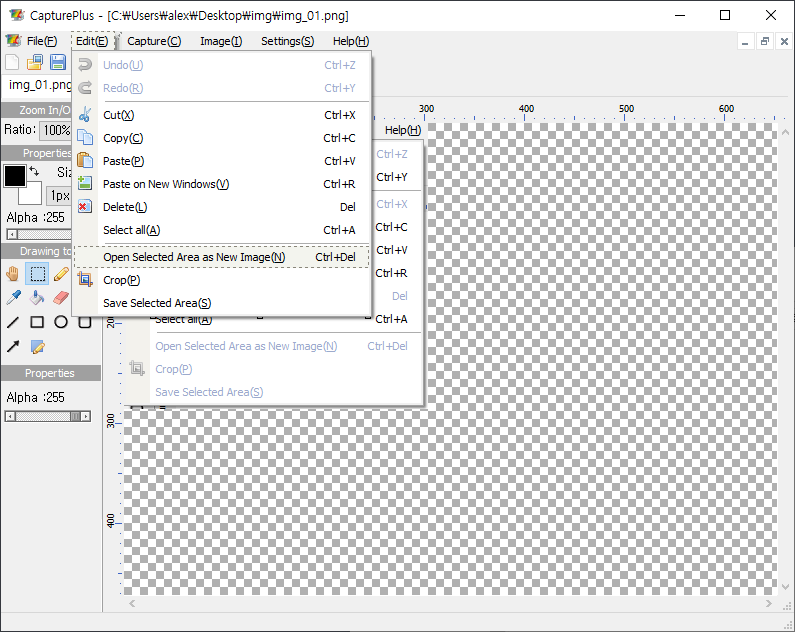
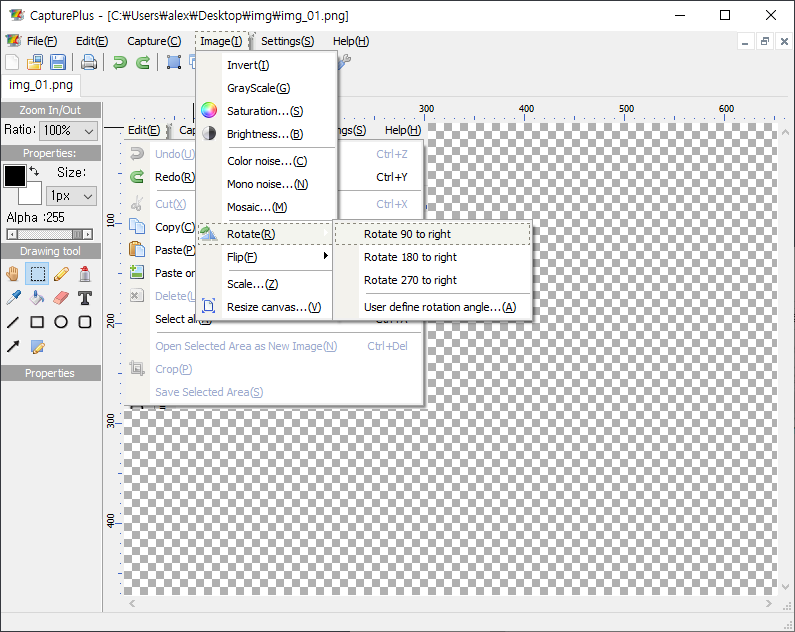
[Screenshots of Various Features]
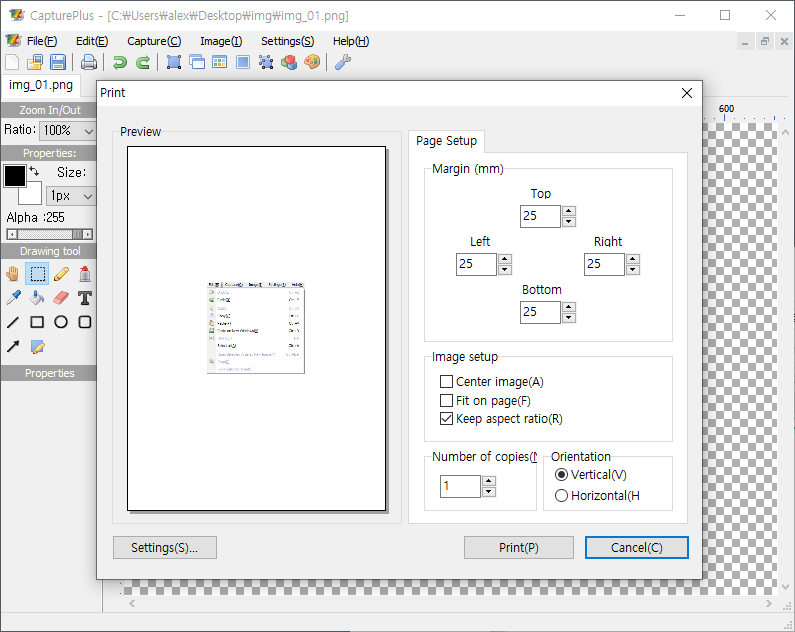
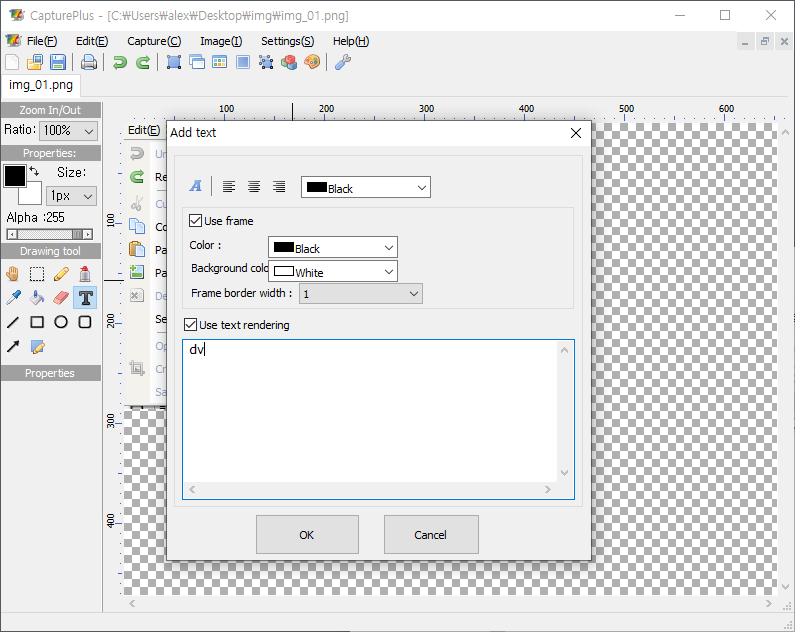
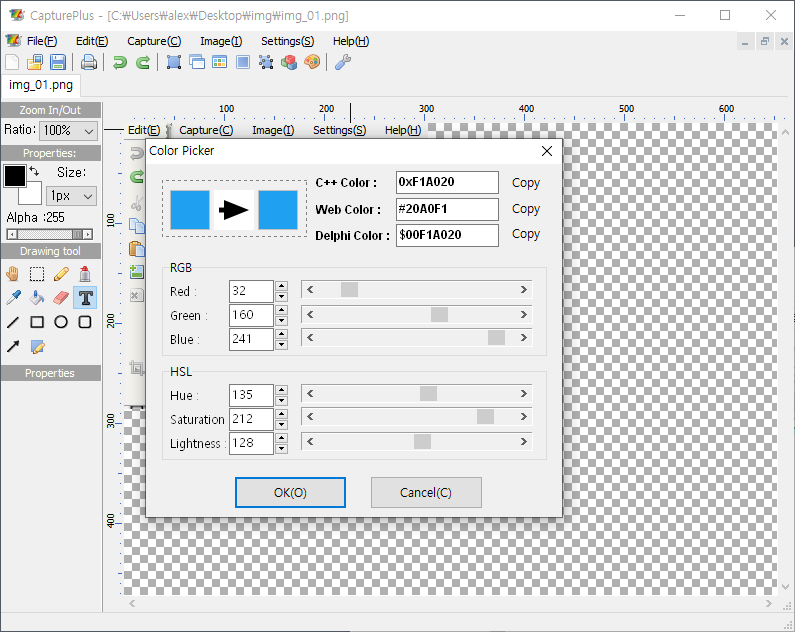
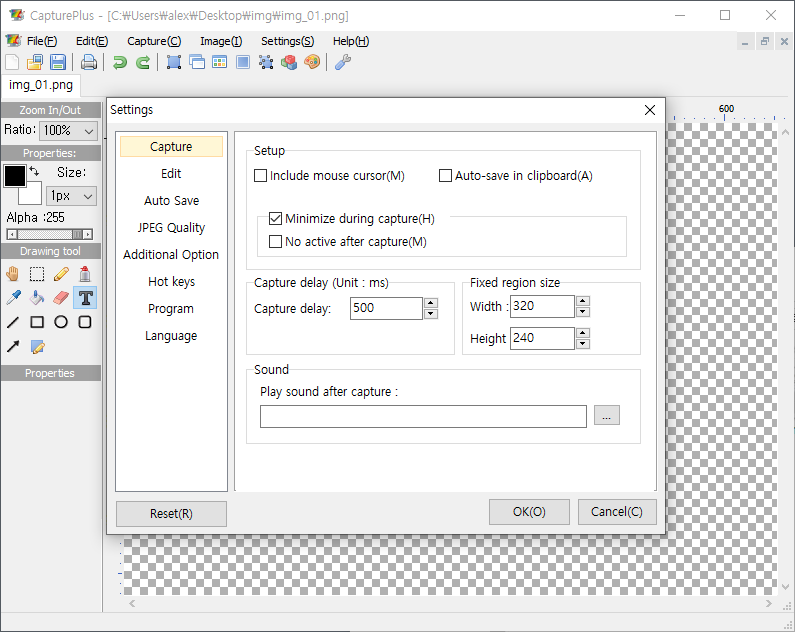
[Preference Screenshots]
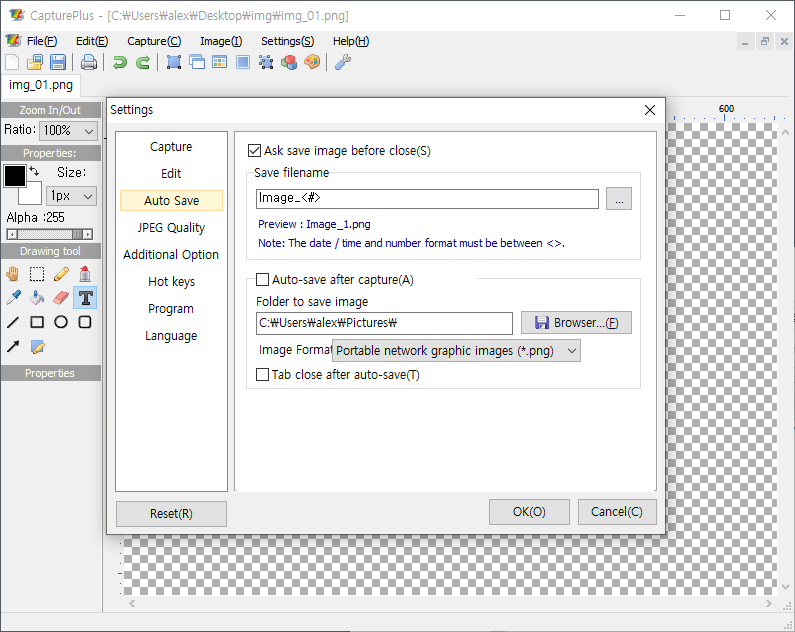
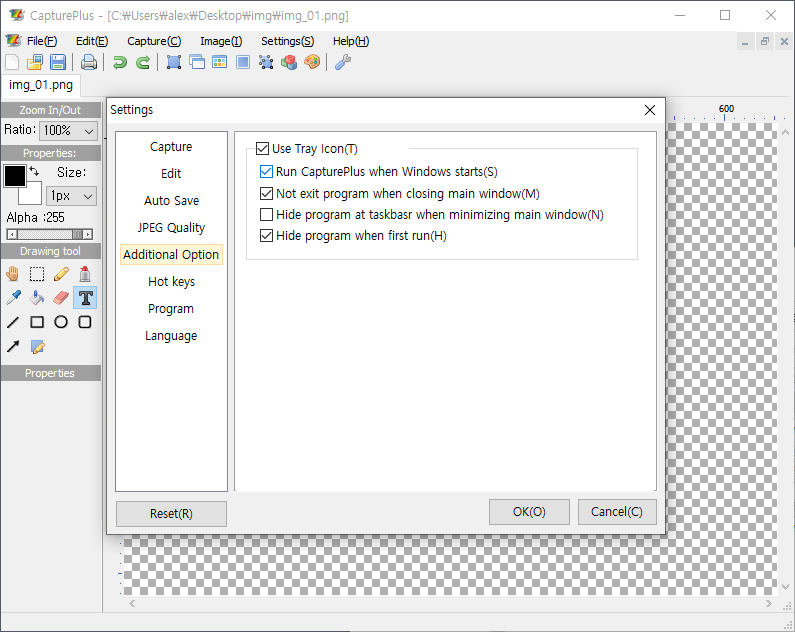
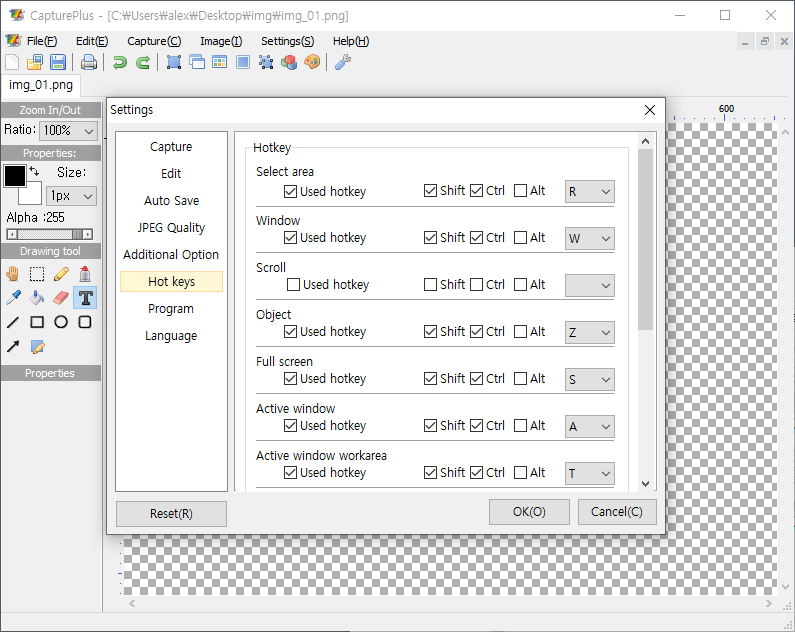
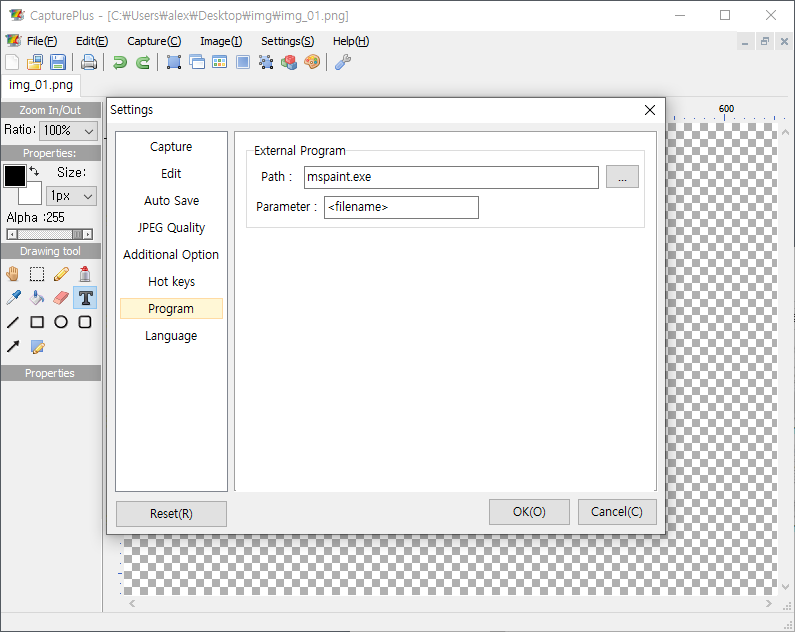
Today's News/Tips
How to Fix the Issue of 7 Days to Die Not Being Detected for Game Recording (Anti-Cheat Related)
When recording a game with oCam, problems may occur if a game with an AntiCheat feature is running. AntiCheat software may block recording software or cause conflicts, which can prevent oCam from working properly. Below is a detailed explanation of how to solve this problem and record games smoothly with oCam.
To resolve problems caused by the AntiCheat feature, you can launch the game without AntiCheat enabled. You can use an option provided by Steam or run a specific game executable directly to bypass AntiCheat. Below are two methods:
Method 1: Launch the game from Steam without AntiCheat
1. Launch the Steam client and select the game you want to record (for example, 7 Days to Die) from your Library.
2. On the game's detail page, click the blue 'Play' button.
3. When the launch options window appears, select the 'Launch Without AntiCheat' option.
4. The game will launch without AntiCheat, allowing normal recording with oCam.
Method 2: Run the game executable directly
For some games, you can disable AntiCheat by running the executable directly from the Steam library folder. For example, in the case of 7 Days to Die:
1. Go to the Steam library path. The default path is `SteamLibrary\steamapps\common\7 Days To Die\`.
2. In that folder, find the `7DaysToDie.exe` file and double-click it to run it.
3. When launched this way, AntiCheat is automatically disabled, and you can record the game in oCam without any issues.
Applying the methods above can resolve conflicts caused by AntiCheat and allow you to record the game smoothly with oCam. However, disabling AntiCheat may cause restrictions in online multiplayer mode, so make sure your recording is intended for offline play or single-player mode. If the problem persists, using the latest game patch or the latest version of oCam may also help.