Overview of CapturePlus Image Editing Features
This feature lets you easily edit captured images and supports various drawing tools as well as text input tools.
It also includes features such as automatically expanding the image area when you open the selected area in a new window (Ctrl+Del) or paste an image from the clipboard.
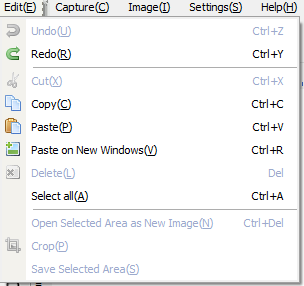
After selecting the parts you want from the captured screen, you can copy them to the clipboard with Ctrl + C, open them in a new window, or save only the selected area directly as a file using the Save Selected Area feature.
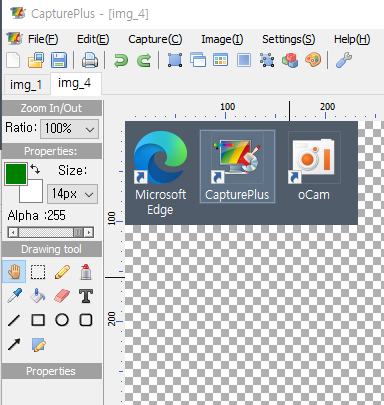
-Zoom In / Zoom Out: You can also use (Ctrl + Scroll Up) / (Ctrl + Scroll Down).
-Alpha (transparency) values can be applied to drawing tools.
-Provides common drawing tools, shapes, and arrows.
-Supports adding text (including frame and font properties).
Today's News/Tips
How to Fix the Issue of a Black Screen After Recording (Windows XP)
How to fix the issue where a black screen appears after recording in a Windows XP environment
This issue occurs because the program you are trying to record is using an overlay mixer.
The easiest way to resolve it is as follows.
Right-click on the desktop and click Properties.
Display properties will open; click the Settings tab.
Click the Advanced button.
Click the Troubleshooting tab.
As shown below, the hardware acceleration is set to maximum. Set it to None.
After setting it as shown, click OK, close the program you want to record, and try recording again.