Overview of CapturePlus Screen Capture Features
It offers a variety of capture methods, from easily capturing an entire scrollable screen that does not fit on one page by using Window Scroll, to letting users manually select an area to capture.
Each capture is added to a new tab, and options such as automatically saving each capture to the clipboard or automatically saving it as a file to a desired location can be changed in Preferences.
Each capture feature also has a default hotkey assigned, and these hotkeys can also be changed in Preferences to suit your needs.
Each function provides powerful capture options for different situations, so if you try them out yourself, you should be able to get familiar with them without much difficulty.
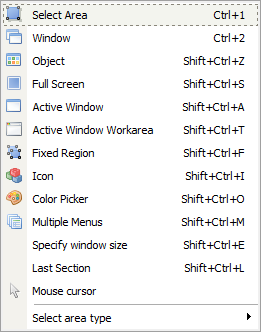
-Select Area (Shift+Ctrl+R): Lets the user manually select the area to capture.
-Window (Shift+Ctrl+W): Helps the user select by window.
-Window Scroll (Shift+Ctrl+C): Easily captures the entire scrollable screen in browsers and Microsoft Office products.
-Object (Shift+Ctrl+Z): Unlike Window Capture, this allows more detailed selection.
-Full Screen (Shift+Ctrl+S): Captures the entire screen.
-Active Window (Shift+Ctrl+A): Captures the currently active program window.
-Active Window Work Area (Shift+Ctrl+T): Captures only the content area of the active program window, with the frame removed.
-Capture Inside a Fixed Rectangle Area (Shift+Ctrl+F): Lets you select a capture area based on the fixed size set in Preferences.
-Window Icon (Shift+Ctrl+I): Lets you select a program area and automatically extracts the icon when selected.
-Color Capture (Color Picker) (Shift+Ctrl+O): This tool, commonly called a color picker, lets you extract the color at the current mouse position on the screen.
-Set Window Size (Shift+Ctrl+E): Lets you select a window, resize it, and then capture it.
-Menu (Shift+Ctrl+M): When a program menu or a shell extension menu opened by right-clicking is displayed, pressing the menu capture hotkey captures only that exact area.
-Last Capture Area (Shift+Ctrl+L): Captures the same area that was used most recently.
-Mouse Cursor Capture: Captures the current mouse cursor.
Today's News/Tips
How to Fix Severe Lag When Editing Videos in Adobe Premiere
When recording a normal screen with oCam, there is usually no major problem, but when recording games, the average bitrate of the video file may be set excessively high. A high bitrate provides high-quality video, but it can cause severe lag when editing the file in editing software such as Adobe Premiere Pro. To fix this, you need to lower the bitrate. Below is a detailed explanation of how to reduce the bitrate and improve editing performance.
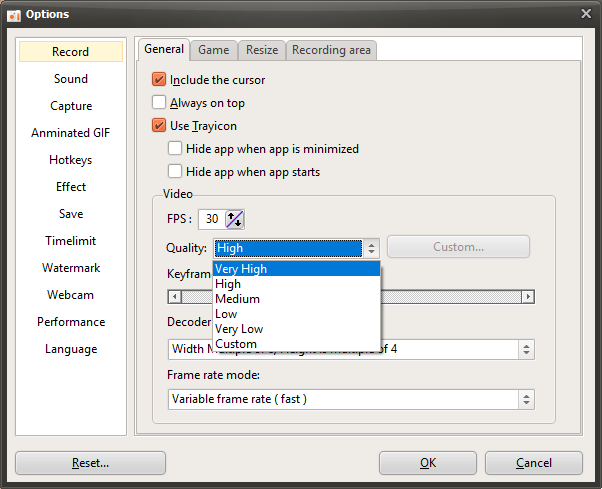
1. Adjusting the Bitrate When Using a Built-in Codec
If you are using oCam's built-in codec, you can reduce the bitrate by lowering the quality setting. Follow these steps:
1. In the oCam main window, click 'Tools' in the top menu, then select 'Options'.
2. In the Settings window, go to the 'Recording' tab and check the 'General' section.
3. In the 'General' section, find the 'Quality' setting and lower the quality by adjusting the slider. The lower the quality, the lower the bitrate, which reduces the file size and decreases lag during editing.
4. Click the 'OK' button to save the settings, then try recording again.
2. Adjusting the Bitrate When Using an NVIDIA Codec
If you are using an NVIDIA hardware codec, you can adjust the bitrate directly. Follow these steps:
1. In the oCam main window, click the 'Codec' menu and select 'Hardware Encoder Settings'.
2. In the Hardware Encoder Settings window, set 'Rate Control' to '1-PASS CBR' (Constant Bit Rate).
3. Lower the 'Average Bitrate' value to a lower setting (for example, 10 Mbps or less). A lower bitrate reduces file size and improves editing performance.
4. Save the settings, restart oCam, and then start recording.
3. Re-encoding with an External Encoder
If you want to reduce the bitrate after recording in high quality without a major loss in image quality, you can record a high-quality video with oCam and then re-encode it using an external encoder program. For example, you can use PotPlayer or HandBrake. The method is as follows:
1. Record the video in your desired high-quality setting with oCam to create the video file.
2. Run PotPlayer or another encoder program, and load the video file recorded with oCam.
3. In the encoder program, re-encode it with a lower bitrate setting (for example, 5 to 10 Mbps) to create a new file.
4. Import the re-encoded file into Adobe Premiere Pro for editing. This method helps reduce file size and editing load while preserving as much of the original quality as possible.
Using the methods above, you can resolve editing issues caused by a high bitrate when recording games. If you are using a built-in codec, lower the quality setting. If you are using an NVIDIA codec, set CBR and a lower bitrate, or create an optimized file through re-encoding to achieve a smoother editing environment in Adobe Premiere. After changing the settings, make a test recording and check the result.